
Quick Start Guide
Welcome to Cartwheel! This quick start guide will help you set up your first revenue-generating workflows in less than 10 minutes.
1. Create Your First Post-Purchase Offer
Post-purchase offers appear immediately after a customer completes checkout, allowing them to add items to their existing order with a single click—without re-entering payment or shipping details.
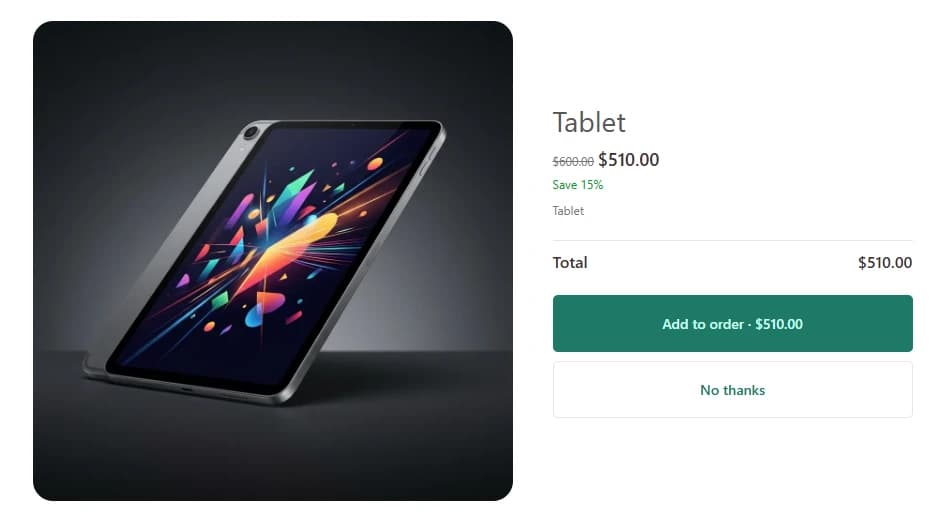
- Go to Cartwheel Admin → Offers → Post-purchase cross-sell.
- Click Create Offer.
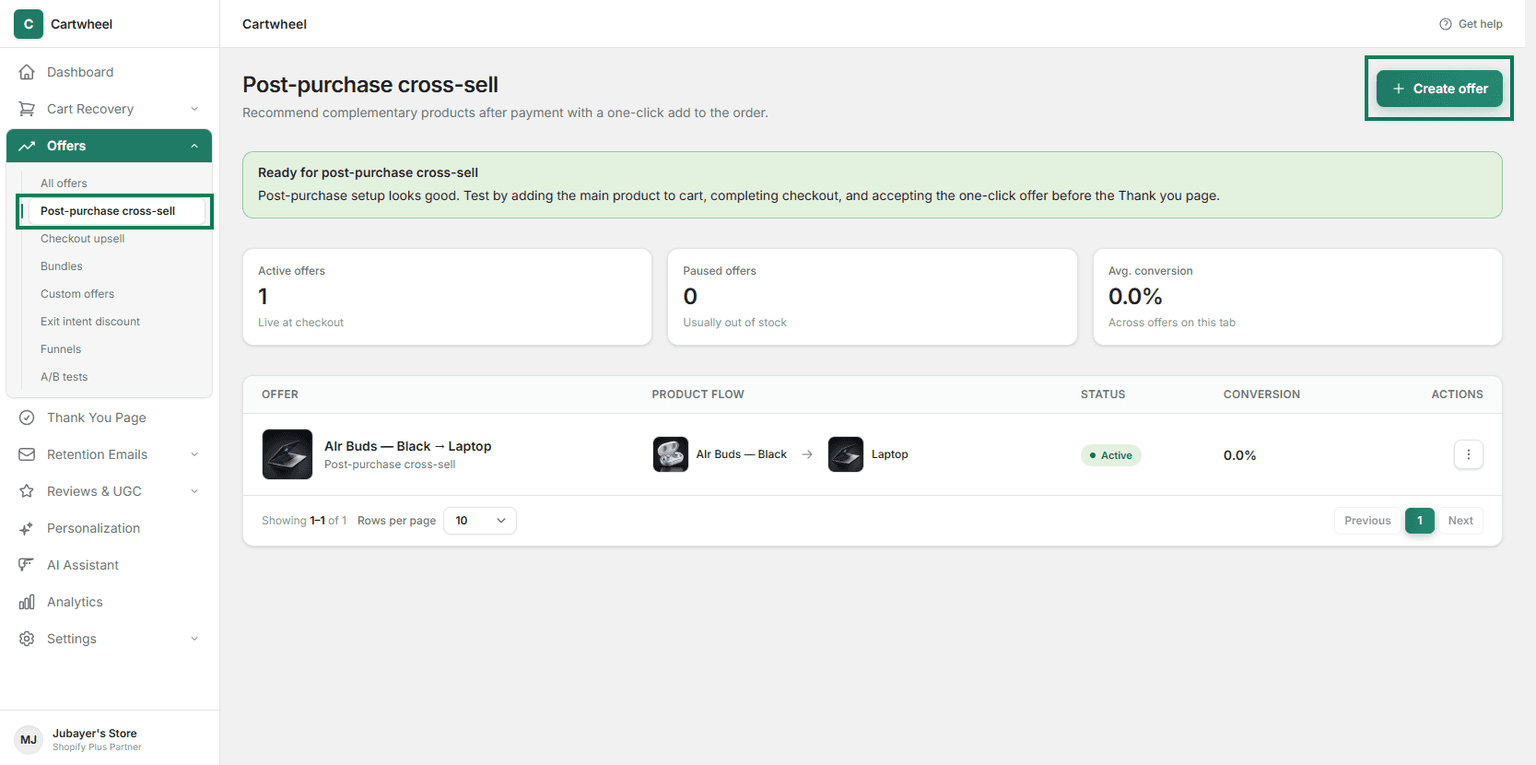
- Choose Trigger Product(s): Select the product(s) for which you want to offer this cross-sell.
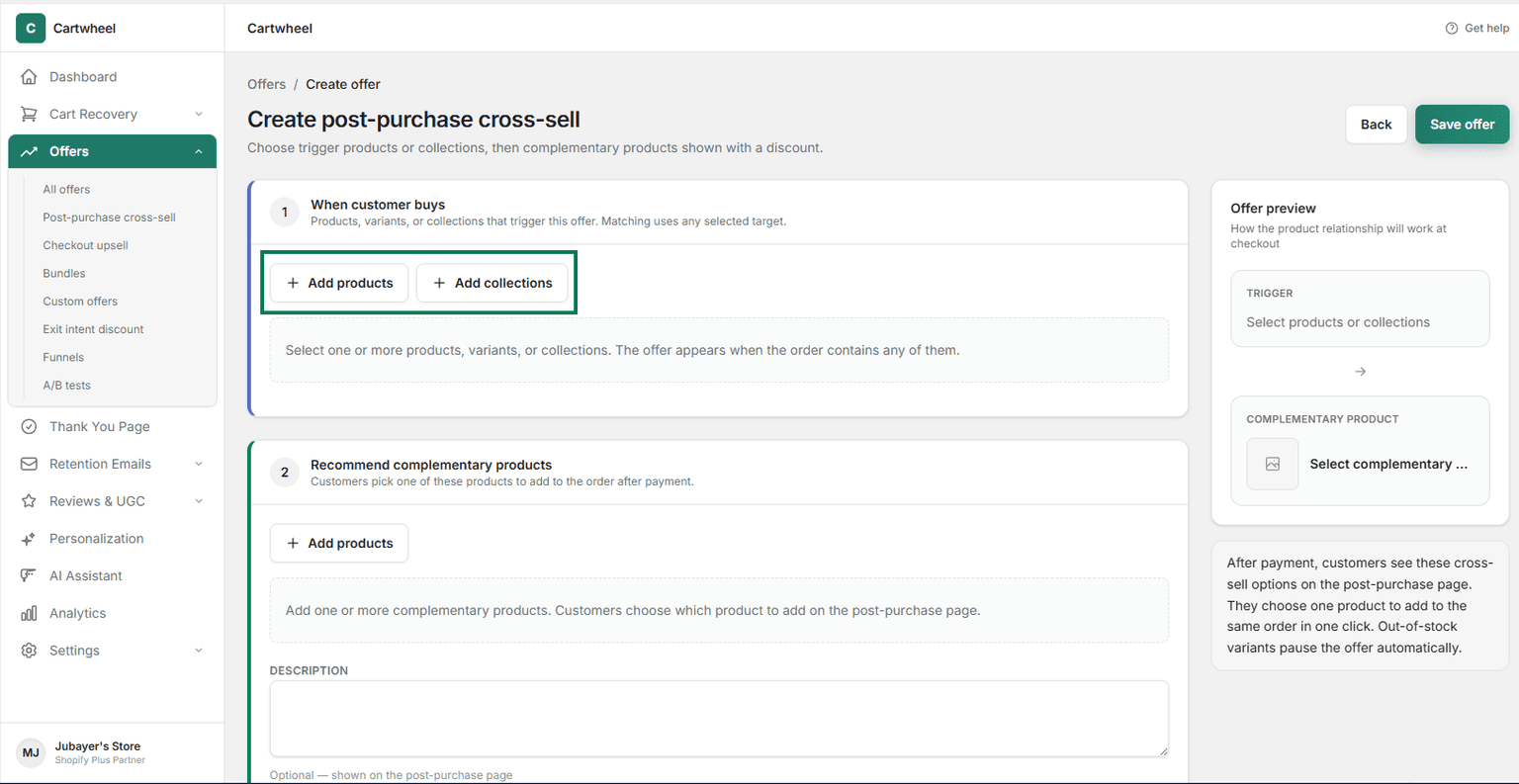
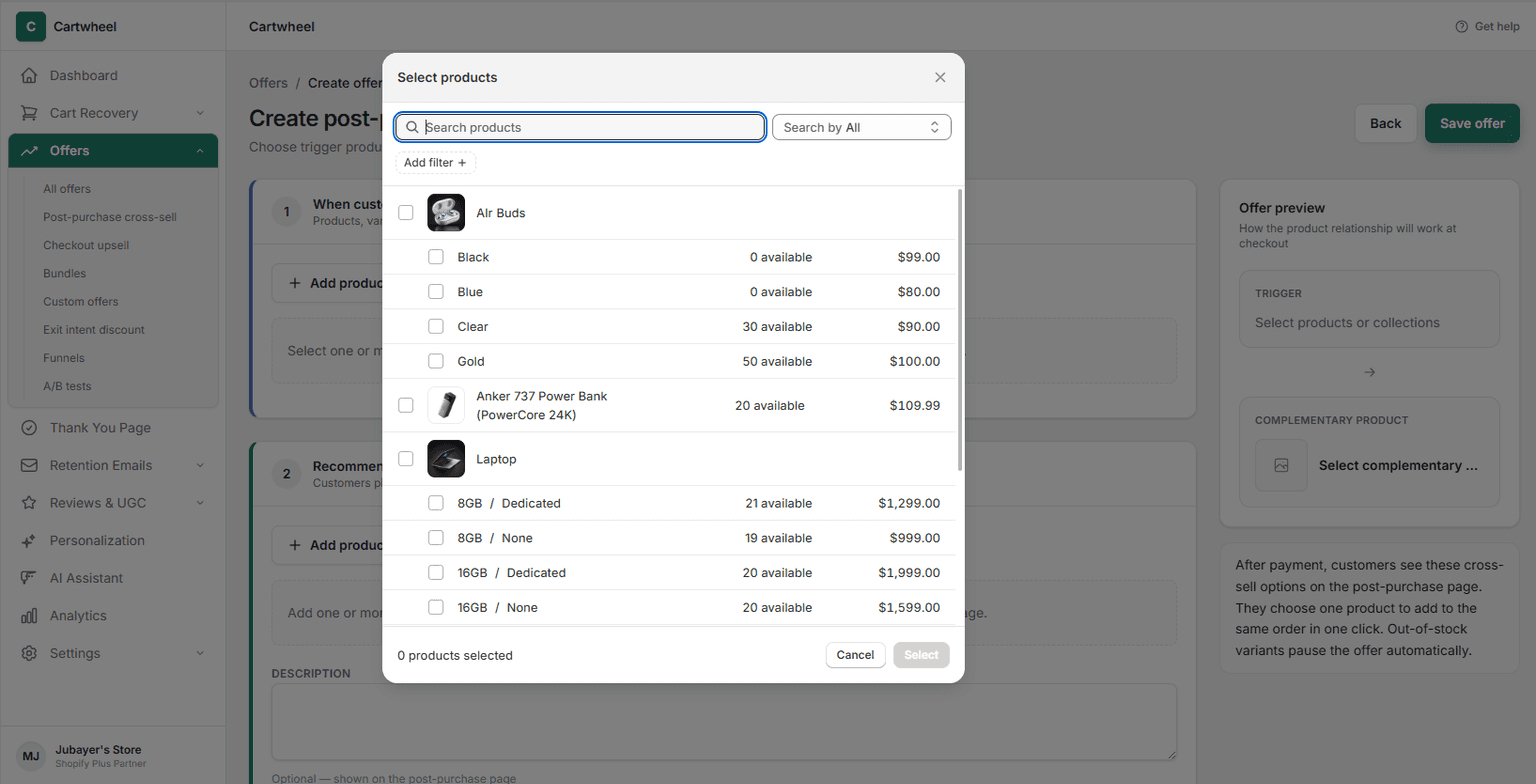
- Choose Offer Product: Select the product you want to offer as a cross-sell (e.g., matching accessory, complementary item, or premium upgrade).
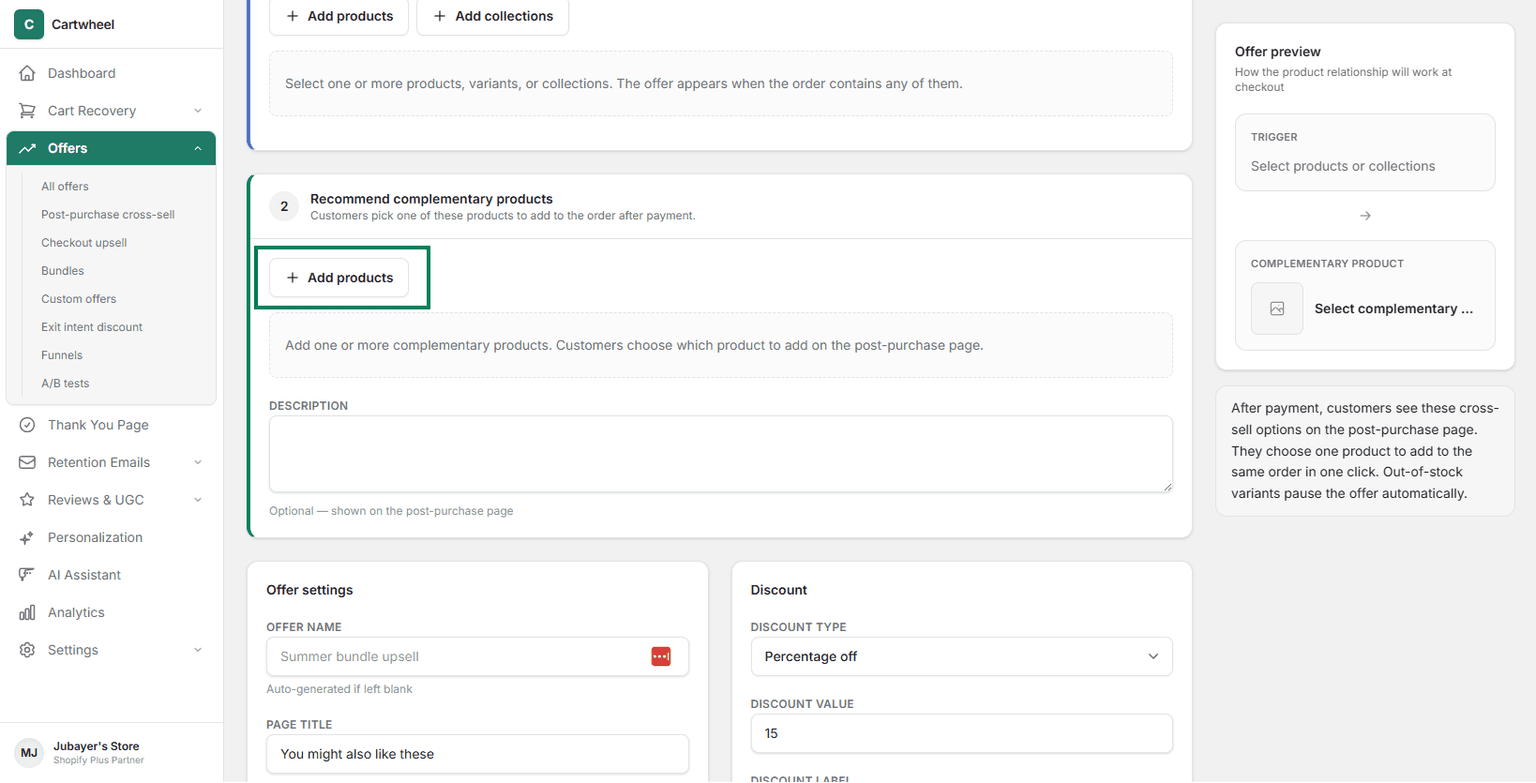
- Configure offer settings: Set offer name, page title, Optional factual note, Suggested pitch, and status.
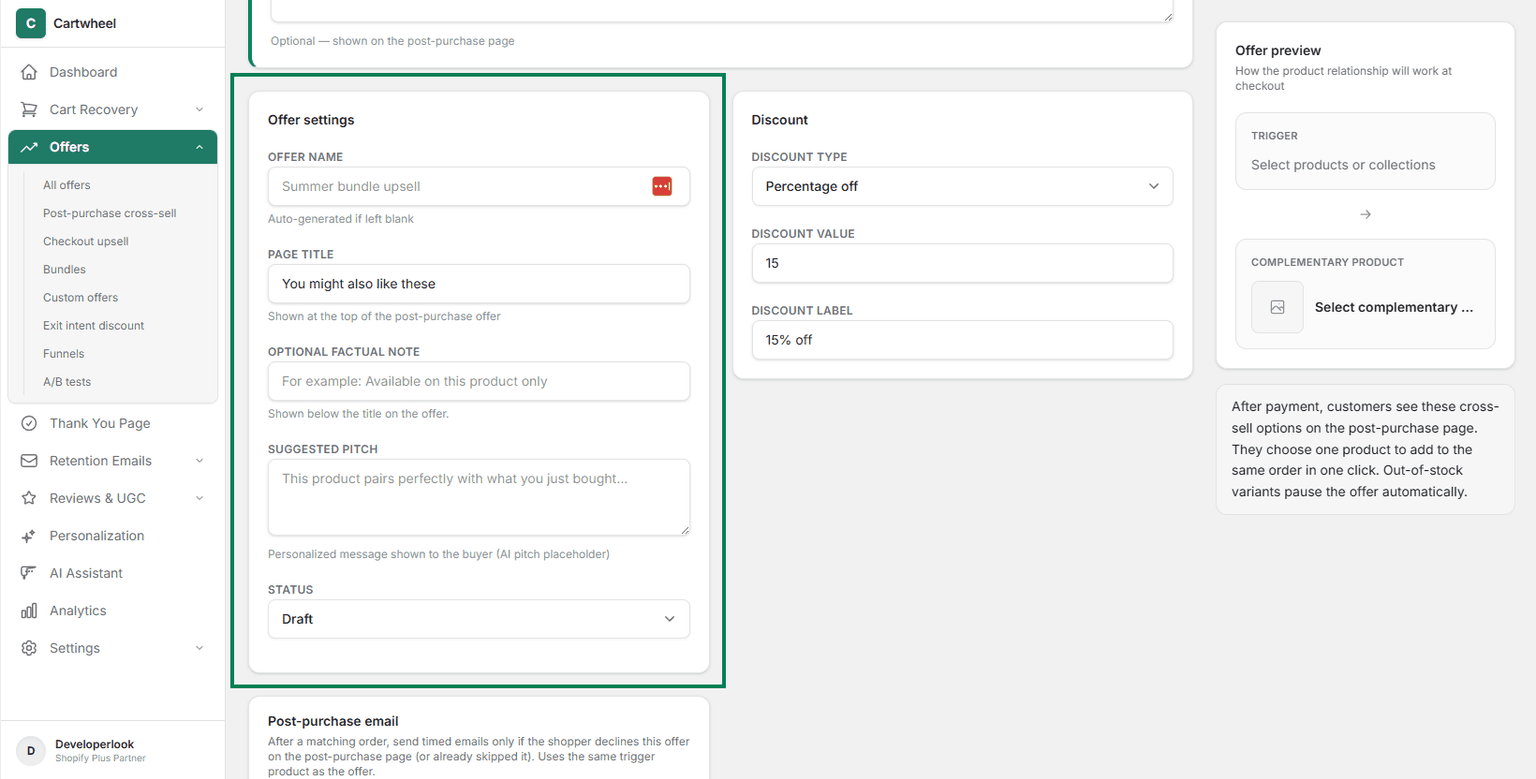
- Set Discount: Choose a discount type:
- Percentage Discount (e.g., 20% OFF)
- Fixed Amount Off (e.g., $10 OFF)
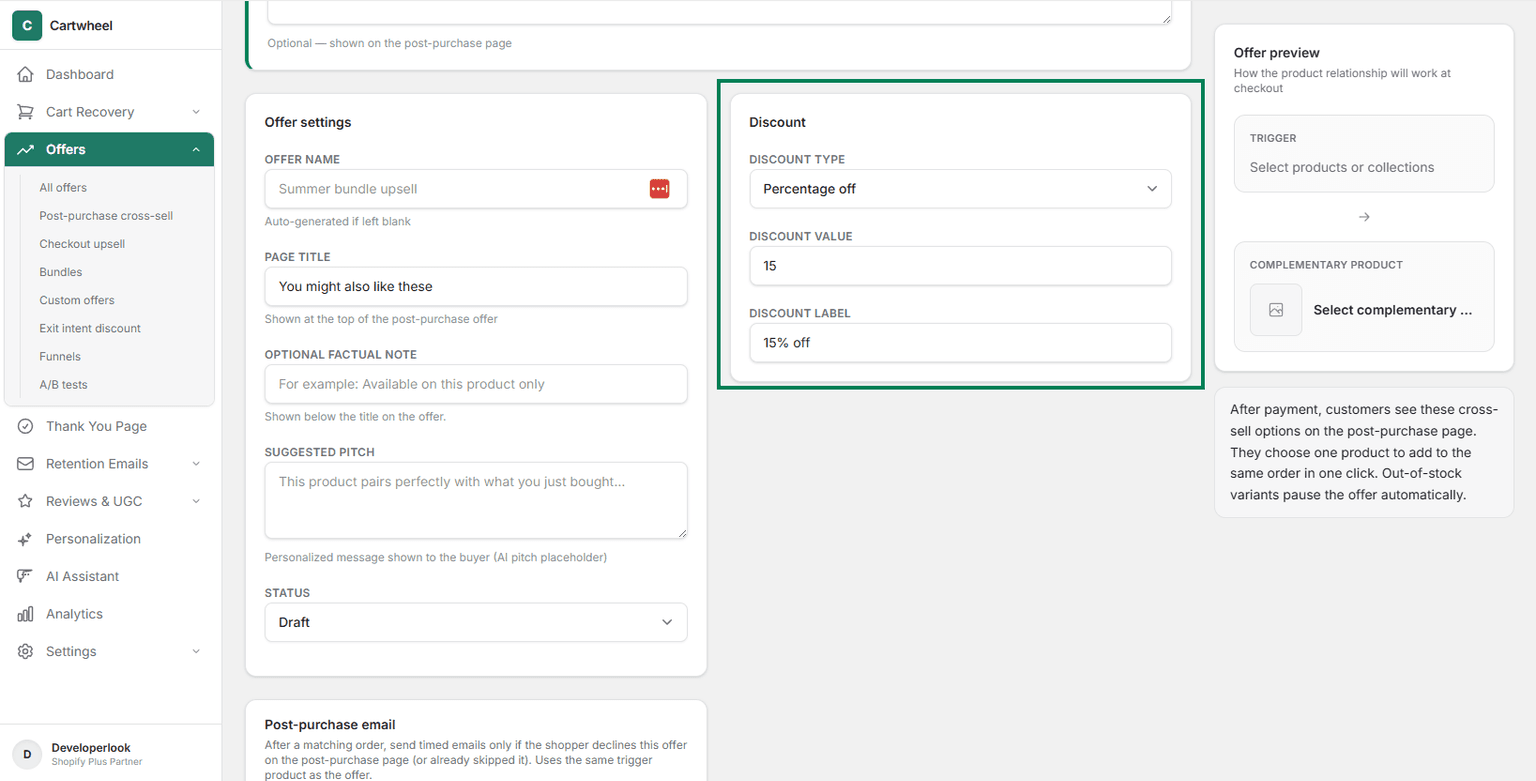
- Post-purchase email: Configure post-purchase email. Set a schedule for sending post-purchase email to customer.
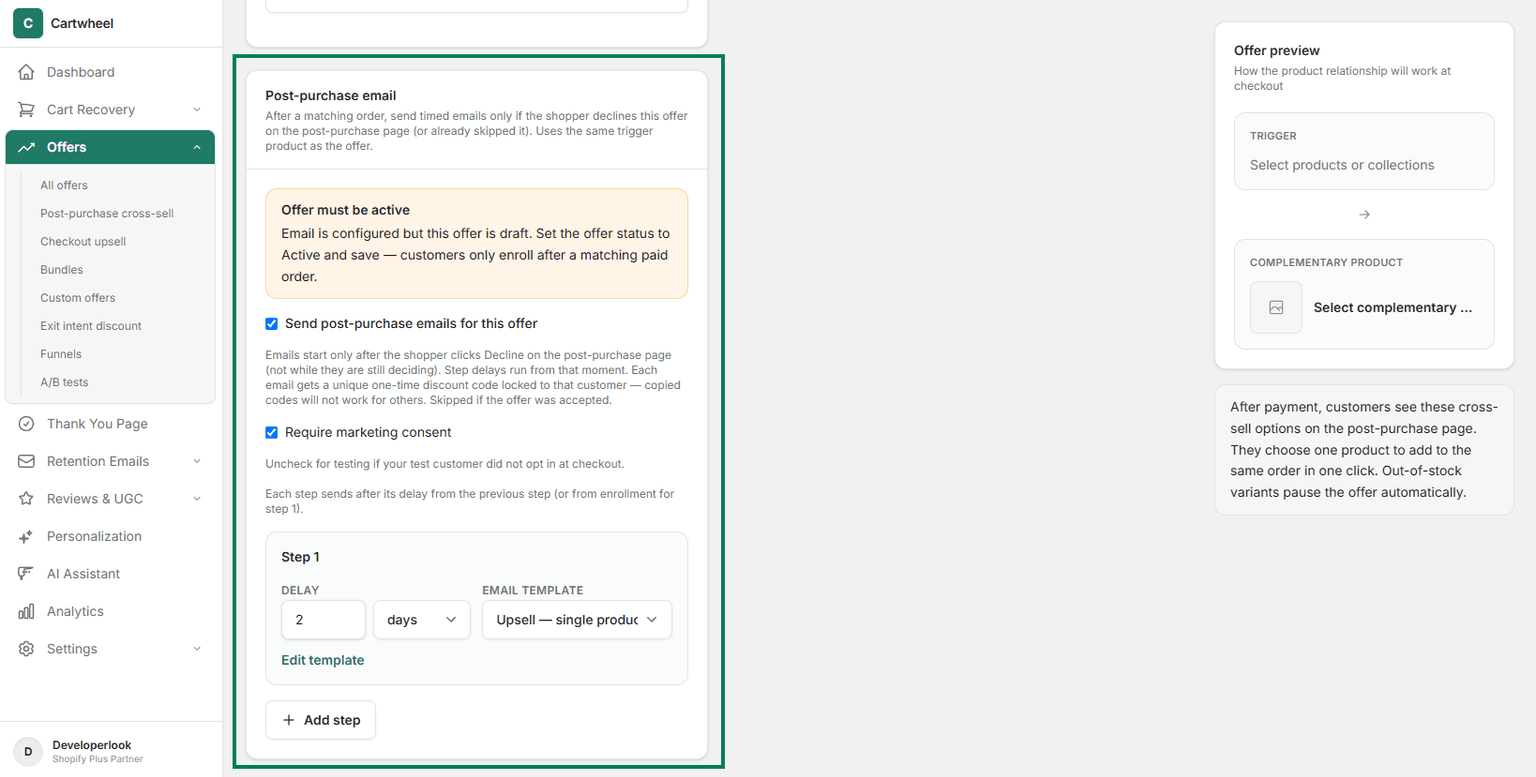
- Publish: Toggle the offer status to Active and click Save.
2. Enable Abandoned Cart Recovery
Recover lost revenue from customers who leave items in their cart:
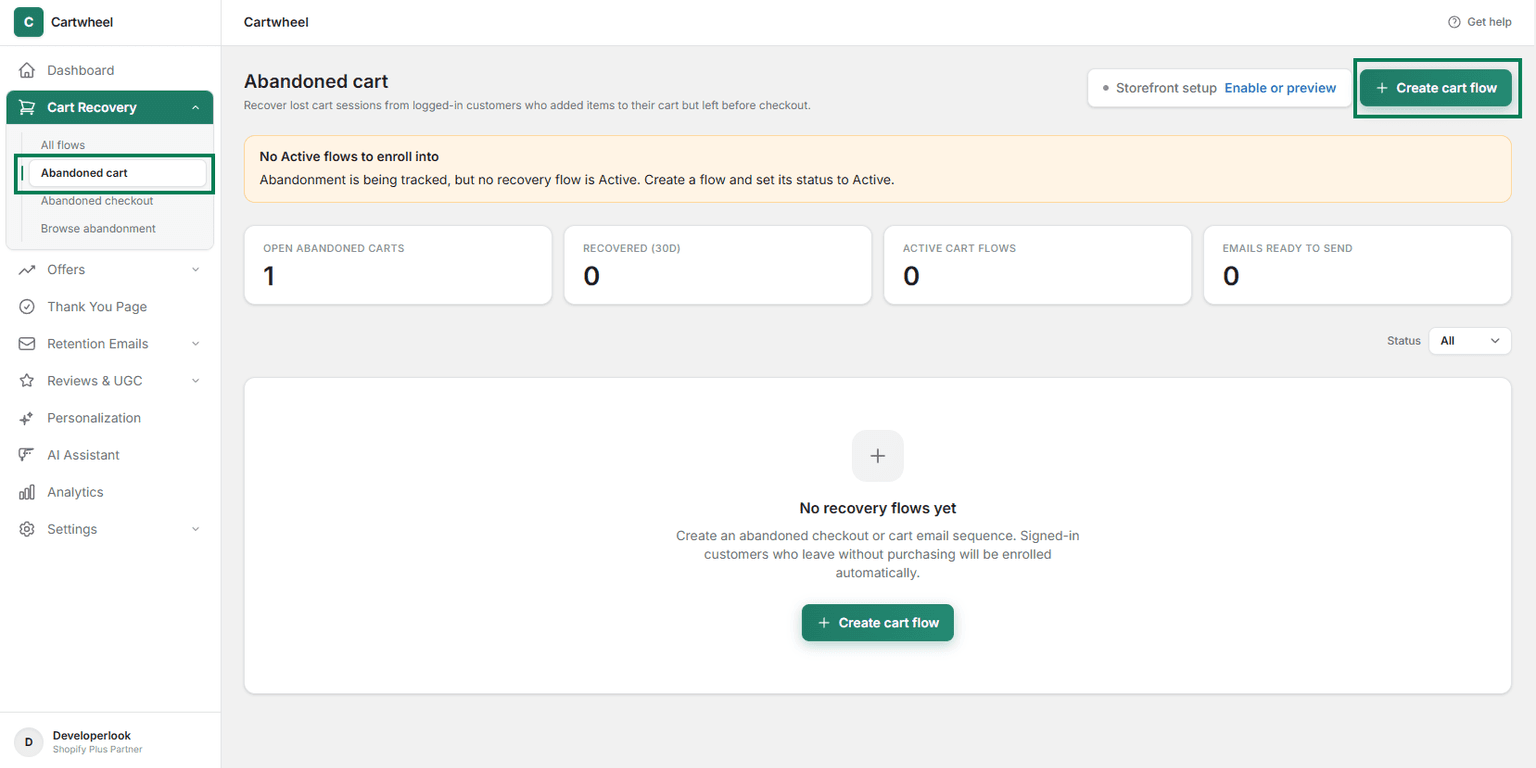
- Navigate to Cartwheel Admin → Cart Recovery → Abandoned Cart.
- Click Create cart flow.
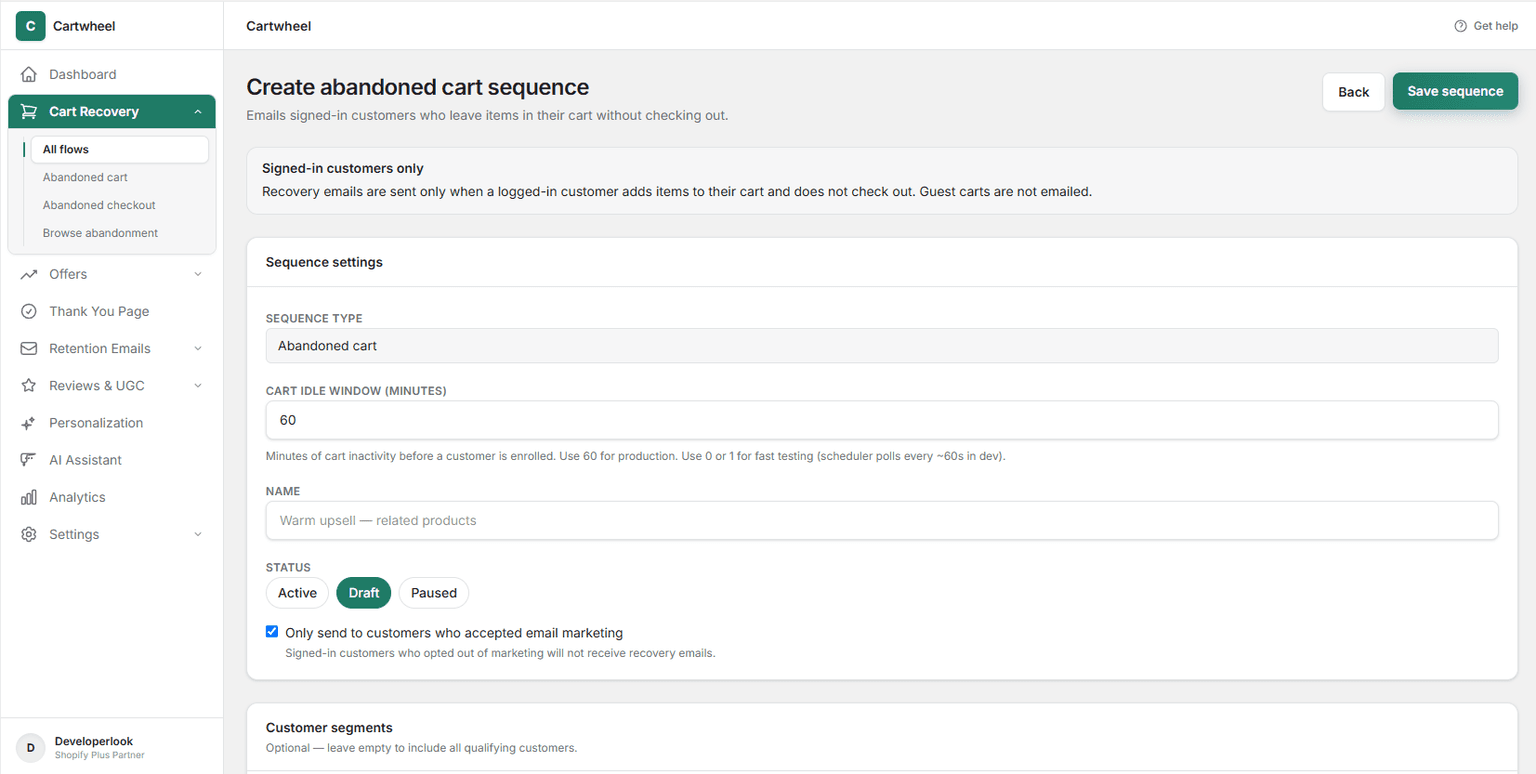
- Customize sequence Name, Delay window, Status and Marketing email consent.
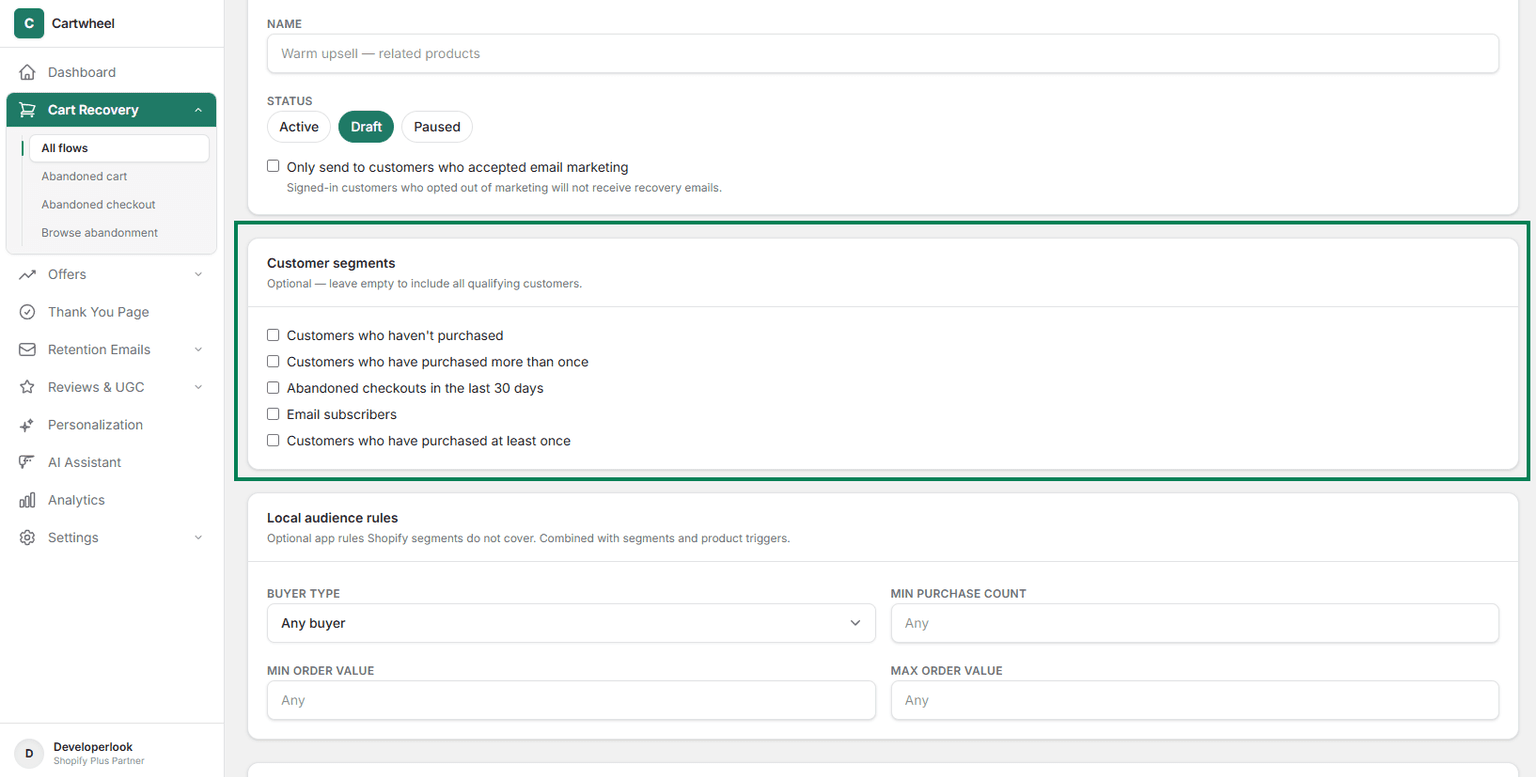
- Choose Customer segments (Optional)
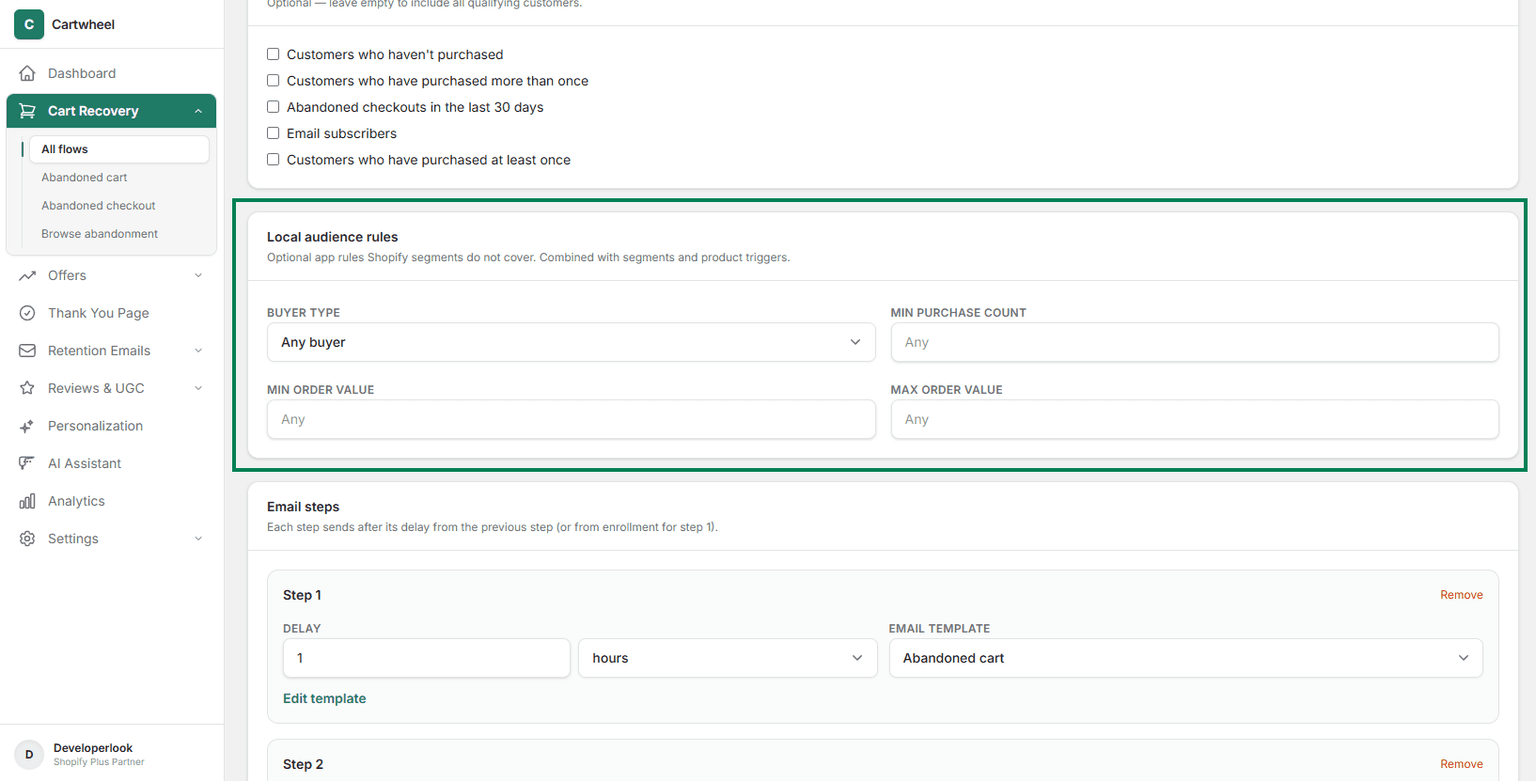
- Choose Customer audience (Optional)
- Customize your multi-touch sequence timeline (friendly reminder):
- Email 1: Sent 1 hour after abandonment.
- Email 2: Sent 24 hours after abandonment.
- Email 3: Sent 72 hours after abandonment.
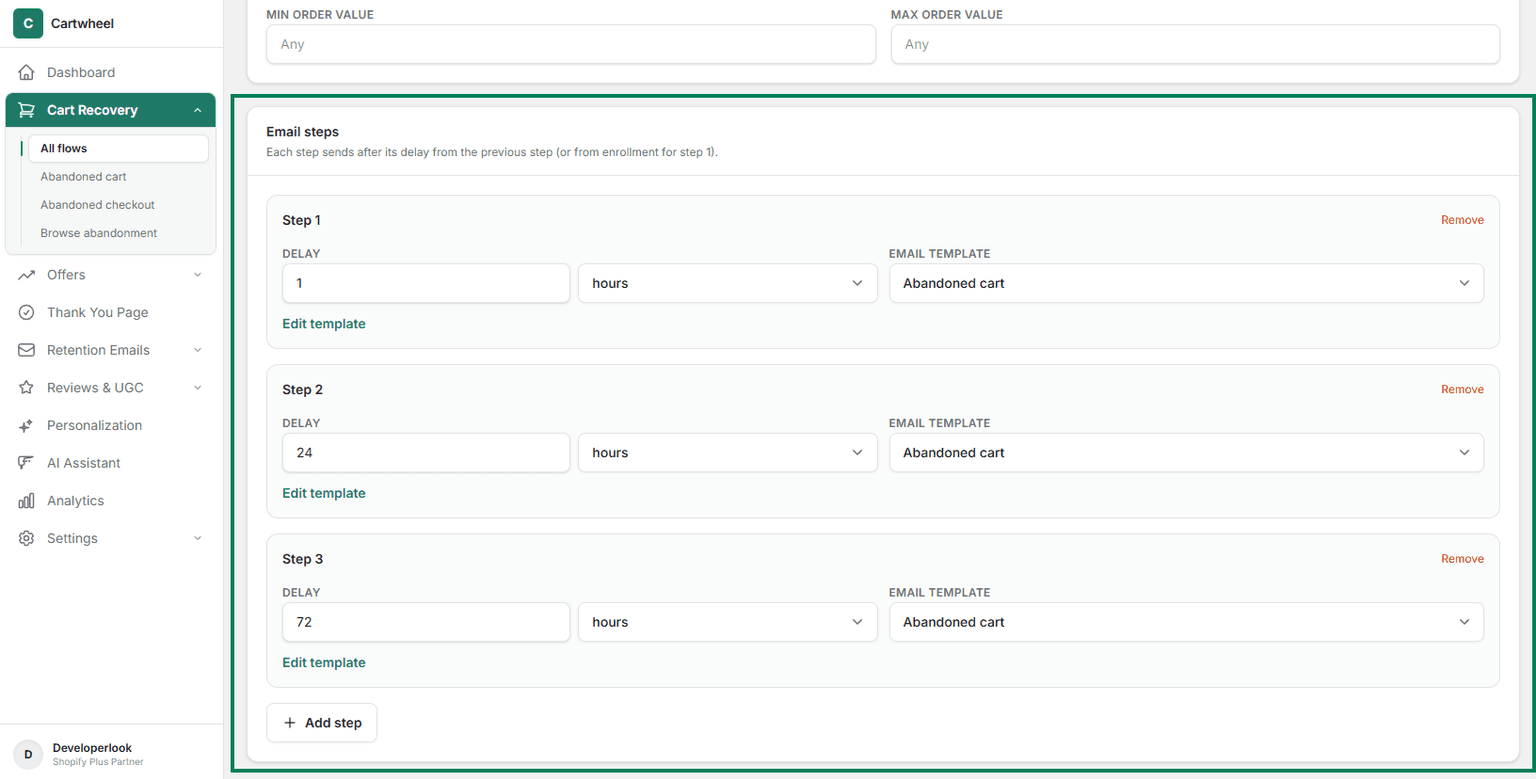
- Click Save Sequence.
3. Customize Your Thank You Page
Turn your Thank You page into an engagement engine:
- Navigate to Cartwheel Admin → Thank You Page.
- Add Customer Survey (e.g., "How did you find us?").
- Edit Block Settings (e.g., add questions and define triggers)
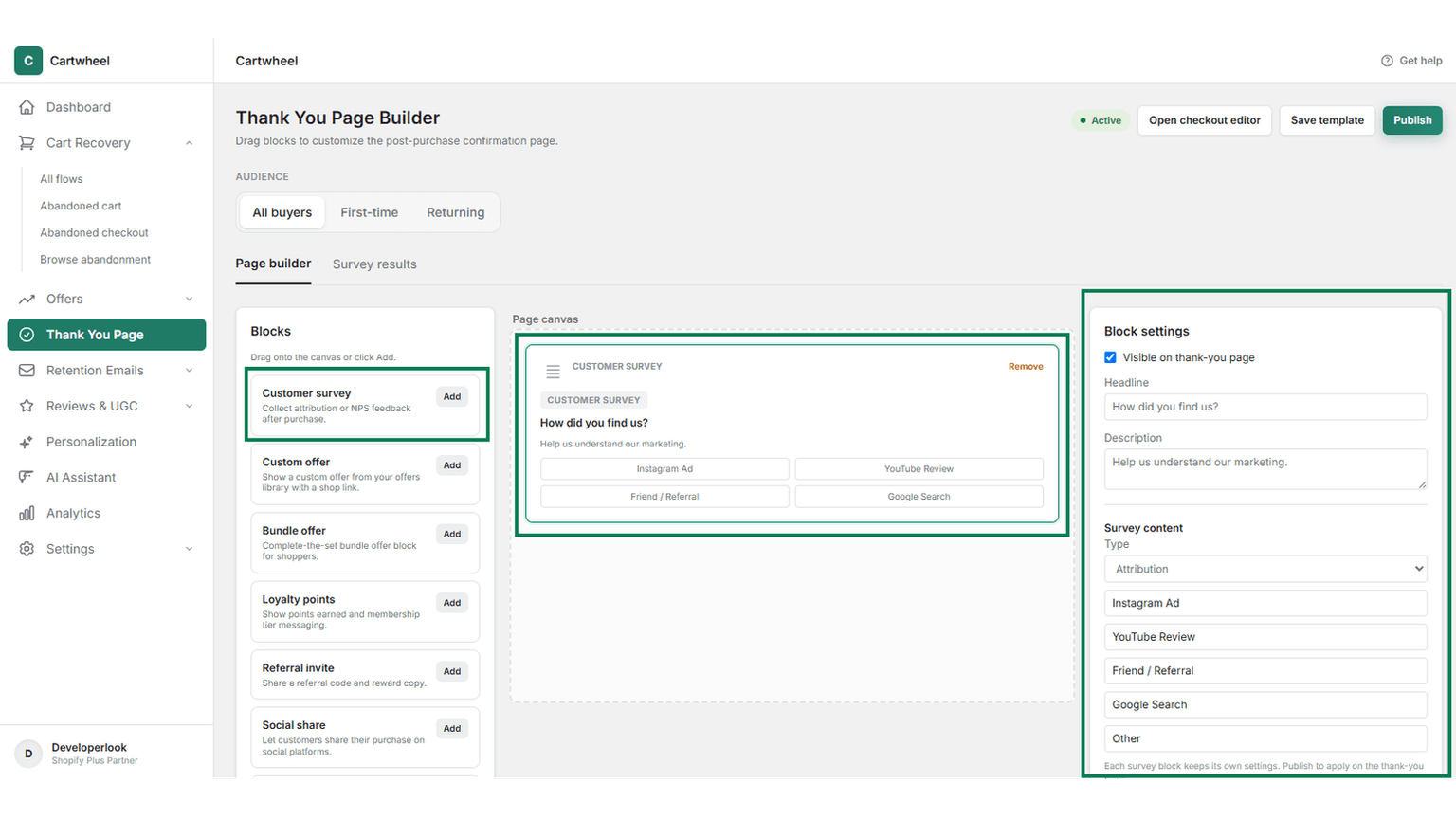
- Preview the Thank You page layout and click Publish.
Summary Checklist
- Installed Cartwheel app (Step 1) and verified theme embed (Step 2)
- Created your first Post-Purchase Upsell
- Activated Abandoned Cart Recovery sequence
- Added a survey widget to Thank You page
- Tested your offer flow with a test order
For detailed guides on each pillar, check the Post-Purchase Cross-Sells Guide, Checkout Upsells Guide, or Cart Recovery Guide.