
Installation & Setup Guide
Installing Cartwheel on your Shopify store takes less than two minutes. Because Cartwheel utilizes Shopify's modern Checkout Extensibility and Theme App Extensions, installation does not modify or inject custom code into your store theme files.
Step 1: Install from Shopify App Store
- Log into your Shopify Admin.
- Visit the Cartwheel App Store Listing or search for "Cartwheel" in the Shopify App Store.
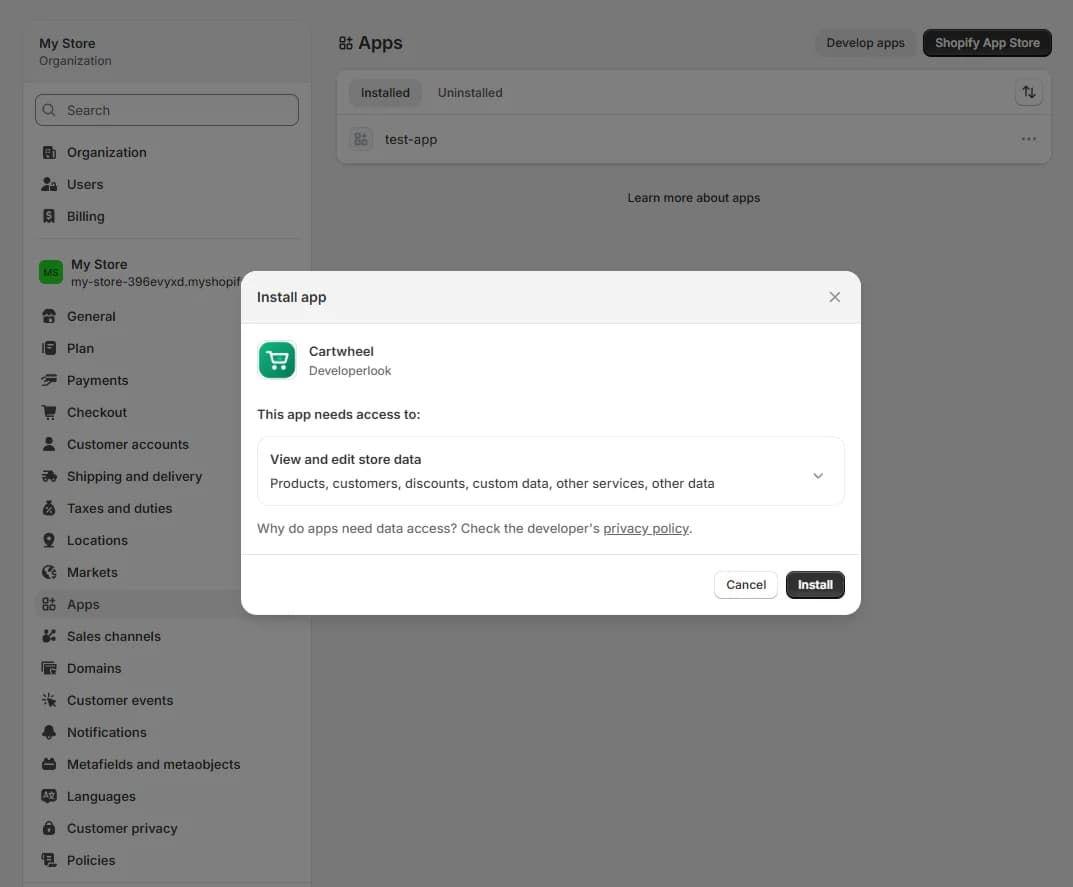
- Click Install App.
- Review the requested Shopify permissions (Scopes:
read_products,write_products,read_orders,write_discounts,read_customers,write_customers). - Click Install to grant access and authorize the installation.
Step 2: Enable Theme App Extension (Cart Recovery Tracker)
To enable abandoned cart tracking, exit-intent popups, and abandoned browse retargeting on your store:
- Open Shopify Admin → Online Store → Edit theme.
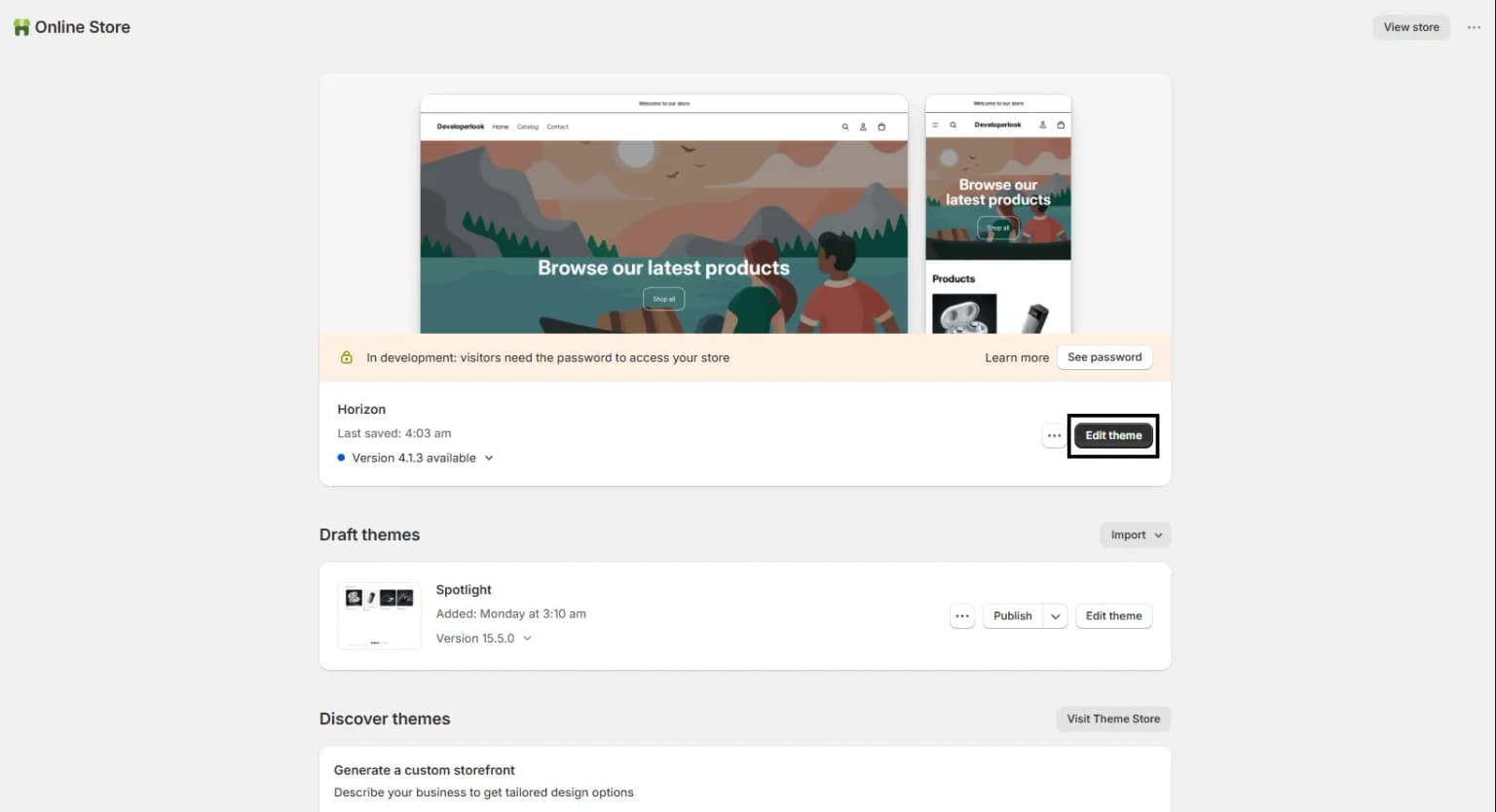
- Click Customize next to your active theme.
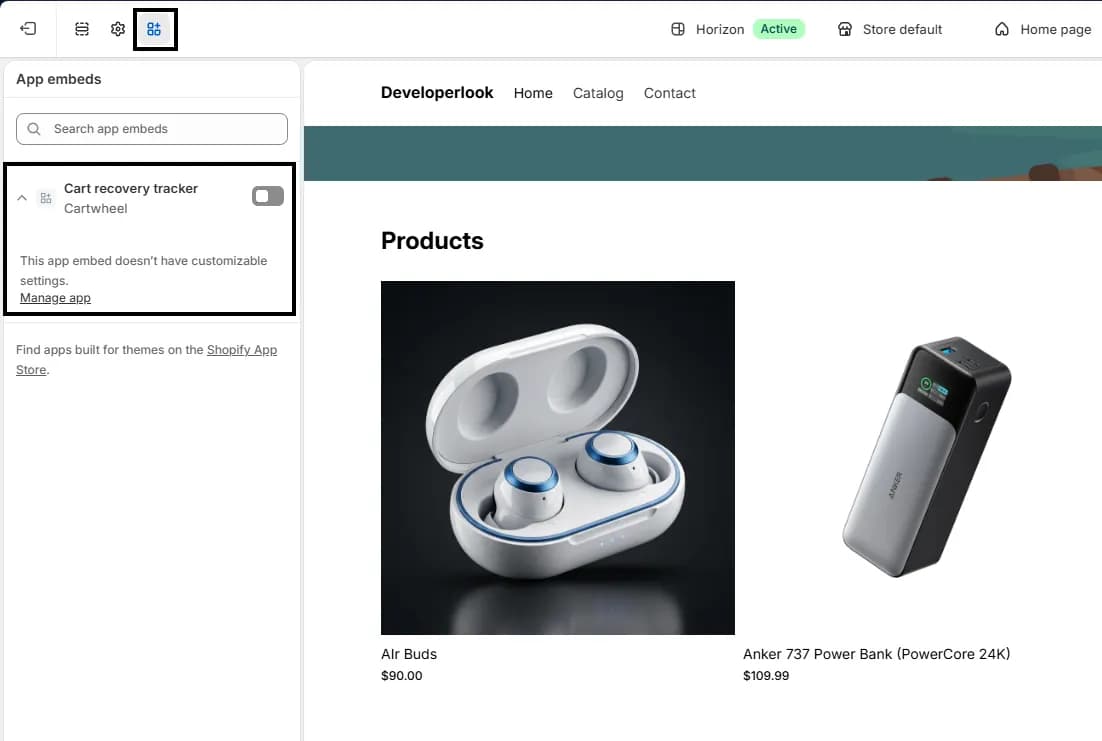
- In the left-hand sidebar, click the App Embeds icon (third icon down).
- Find Cartwheel Recovery Tracker and toggle the switch to On.
- Click Save in the top right corner.
Step 3: Configure Shopify Checkout Extensibility
Cartwheel displays post-purchase upsells and checkout offers natively within Shopify Checkout:
Enabling Post-Purchase Upsells
- In your Shopify Admin, navigate to Settings → Checkout.
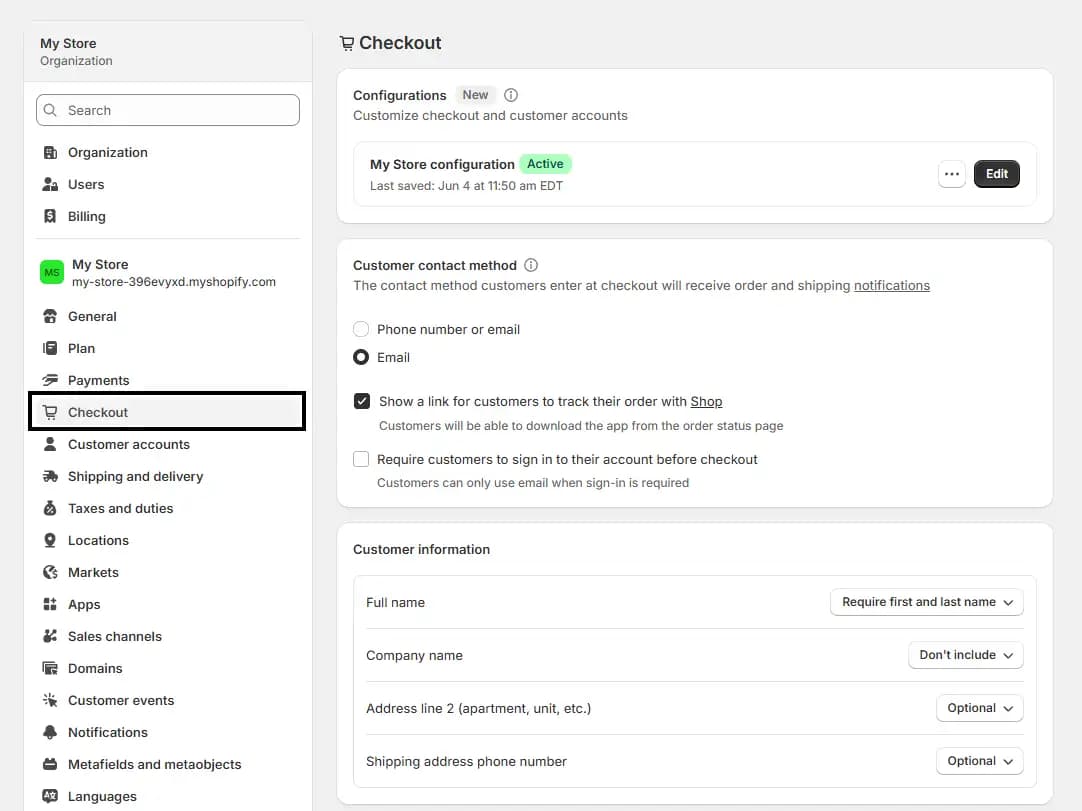
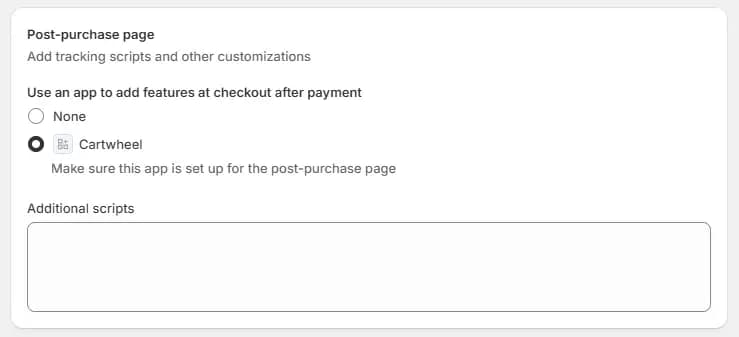
- Scroll down to the Post-purchase page section.
- Select Cartwheel as your post-purchase app.
- Click Save.
Enabling Checkout UI Extensions (Shopify Plus)
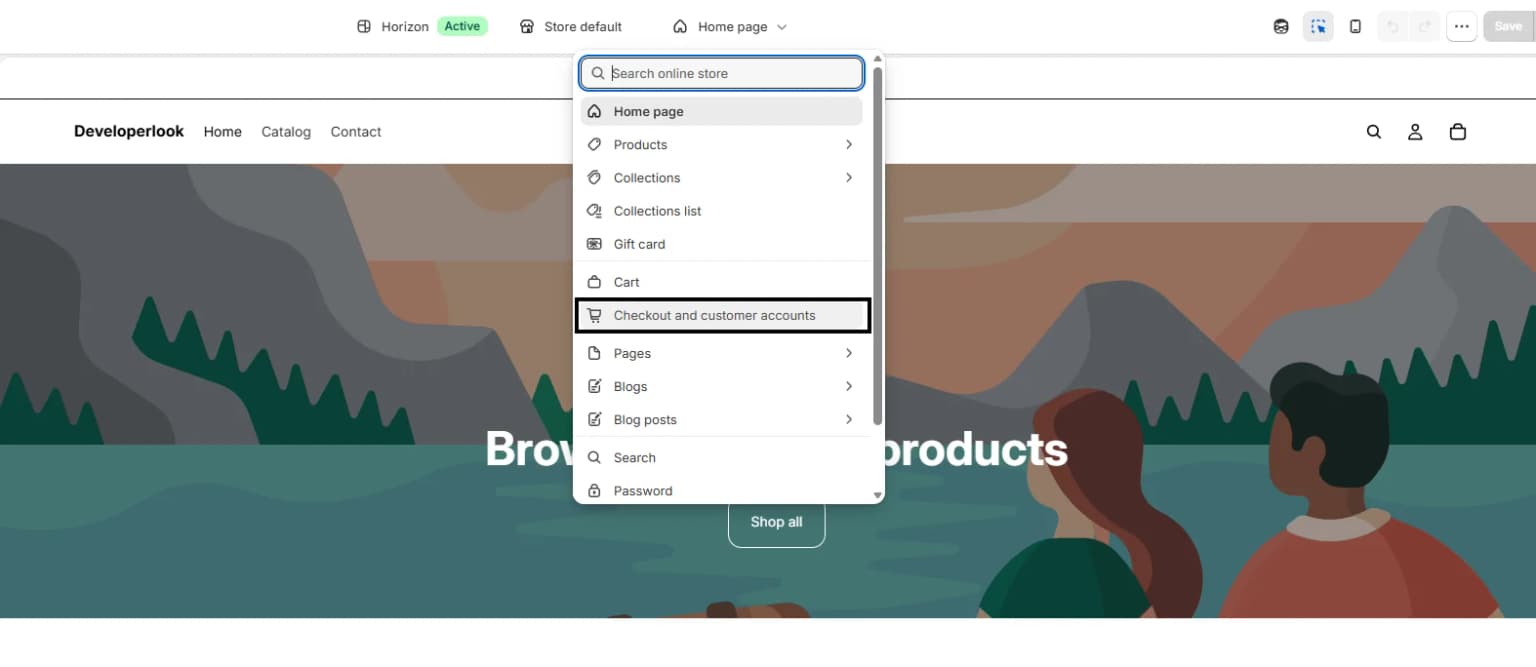
- Open Shopify Admin → Online Store → Edit theme.
- Switch the top dropdown from Home page to Checkout.
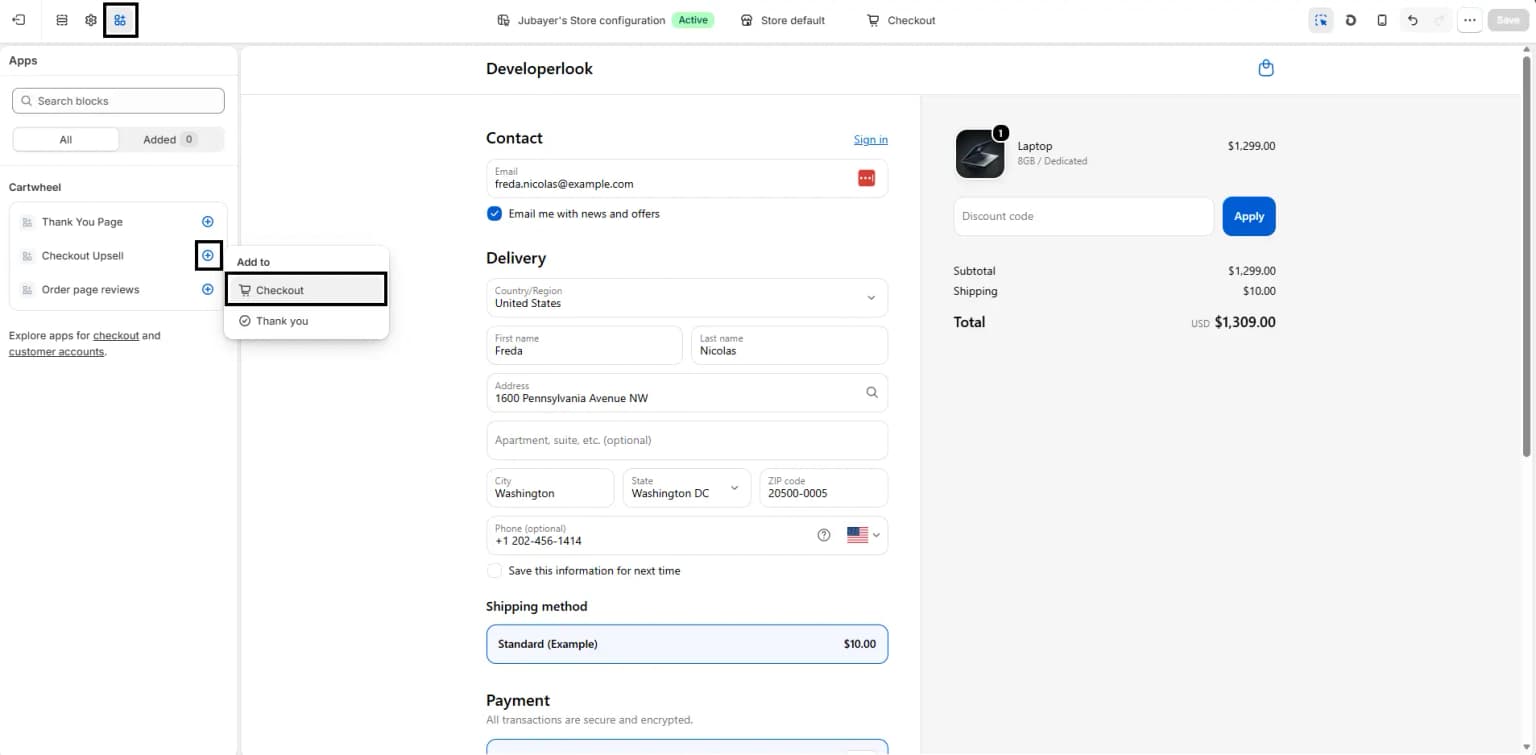
- Click Apps at the left side of the header and enable Checkout Upsell.
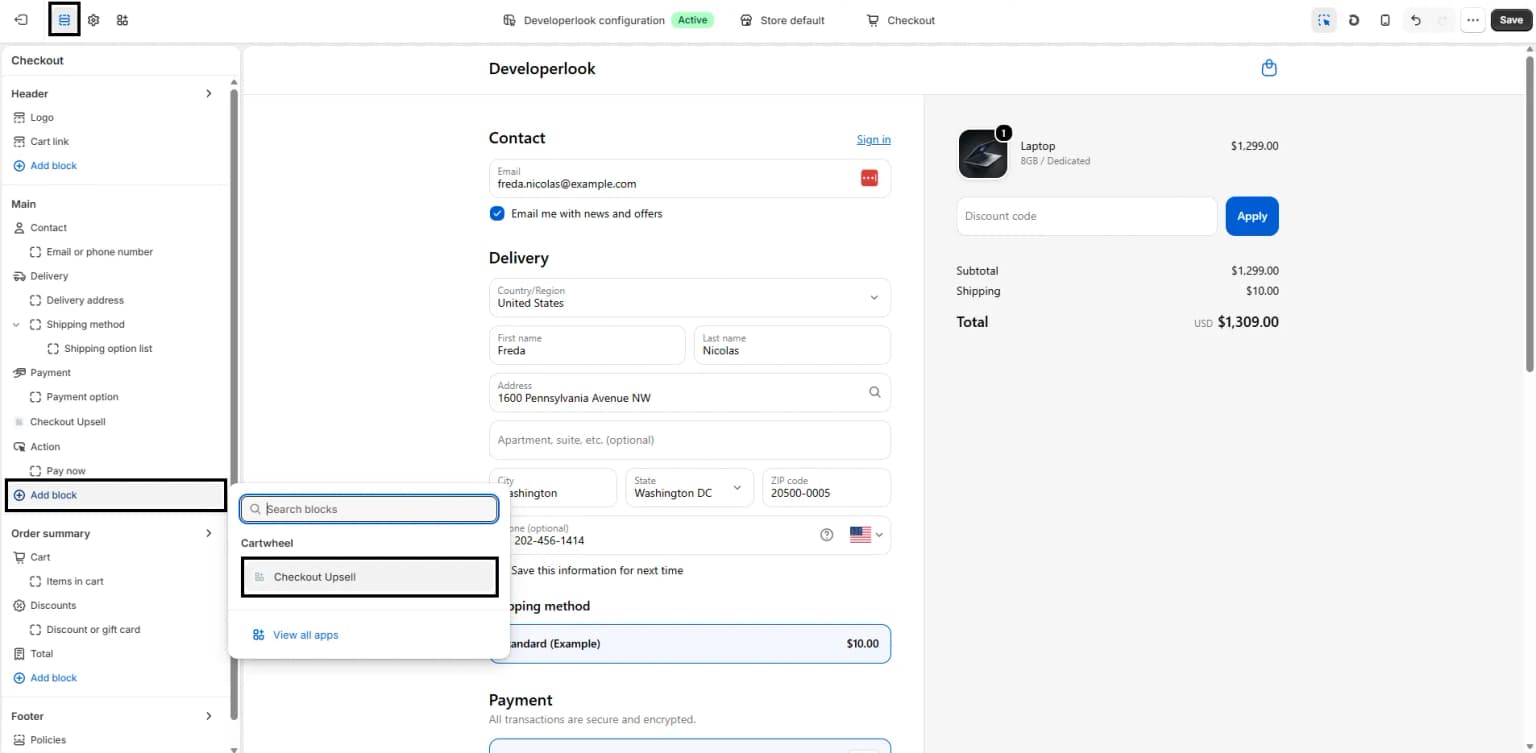
- Click Add Block under the Checkout page layout.
- Toggle on Include block in the right-hand sidebar.
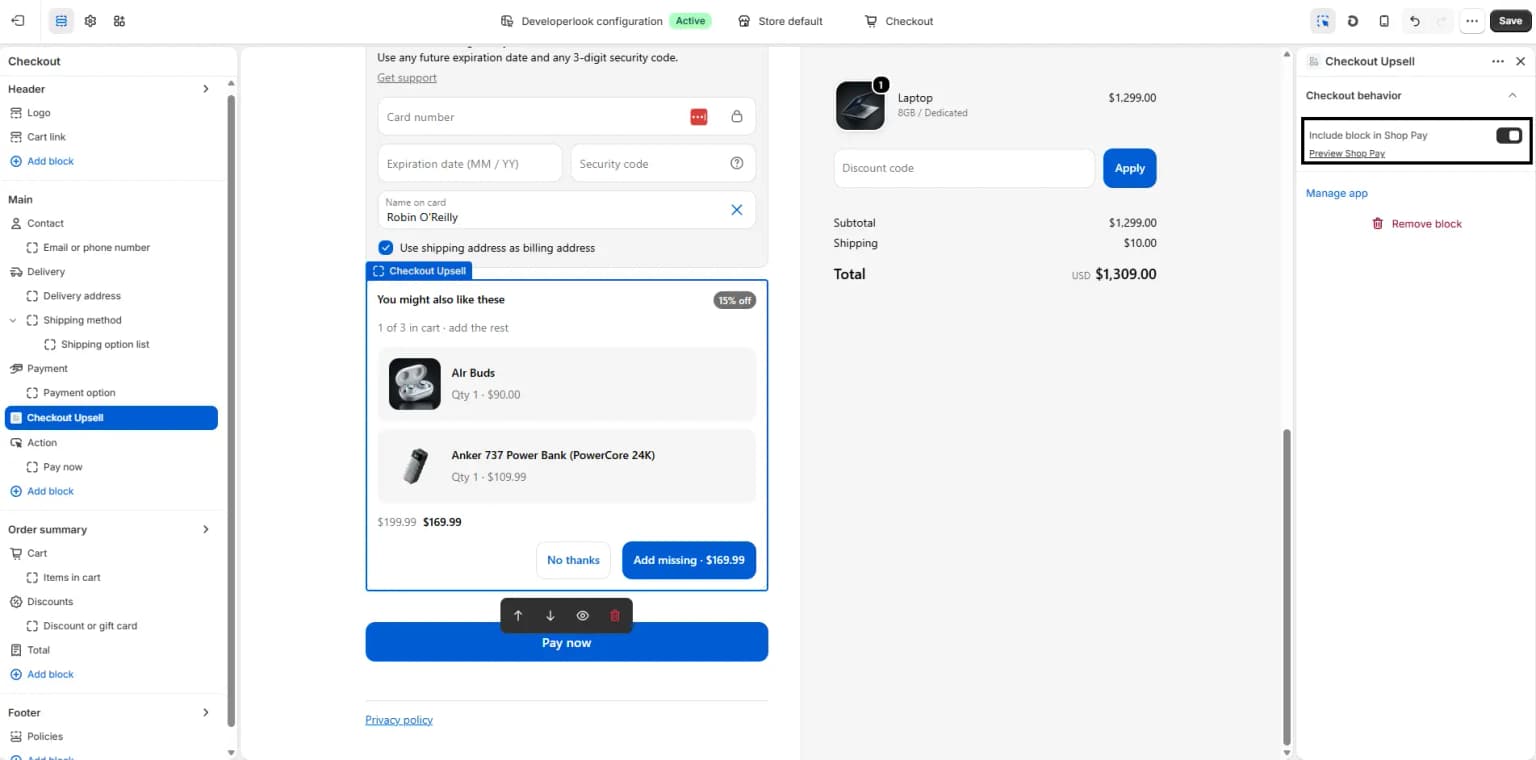
- Select Cartwheel Checkout Upsell and position it in your checkout sidebar or main order summary.
- Click Save.
If any checkmark shows a warning icon, click Run Diagnostic for guided troubleshooting.
Next Steps
Now that Cartwheel is installed, follow our Quick Start Guide to launch your first post-purchase upsell campaign!