
Retention Emails & Sequences Guide
Keep customers engaged long after their first checkout with automated email sequences that deliver order updates, personalized post-purchase cross-sells, replenishment reminders, win-back incentives, and loyalty rewards directly to their inbox.
Overview of Email Sequences
In Cartwheel, email sequences are automated multi-step workflows triggered by customer activities and lifecycle milestones. Unlike traditional mass email blasts, sequence emails are timely, highly targeted, and contextual.
Standalone vs. Offer-Linked Sequences
Cartwheel provides two ways to leverage automated email sequences:
- Standalone Retention Sequences (Configured under Retention Emails):
- Store-wide lifecycle workflows (Order Confirmation, Replenishment, Win-Back, Loyalty, Birthday) that evaluate customer purchases across your entire store.
- Offer-Linked Follow-Up Sequences (Configured under Upsells & Offers → Offers):
- Sequences directly attached to specific Post-Purchase Cross-Sell or Checkout Upsell offers.
- Enrolls customers specifically when they decline or skip that particular offer during checkout to recover the sale.
- For step-by-step setup, see the Offer Follow-Up Email Sequences guide.
Retention Sequence Types
Cartwheel supports five core sequence categories accessible under Cartwheel Admin → Retention Emails:
| Sequence Type | Trigger Event | Ideal Use Case | Dedicated Guide |
|---|---|---|---|
| Order Confirmation | Shopify orders/paid webhook | Thank customers immediately, provide order tracking details, and recommend complementary cross-sells. | Order Confirmation Guide |
| Replenishment | Products due for re-order (e.g. 30/60 days after order delivery) | Remind customers to restock consumable items (supplements, skincare, coffee) before running out. | Replenishment Guide |
| Win-Back | Customer inactive for 30, 60, 90, or 120 days | Automatically re-engage past shoppers with timed discount vouchers to bring them back. | Win-Back Guide |
| Loyalty | Loyalty points milestone or tier level upgrade | Notify customers when they earn points, unlock new VIP tiers, or earn redeemable vouchers. | Loyalty Program Guide |
| Birthday & Anniversary | Customer birthday or signup anniversary | Send personalized celebratory greetings and single-use discount codes on special dates. | Birthday & Anniversary Guide |
Sequence Lifecycle & Status Management
Each sequence in Cartwheel can be managed through three operational statuses:
- Active: The sequence is live. Qualified customer events automatically enroll customers and schedule email steps.
- Draft: The sequence is being configured or edited. No emails are scheduled or dispatched to customers.
- Paused: Email processing is temporarily suspended. Enrolled steps are held until the sequence is reactivated.
Managing Sequences in Cartwheel Admin
- Open Shopify Admin → Apps → Cartwheel → Retention Emails.
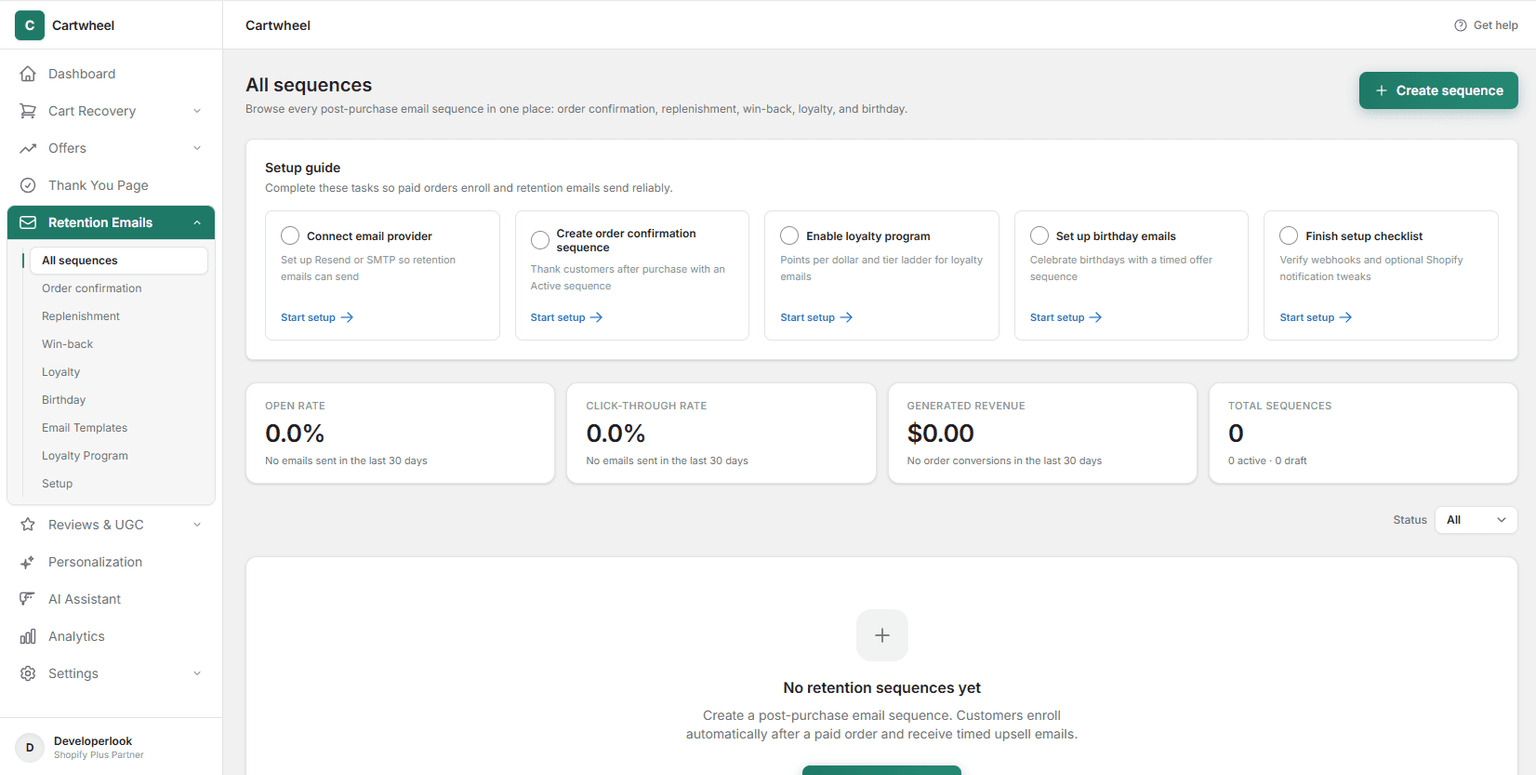
- Click All sequences to view performance metrics across all active and draft sequences (open rate, click-through rate, generated revenue).
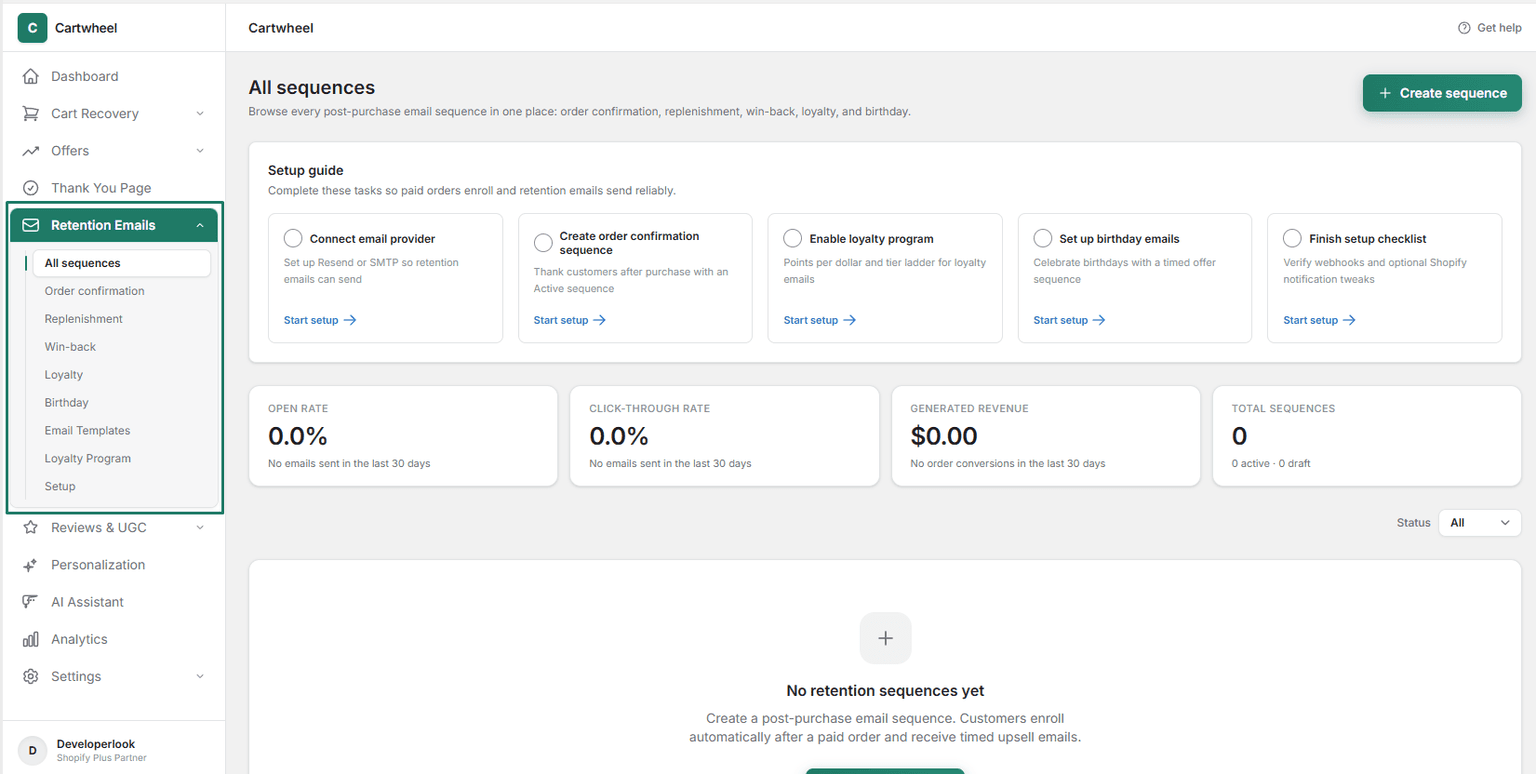
- Filter sequences by type using the sub-tabs: Order confirmation, Replenishment, Win-back, Loyalty, or Birthday.
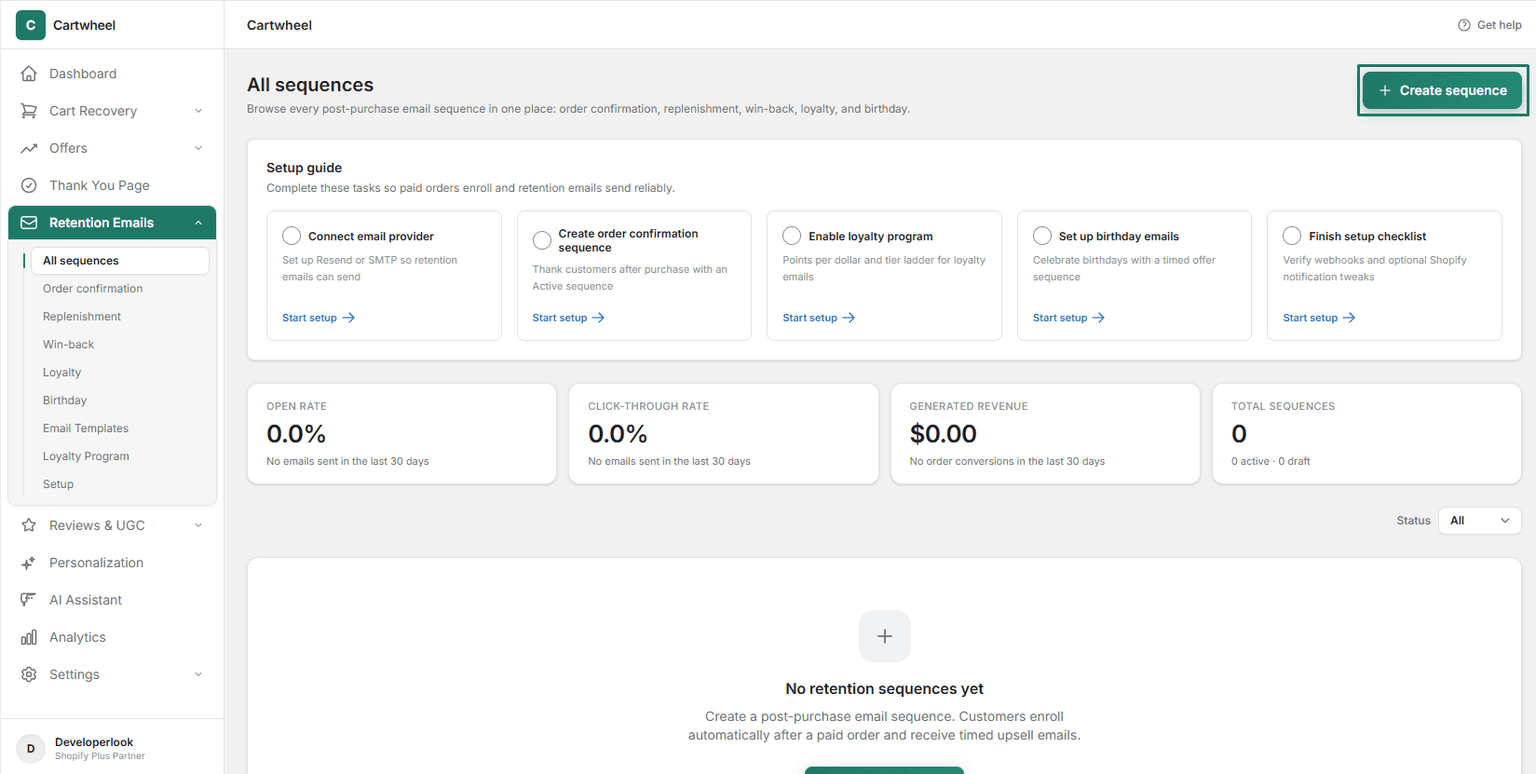
- Click Create sequence to launch a new workflow using a pre-built template or custom steps.
The Sequence Editor: Configuration Cards
When creating or editing a sequence (e.g. /app/retention/sequences/new?type=ORDER_CONFIRMATION), the editor is structured into five cohesive sections:
- Sequence Settings:
- Sequence Type: Displays the category (
Order confirmation,Replenishment,Win-back, etc.). - Name: Internal reference name (e.g. Warm upsell — related products).
- Status: Segmented control (
Active,Draft,Paused). - Note: Order confirmation emails are transactional and do not require marketing consent.
- Sequence Type: Displays the category (
- Audience Triggers:
- Filter by specific products, variants, or entire collections using the + Add products and + Add collections buttons.
- Customer Segments:
- Target synced Shopify customer cohorts (e.g. Email subscribers, Customers who haven't purchased, VIP Customers).
- Local Audience Rules:
- Target by Buyer Type (Any buyer, First-time buyer, Returning buyer), Min Purchase Count, or Min/Max Order Value ($).
- Email Steps:
- Configure multi-step delivery delays (0 minutes, hours, days).
- Attach an optional Linked Offer to render personalized product recommendation blocks.
- Select the target MJML Email Template.
- In the top action bar, click Save sequence to publish your workflow.
Related Guides
- Order Confirmation Emails — detailed setup for order receipts and post-purchase recommendations
- Replenishment Sequences — automating consumable restock reminders
- Win-Back Sequences — winning back lapsed and inactive shoppers
- Birthday & Anniversary Sequences — celebrating customer milestones
- Loyalty Program & Tiers — rewarding points and tier milestone emails
- Email Template Builder — designing custom MJML sequence templates
- Email Provider Setup & Diagnostics — connecting mail providers and testing webhooks