
Offer Follow-Up Email Sequences Guide
Recover lost revenue automatically by sending targeted email follow-up sequences when customers decline or skip promotional offers during checkout.
Which Offer Types Support Email Follow-Ups?
In Cartwheel, email follow-up settings are built directly into the offer editor under Cartwheel Admin → Upsells & Offers → Offers.
Depending on the offer placement, specific offer types feature integrated email step sequences:
| Offer Type | Email Feature Supported? | Enrollment Trigger Condition | How It Works |
|---|---|---|---|
| Post-Purchase Cross-Sell | ✅ Yes | Customer clicks Decline on the post-purchase offer page. | Enrollment starts in a deferred state upon order creation. If the customer accepts the offer, the email sequence is cancelled. If declined, step timers begin. |
| Checkout Upsell | ✅ Yes | Customer skips the checkout extension or buys the trigger item. | Enrolls when a paid order is completed after the shopper declined the checkout widget or purchased the trigger item without accepting the offer. |
| Product Bundles | ❌ Not Applicable | Storewide Order Confirmation / Cart Recovery | Bundle promotions are redeemed during checkout or retargeted via general abandoned cart sequences. |
| Custom Offers | ❌ Not Applicable | Thank You Page Builder Block | Custom offers render as interactive widgets directly on the Thank You page. |
| Exit Intent Popups | ❌ Not Applicable | On-Site Browse Retargeting | Exit-intent popups trigger on-screen modals; uncompleted sessions are recovered via Abandoned Cart / Browse Recovery. |
How Offer Follow-Up Sequences Work
When enabled inside an offer card, Cartwheel automatically attaches an email automation flow to that specific offer.
Shopper Sees Offer (Post-Purchase / Checkout)
Accepts Offer
Item Added
Sequence Skipped
Declines / Ignores
Offer Recovery
Enrolled in Follow-Up Emails
Step 1: 2 Hours Delay
Follow-Up Email #1 + Discount
Step 2: 2 Days Delay
Follow-Up Email #2 + Expiry
Locked Single-Use Discount
Auto-applied 1-click buy link for customer
Detailed Offer Email Workflows
1. Post-Purchase Cross-Sell Follow-Up Emails
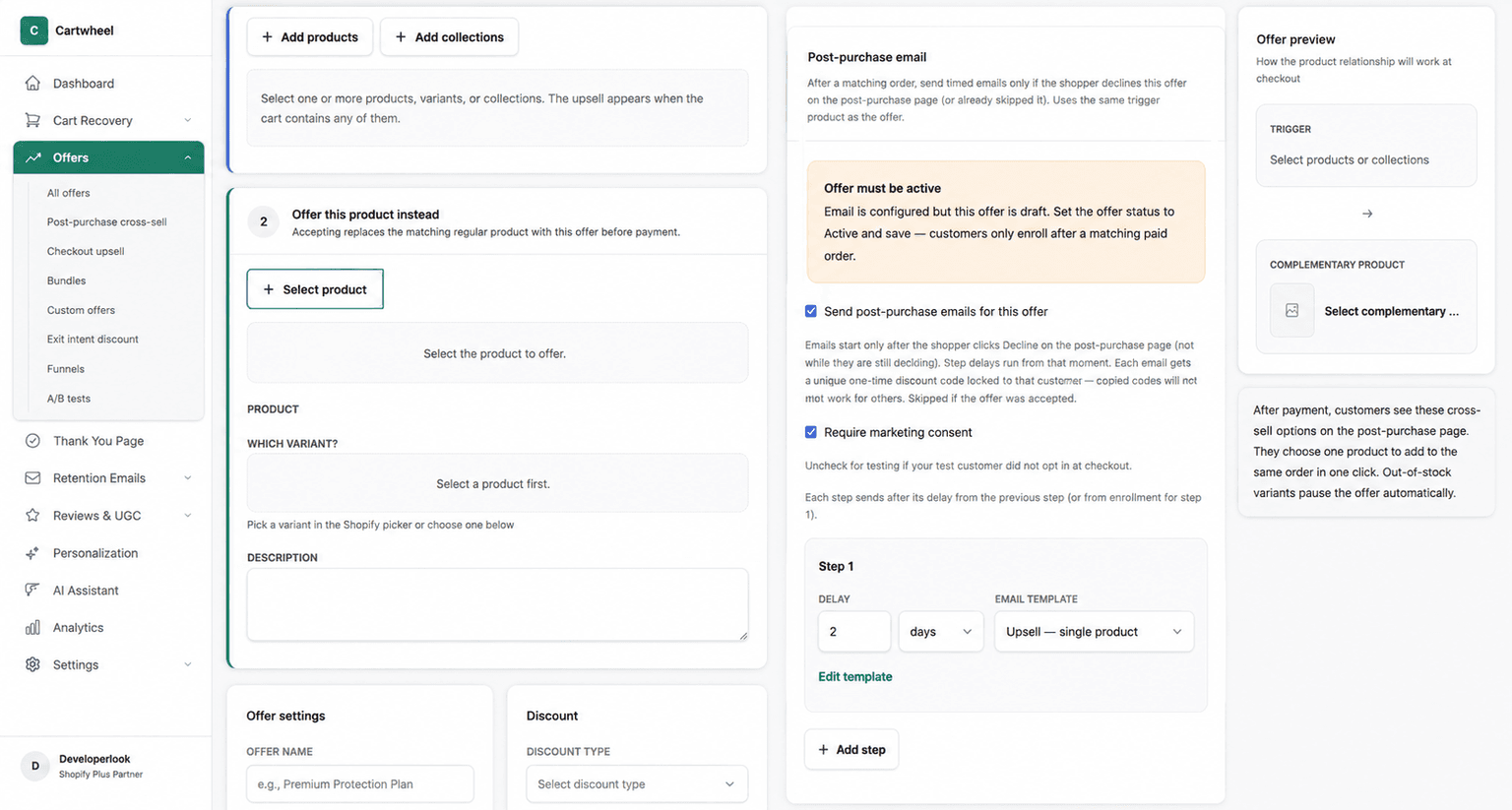
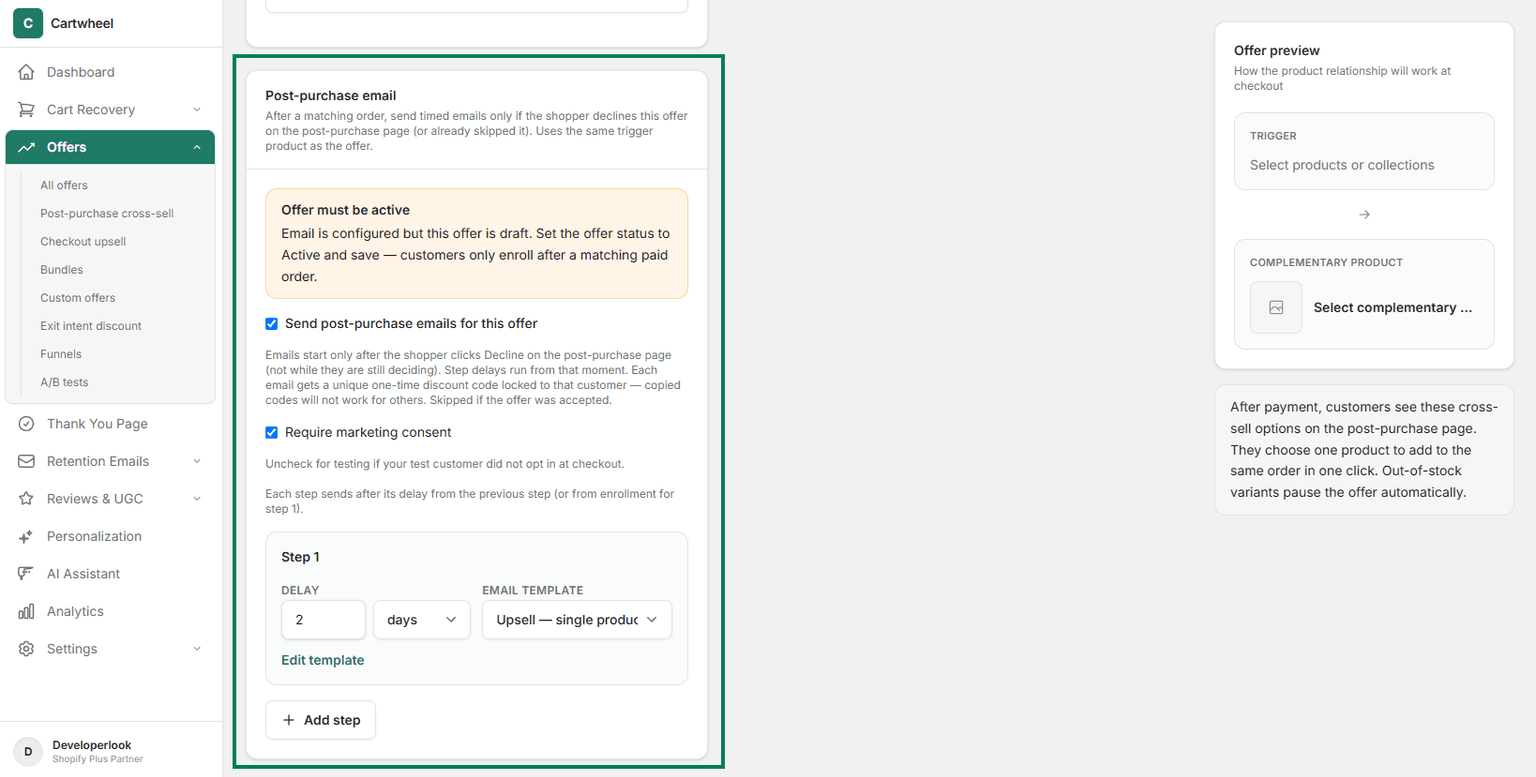
- Deferred Enrollment: When a matching order is placed, Cartwheel holds enrollment in a deferred state until the shopper makes a decision on the post-purchase page.
- Trigger Condition: If the customer clicks Decline on the post-purchase page, the sequence unlocks and step timers begin (e.g., Send follow-up email 2 hours later).
- Skipped on Acceptance: Accepting the post-purchase offer automatically cancels the sequence so customers never receive redundant emails.
2. Checkout Upsell Follow-Up Emails
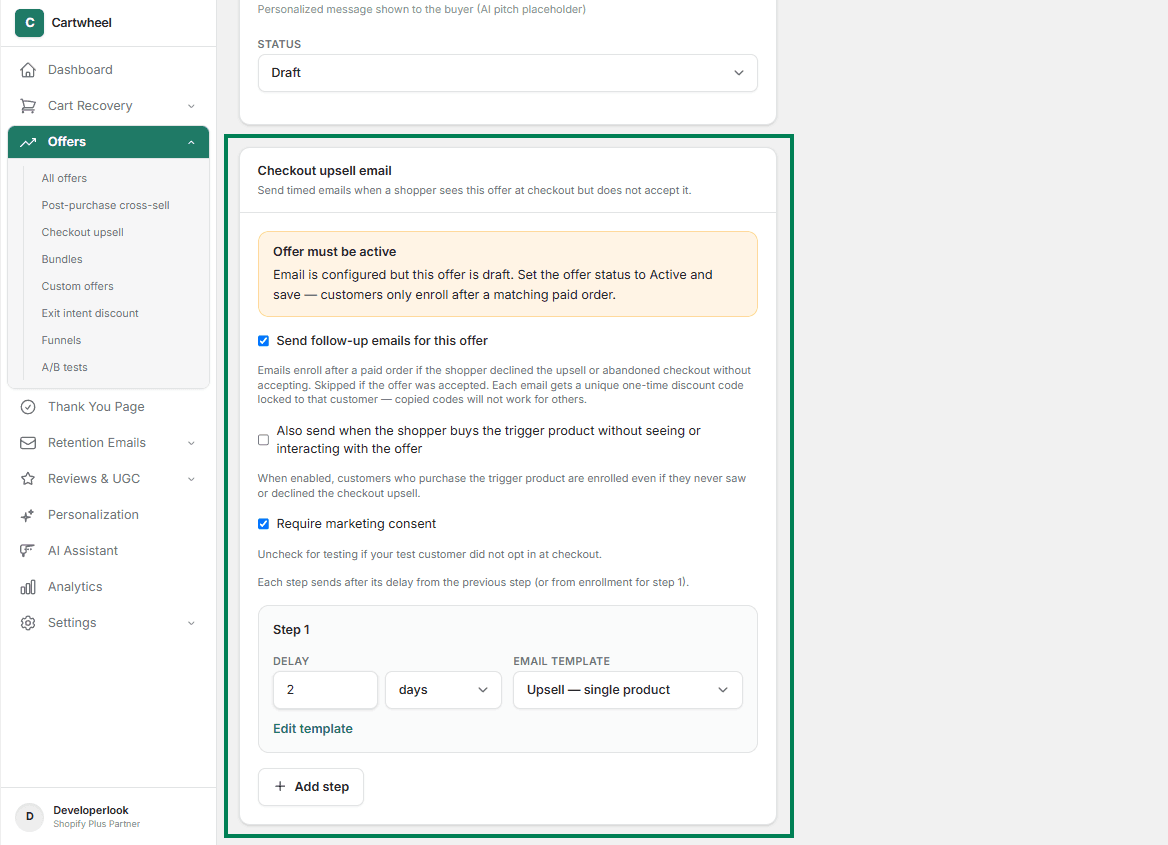
- Trigger Condition: Enrolls after a paid order if the customer saw the checkout extension widget but did not accept it.
- Trigger Product Purchase Option: In the Email Settings panel, toggle "Also send when the shopper buys the trigger product without seeing or interacting with the offer" to ensure customers who bought trigger items receive follow-up emails even if checkout extension display was bypassed.
Step-by-Step Configuration Guide
To enable and configure offer follow-up emails:
- Open Shopify Admin → Apps → Cartwheel → Offers.
- Click Create Offer or select an existing offer (Post-Purchase Cross-Sell or Checkout Upsell) to edit.
- Enable Email Sequence: Scroll down to the Post-purchase email or Checkout upsell email card section and check Send follow-up emails for this offer.
- Set Step Delay Schedule:
- In the Step Delay input field, enter a numeric duration (e.g.,
2). - Select the delay unit from the dropdown menu (Minutes, Hours, or Days).
- In the Step Delay input field, enter a numeric duration (e.g.,
- Select Email Template:
- Click the Email Template dropdown menu and select a pre-built template (e.g. Post-Purchase Offer Follow-Up Template).
- Alternatively, click Edit template to open the visual email builder. See Email Template Builder Guide.
- Configure Compliance & Discount Lock:
- Check Require marketing consent if your store policy mandates explicit email opt-in before sending promotional emails.
- Cartwheel automatically generates a locked single-use discount code in Shopify for each recipient that cannot be shared or reused.
- Publish & Save: In the top right action bar, click the status dropdown, select Active, then click Save offer to activate the offer and its email follow-up sequence.
Related Guides
- Post-Purchase Cross-Sells Guide — setting up single-click thank-you offers
- Checkout Upsells Guide — setting up checkout-page upsells
- Email Provider Setup & Diagnostics — configuring Resend, SMTP, and delivery verification
- Retention Emails Overview Guide — storewide retention sequences
- Email Template Builder Guide — visual email template editor