
Exit Intent Popups Guide
Convert leaving shoppers into paying customers with automated, high-converting on-site exit-intent popups.
How Exit-Intent Popups Work
Cartwheel detects when a storefront visitor moves their cursor toward the top exit boundary of the browser window or switches tabs on mobile devices. An instant modal offer is presented before the shopper leaves the store.
Customer Decision Choices
The Exit-Intent modal presents two clear action choices to the shopper:
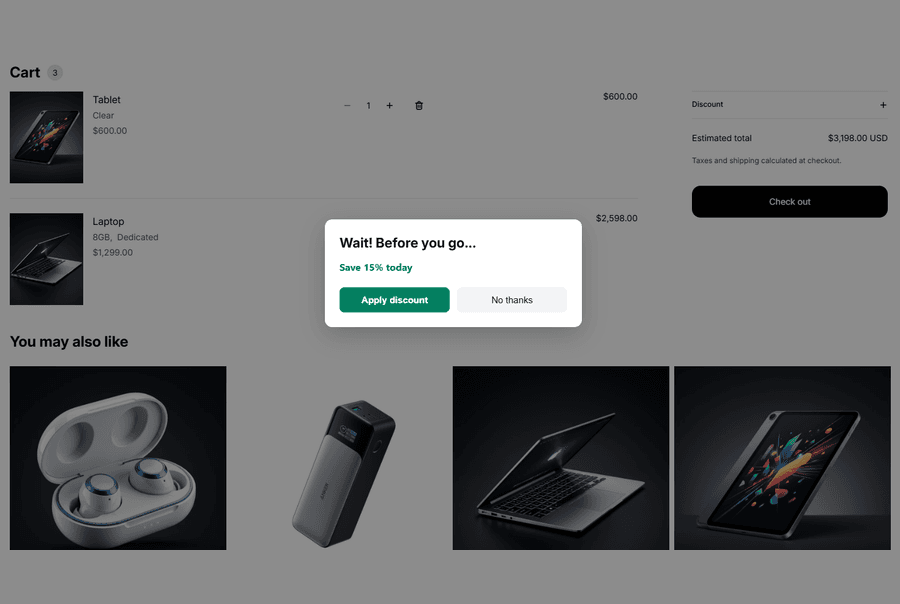
- Accept ("Apply discount"): Triggers a
CLAIMEDanalytics event, automatically applies the discount code to the cart/checkout session, and redirects the shopper directly to checkout payment. - Decline ("No thanks"): Triggers a
DISMISSEDanalytics event, closes the modal, and allows the shopper to continue browsing without applying a code.
Setting Up Exit-Intent Popups
Step 1: Create the Exit-Intent Offer
- Navigate to Cartwheel Admin → Offers → Exit Intent Discount (or click the Exit intent discount tab under Offers → All offers).
- Click Create Exit Offer in the top right action header (or click Create exit offer from the empty state card).
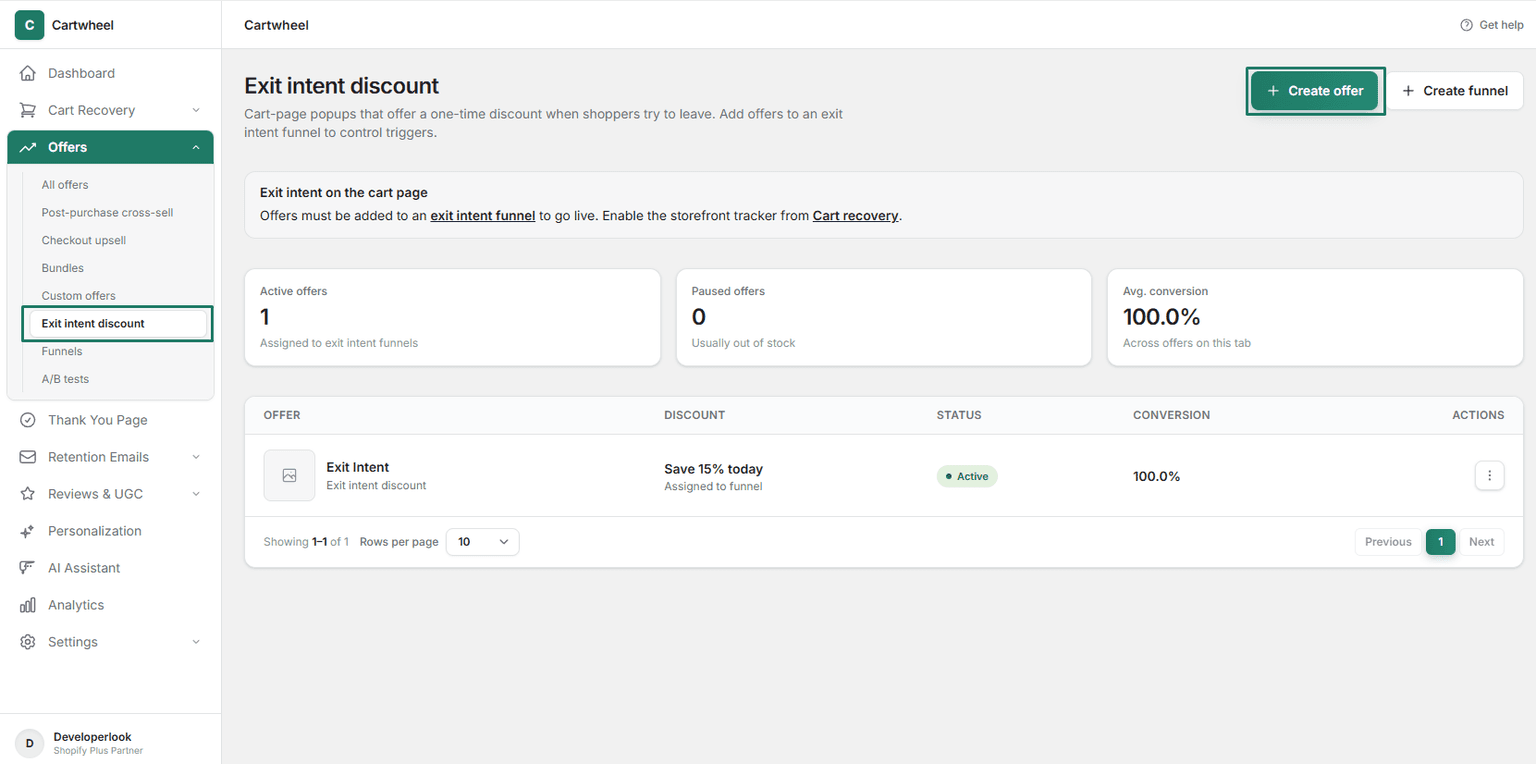
- Configure Offer Details:
- Offer Name: Enter an internal reference title (e.g., Exit Intent 15% Off).
- Page Title: Enter the primary headline displayed at the top of the popup modal (e.g., Wait! Before you go...).
- Optional Note: Add an urgency note displayed below the title (e.g., Available on this order only).
- Suggested Pitch: Enter your value proposition copy (e.g., Take 15% off your order if you complete checkout now.).
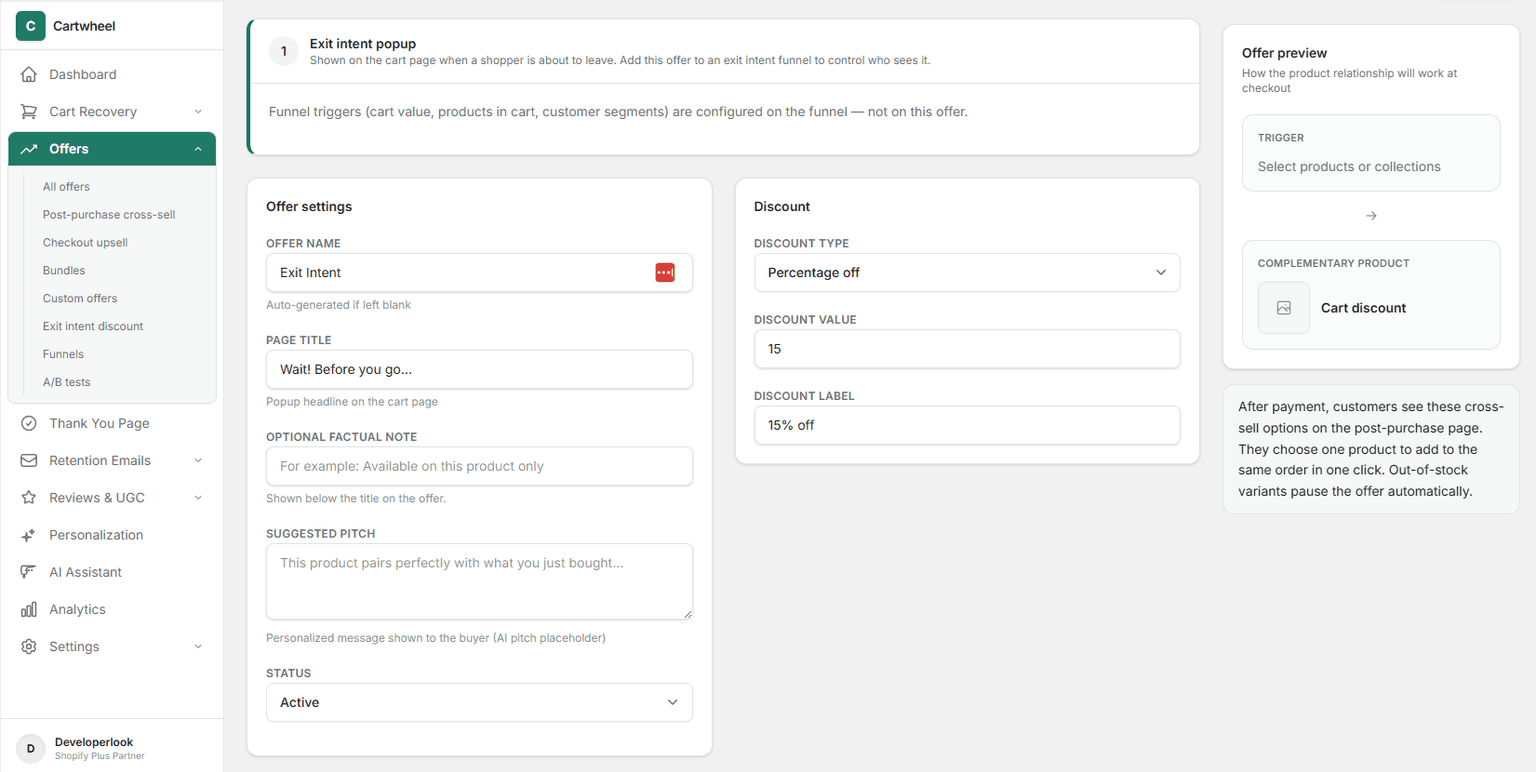
Configure Discount Settings:
- Discount Type: Select Percentage off or Fixed amount off from the dropdown.
- Discount Value: Enter the percentage or dollar amount (e.g.,
15for 15% off). - Discount Label: Customize the badge text displayed on the offer CTA button (e.g.,
15% off). - Note: Cartwheel dynamically generates single-use coupon codes at runtime when shoppers claim the offer.
Set Offer Status:
- In the Status dropdown menu, select Active (or Draft if preparing ahead of launch).
Click Save offer in the top action header to create your exit offer.
Step 2: Assign the Offer to an Exit-Intent Funnel (Mandatory)
To activate and serve the offer to visitors on your storefront, you must assign it to an Exit Intent Funnel:
- Navigate to Cartwheel Admin → Offers → Conversion funnels (or click the Funnels tab on the main Offers overview page).
- Click Create funnel in the top right action header (or select Edit next to an existing exit funnel).
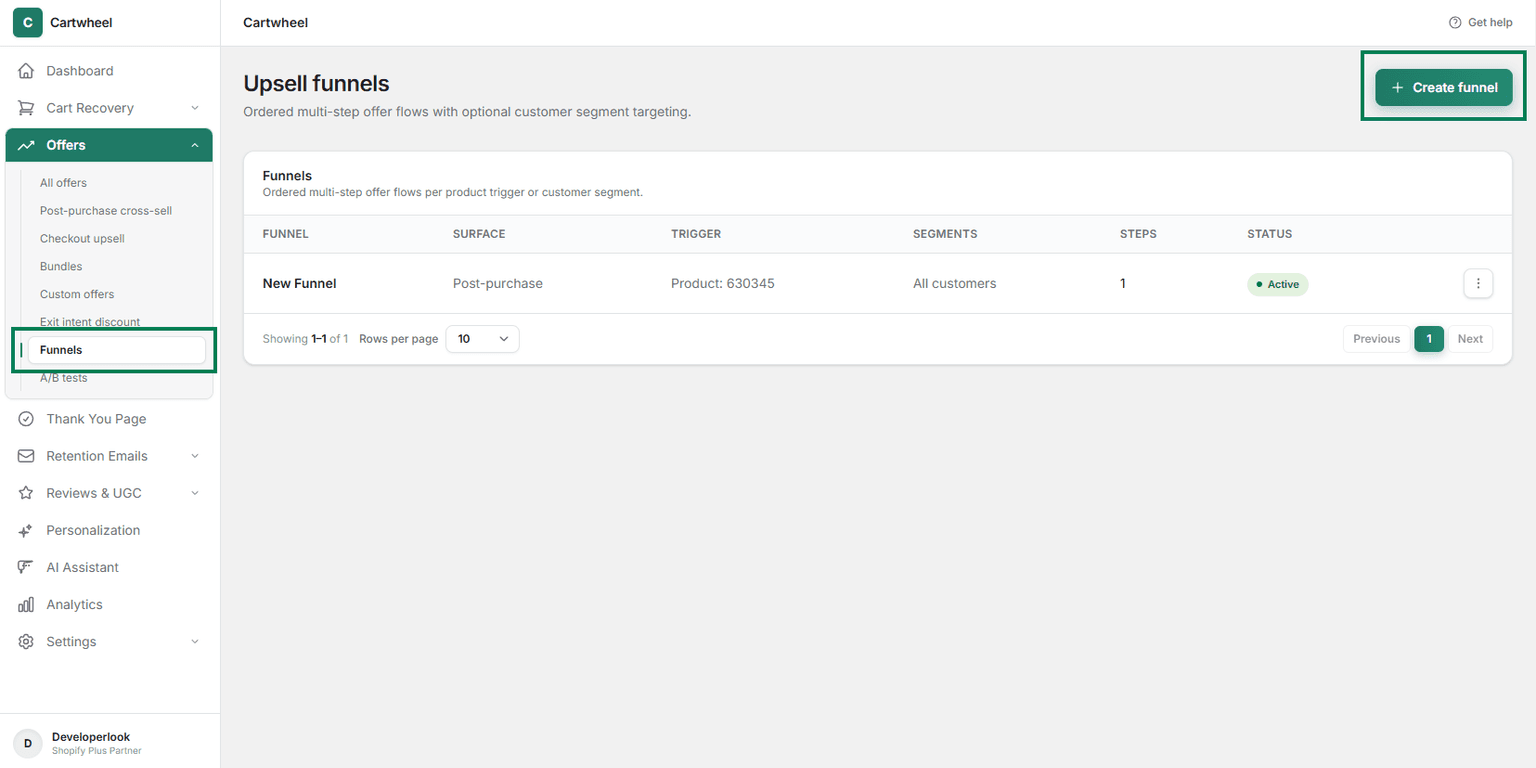
- Configure Core Funnel Properties:
- Funnel Name: Enter a descriptive name for management (e.g., Storefront Exit Intent Discount Funnel).
- Surface: Select Exit intent from the surface type dropdown menu.
- Status: Select Active to publish the funnel live.
- Priority: Set a numeric priority (e.g.,
1or higher). When multiple funnels match, the funnel with the highest priority is evaluated first.
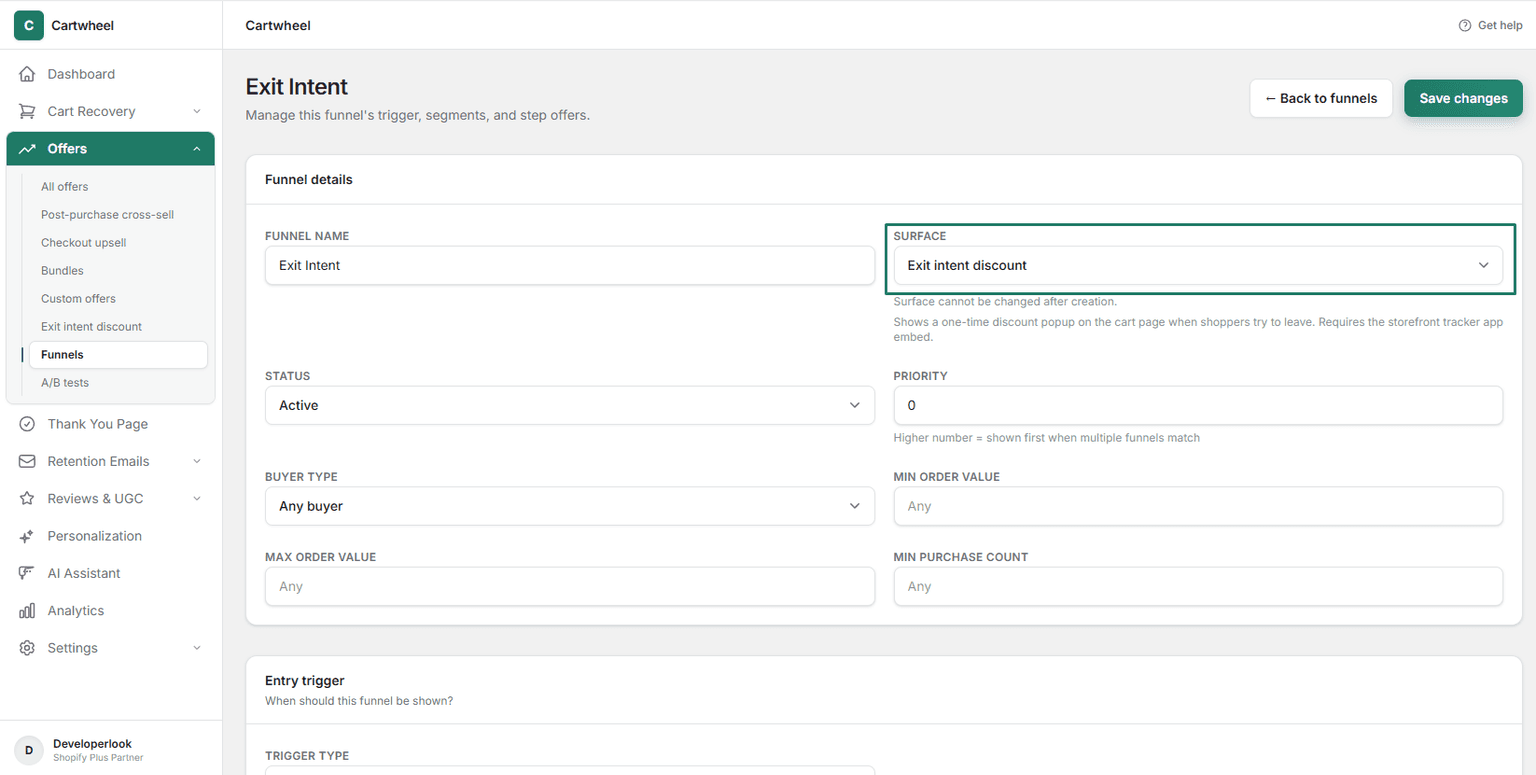
- Configure Entry Triggers:
Choose when the exit modal should activate based on cart conditions:
- Always (All Carts): Fires the popup on any cart exit attempt regardless of cart contents.
- When Order Value Exceeds Amount: Set a minimum subtotal threshold (e.g.,
$25) required before triggering. - When Cart Contains Products or Collections: Select specific trigger products or collections using the Shopify product picker.
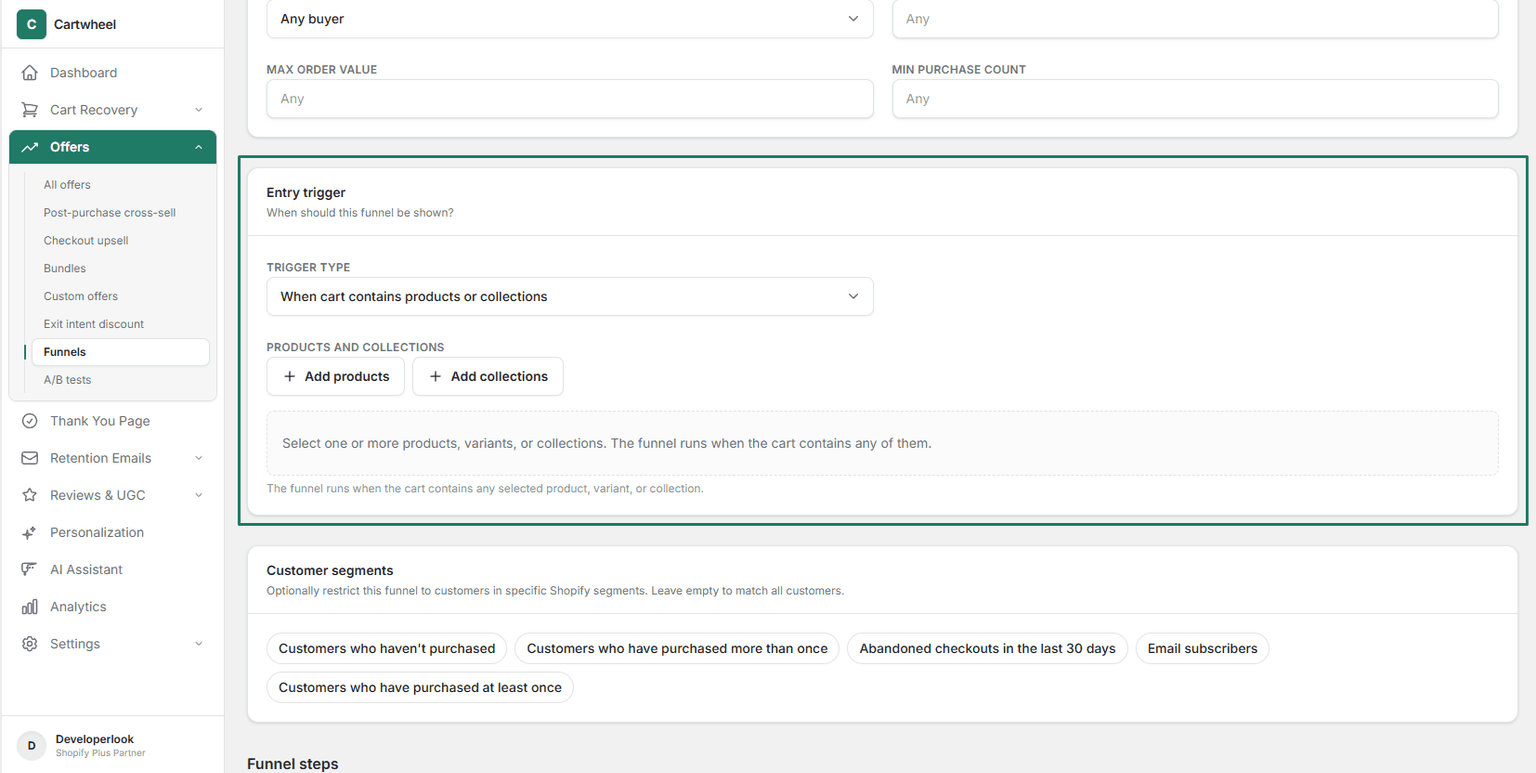
Configure Customer Segments (Optional):
- Select specific Shopify customer segments to restrict the popup to target buyer groups (or leave unselected to target all visitors).
Add the Offer to Funnel Steps:
- Under Funnel Steps / Offers, click Add offer step (or select from available unassigned offers).
- Select your newly created Exit Intent offer to bind it to Step 1 of the funnel.
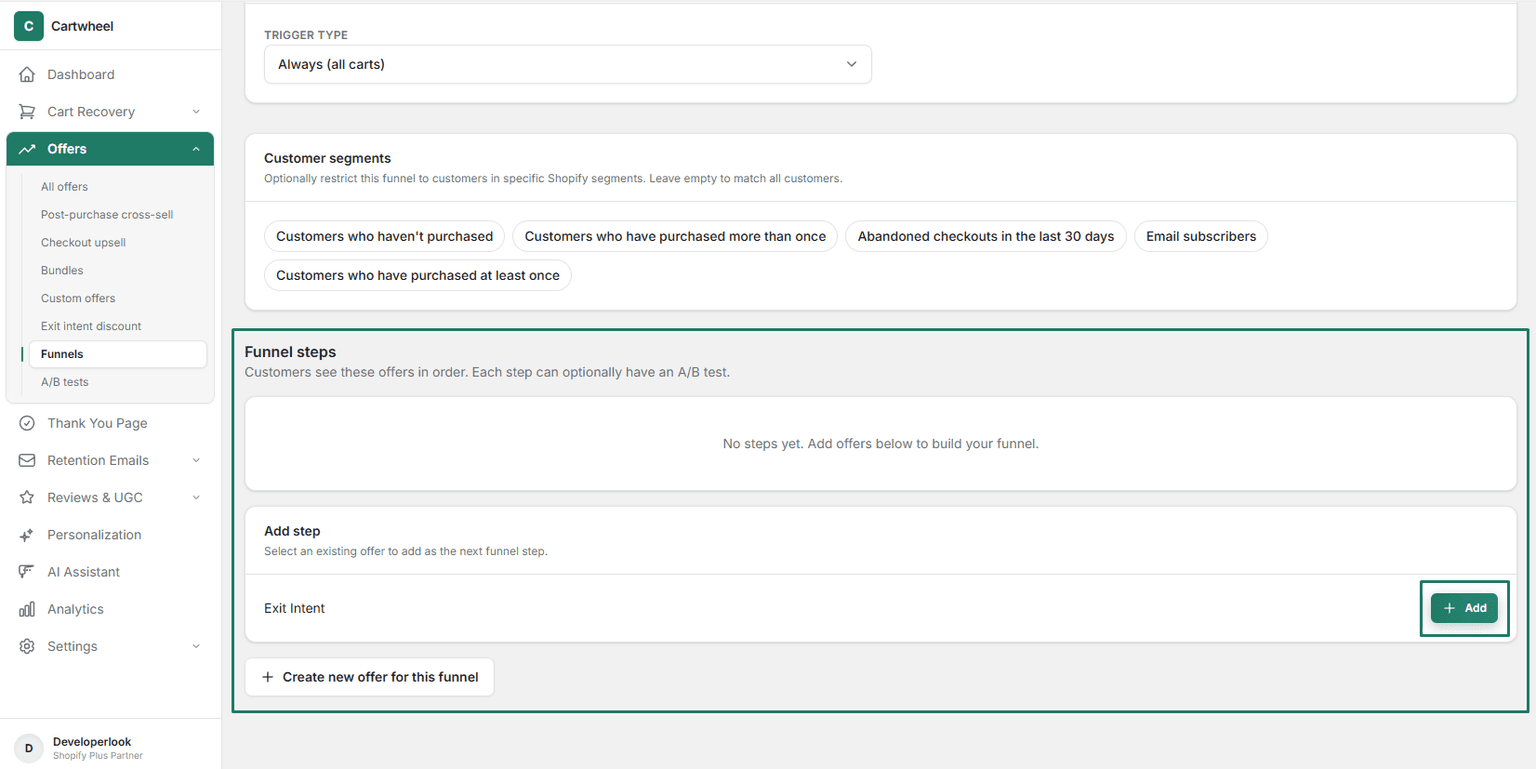
- Click Save funnel in the top action header to publish your exit intent popup.
Once saved and active, Cartwheel monitors storefront visitor exit signals (mouse moving toward top exit boundary or mobile tab switching) and presents the popup.
For detailed information on funnel priorities, multi-step ordering, and segmentation rules, see the complete Post-Purchase Conversion Funnels Guide.