
Review Requests & Email Delivery Guide
Automate post-purchase review collection emails, track 30-day performance metrics, manage delivery queues, and generate direct review links for customer support outreach.
Overview: Review Request Pipeline
Access your review delivery pipeline at Cartwheel Admin → Reviews & UGC → Emails & Testing (/app/reviews/emails or /app/reviews).
Cartwheel tracks fulfillment and delivery events on your Shopify orders. When an order is marked as delivered (or reaches its fulfillment fallback threshold), Cartwheel automatically queues a personalized review request email tailored to the items purchased.
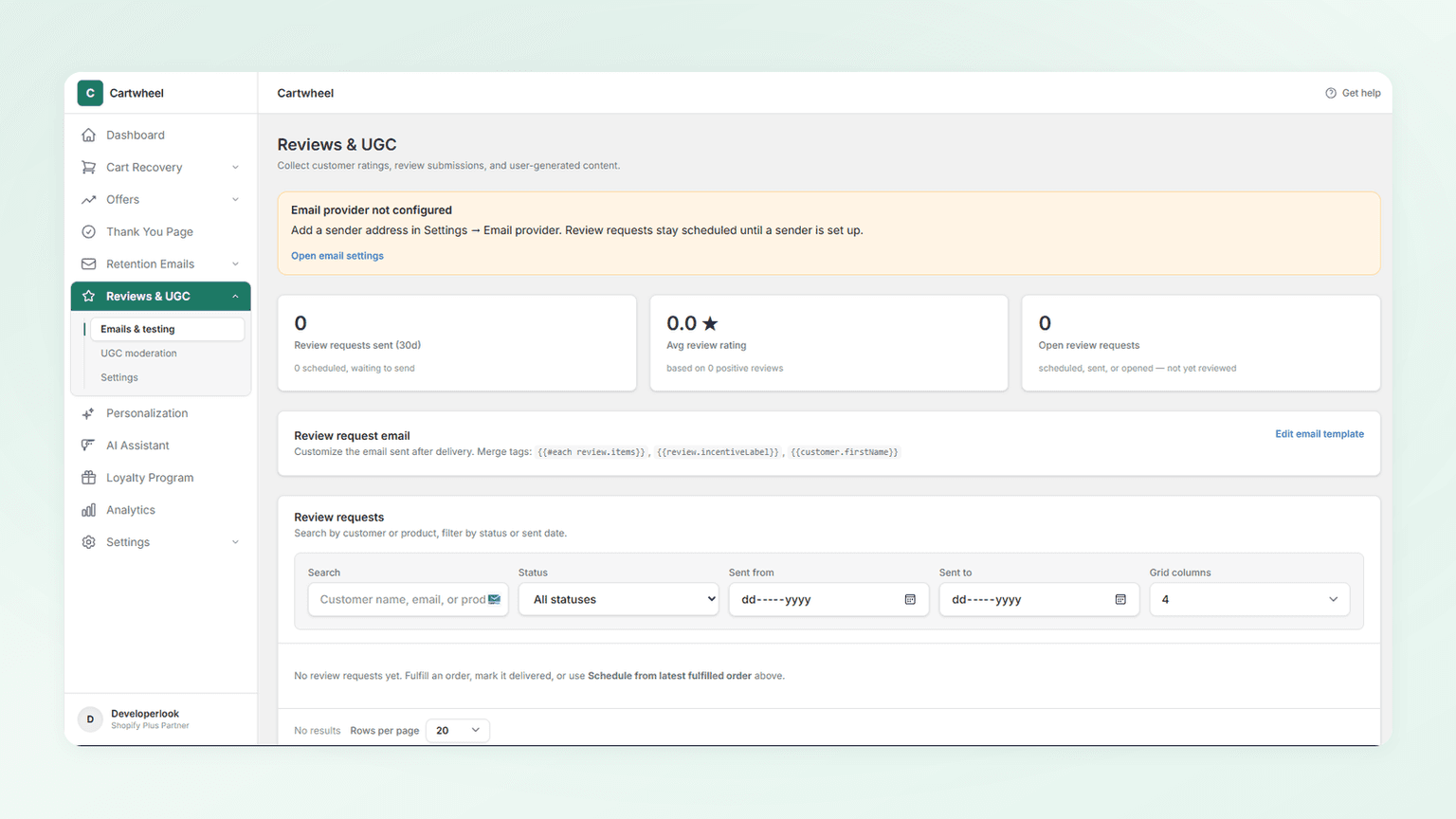
1. Performance Overview Metrics
The top metrics panel provides a live pulse of your post-purchase review collection performance:
| Metric | Description | Key Insight |
|---|---|---|
| Review requests sent (30d) | Total review request emails dispatched in the last 30 calendar days. | Includes subtext showing total scheduled requests currently waiting in queue for their delivery window. |
| Avg review rating | Current aggregate star score (e.g. 4.8 ★) across all verified store reviews. | Displays the exact count of positive customer reviews powering the aggregate calculation. |
| Open review requests | Total active request records in SCHEDULED, SENT, or OPENED states. | Represents customer requests that have not yet resulted in a submitted review or expiration. |
2. Review Request Email Template Customization
Cartwheel automatically creates a default responsive MJML review request email template for your store.
To customize the email design and messaging:
- In Cartwheel Admin → Reviews & UGC → Emails & Testing, locate the Review request email card.
- Click Edit email template (or navigate directly to Email Template Builder).
- In the template builder, adjust header typography, star rating icons, call-to-action button styling, and layout colors.
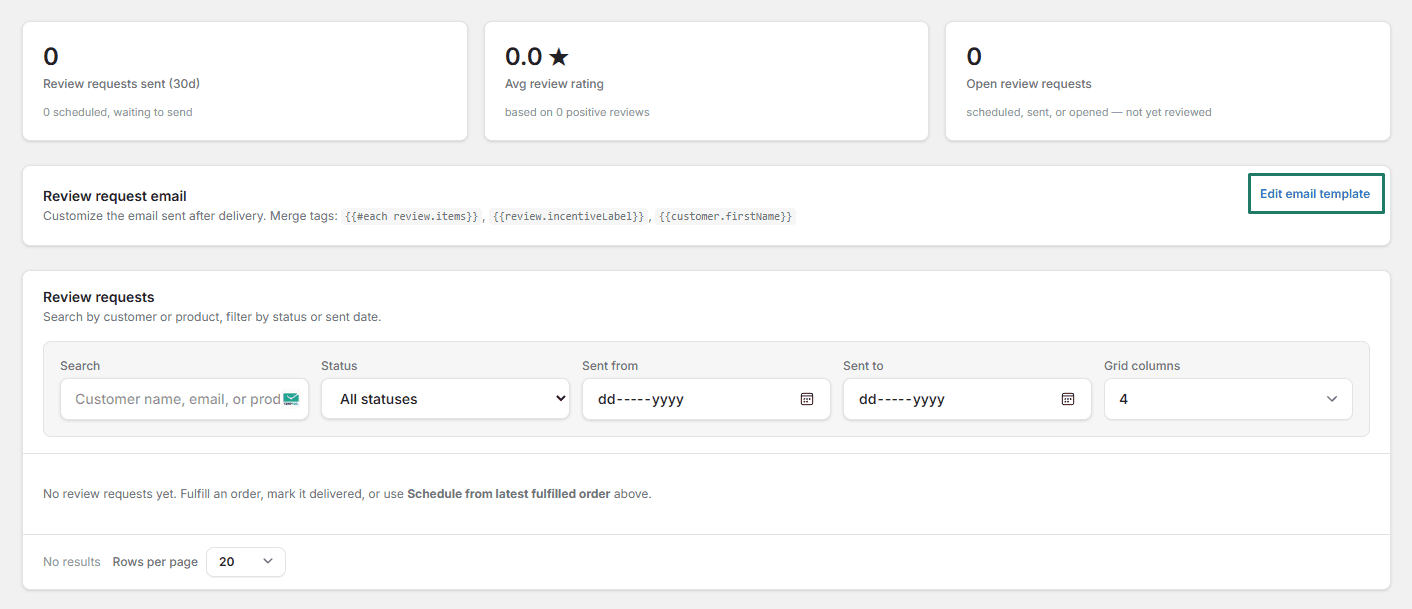
Supported Handlebars Merge Tags
The review request template supports dynamic merge variables that automatically populate customer and order details:
{{#each review.items}}: Iterates through each purchased line item in the customer's order.{{productTitle}}: The name of the purchased product.{{productImageUrl}}: High-resolution product thumbnail.
{{review.incentiveLabel}}: Dynamically renders incentive bonus text configured in Review Settings (e.g., "Earn 100 loyalty points for adding a photo" or "Save 15% on your next order").{{customer.firstName}}: The customer's first name from their Shopify checkout record.{{review.reviewUrl}}: A secure, pre-authenticated tokenized link directing the customer straight to the review submission portal.
3. Review Requests Management Table
The Review Requests table allows your support and merchandising teams to search, monitor, and troubleshoot customer review deliveries.
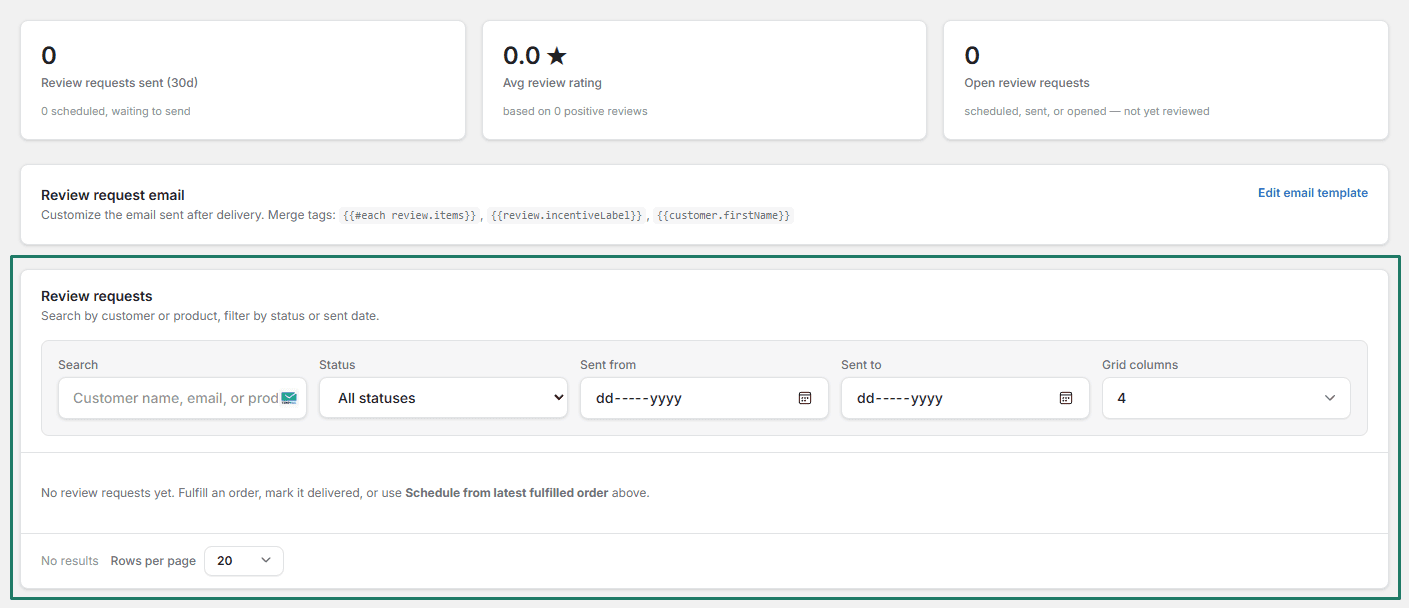
Searching & Filtering Records
Use the search bar and filter controls at the top of the table:
- Search: Search by customer name, customer email address, or purchased product title.
- Status Filter:
All: View all records across every state.Scheduled: Orders that have been fulfilled and are waiting for their post-delivery delay window.Sent: Review request emails that have successfully dispatched via your email provider.Opened: Emails opened by the recipient (tracked via pixel).Reviewed: Customers who have submitted star ratings and text reviews.Incentive Claimed: Customers who uploaded verified media and received their discount code or loyalty points.Failed: Delivery attempts that bounced or encountered SMTP errors.Cancelled: Requests cancelled due to refunded orders or customer unsubscribe.
- Date Range: Filter requests by sent date using the
Sent fromandSent tocalendar pickers. - Pagination & Page Size: Toggle display density (10, 25, 50, or 100 records per page).
Copying Direct Review Submission Links
If a customer contacts customer support asking to leave a review or if an email was misplaced:
- Locate the customer's record in the Review Requests table.
- In the right-hand action column of the customer card, click Copy link.
- The secure, single-use review URL (
/review/[token]) is copied to your clipboard. - Send the link directly to the customer in Shopify Inbox, Zendesk, Gorgias, or email.
Related Guides
- Storefront Setup & Overview — embedding review blocks and order status widgets on your theme
- UGC Gallery & Moderation — moderating photo submissions and tagged social posts
- Review Settings & Social Sync — setting delivery delay windows and review incentives
- Email Template Builder Guide — customizing email templates and MJML styling
- Provider Setup & Diagnostics — configuring custom domains and SMTP gateways