
Checkout Upsells Guide
Enhance the checkout experience with native Shopify Checkout UI extension upsell widgets embedded directly inside the checkout page order summary and shipping sections.
Overview: How Checkout Upsells Work
Checkout upsells allow merchants on Shopify Plus to offer complementary items, upgrades, or add-ons while the customer is completing their initial checkout form.
Key Features
- Native Checkout Integration: Built using Shopify Checkout UI extensions for maximum speed, security, and seamless integration with Shopify Plus checkout layouts.
- In-Checkout Variant Switcher: Shoppers select sizes, colors, or options directly inside the checkout widget without leaving the checkout flow.
- Instant Subtotal Update: Adding an upsell updates the cart subtotal and tax calculation in real time.
Installation: Enabling Checkout Upsells
- Open Shopify Admin → Online Store → Edit theme.
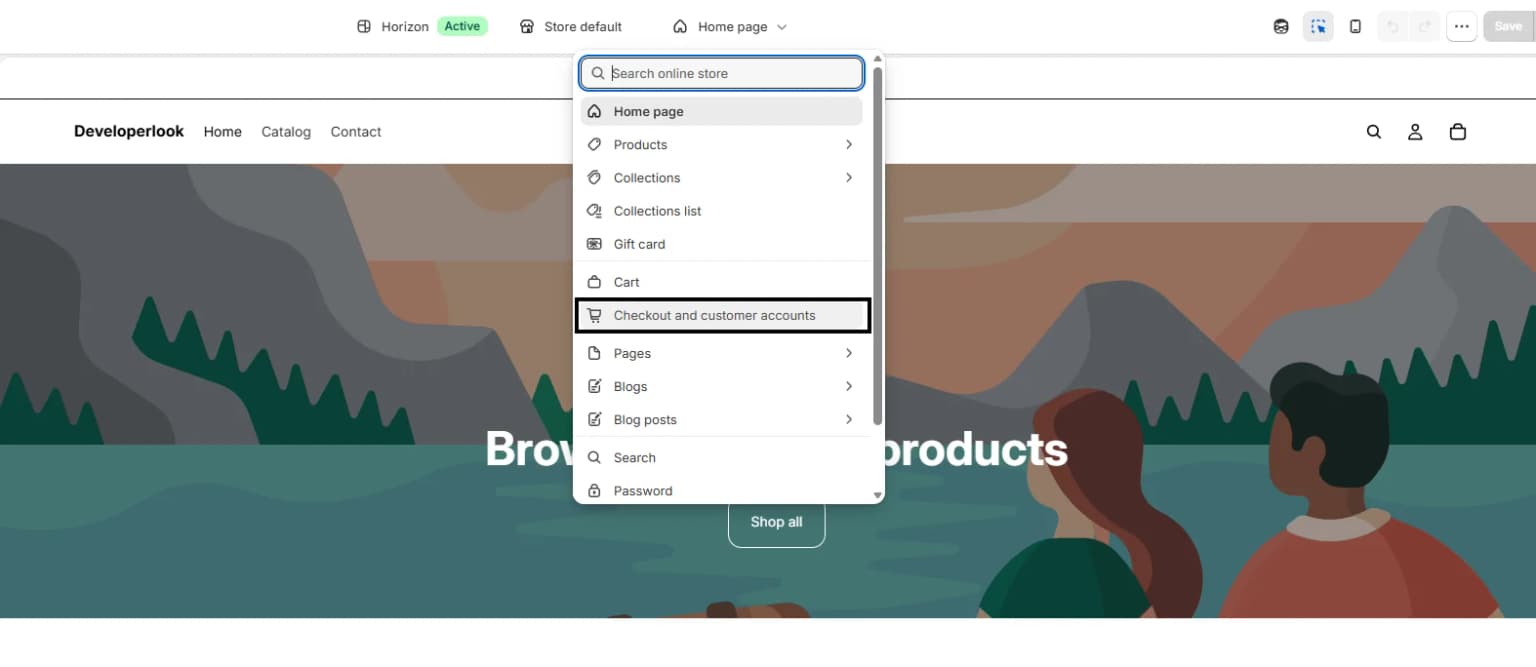
- Switch the top dropdown from Home page to Checkout.
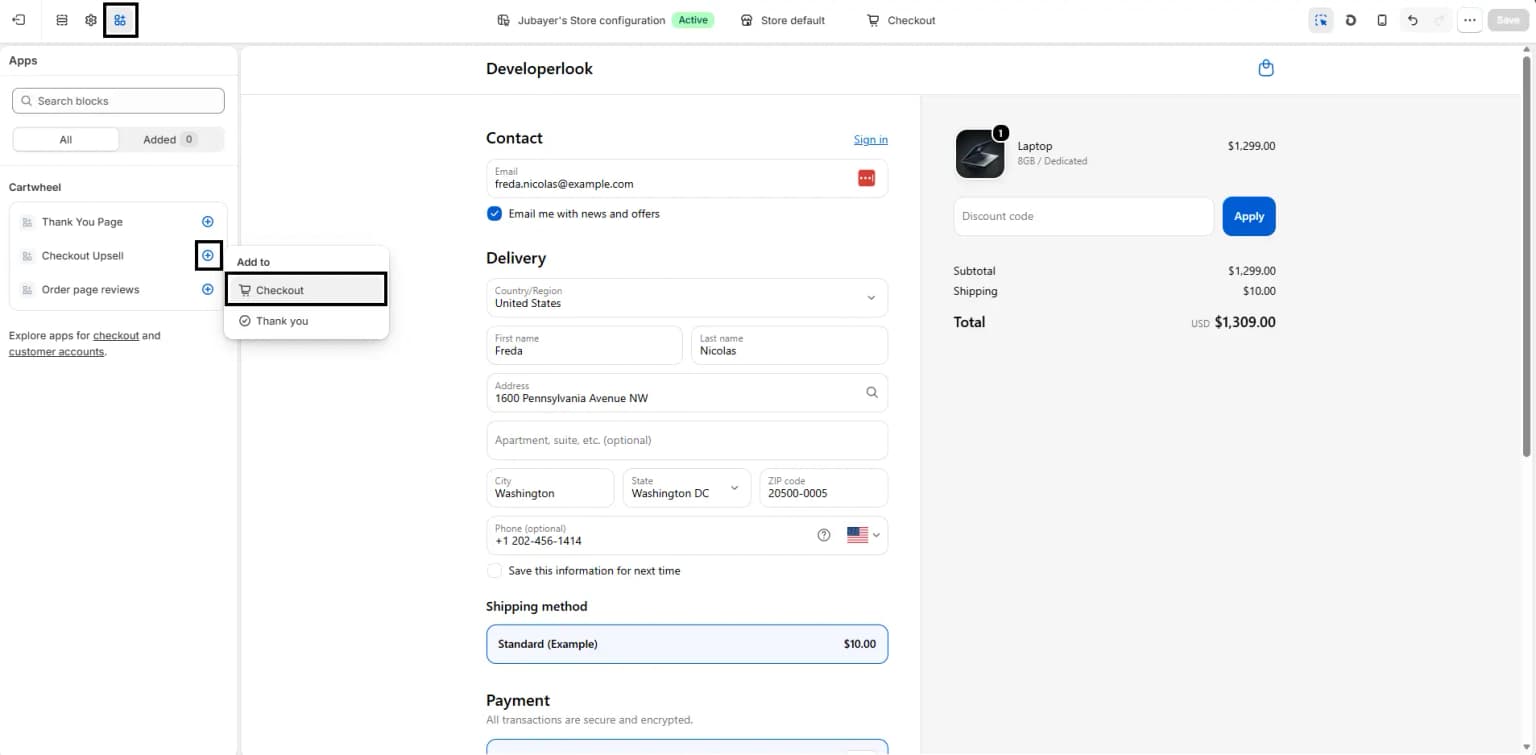
- Click Apps at the left side of the header and enable Checkout Upsell.
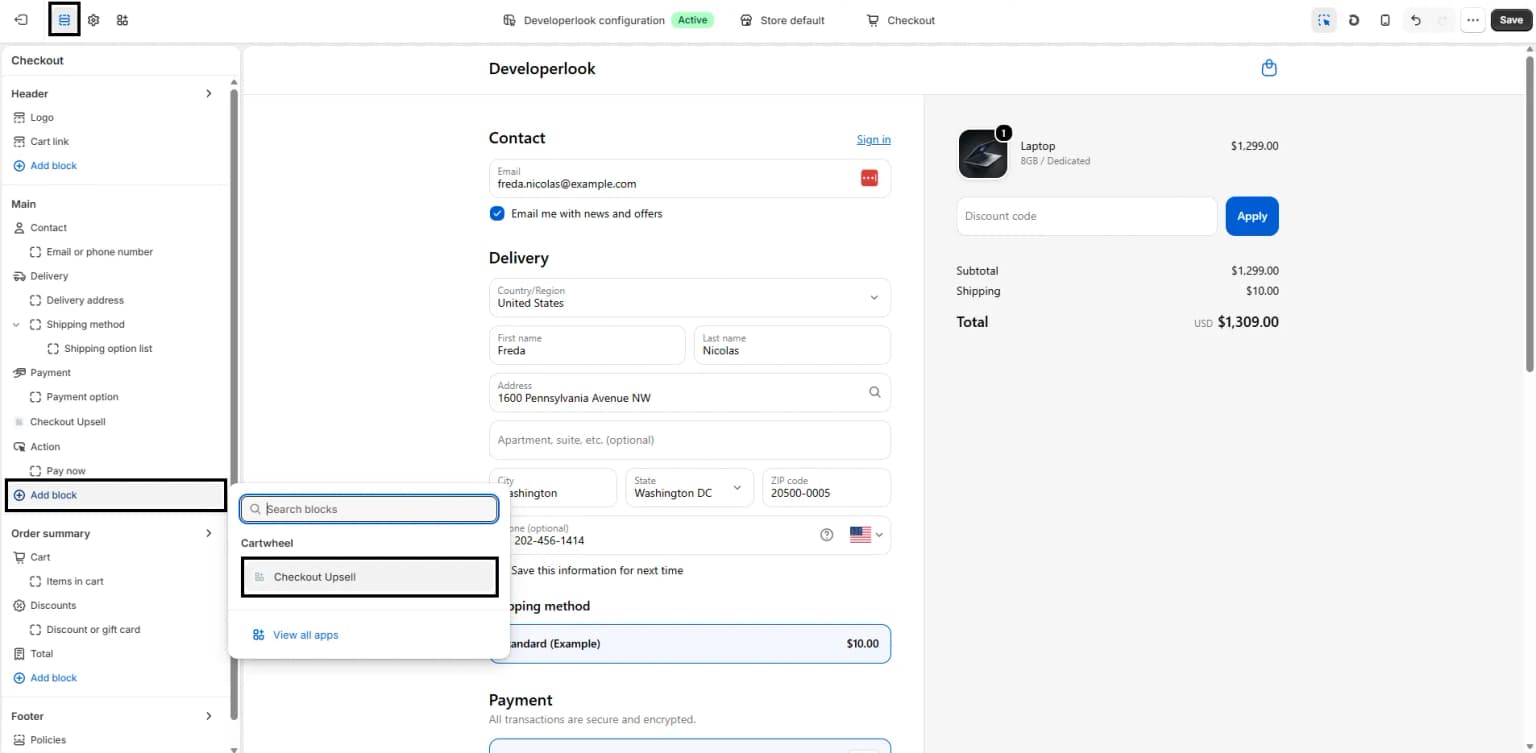
- Click Add Block under the Checkout page layout.
- Toggle on Include block in the right-hand sidebar.
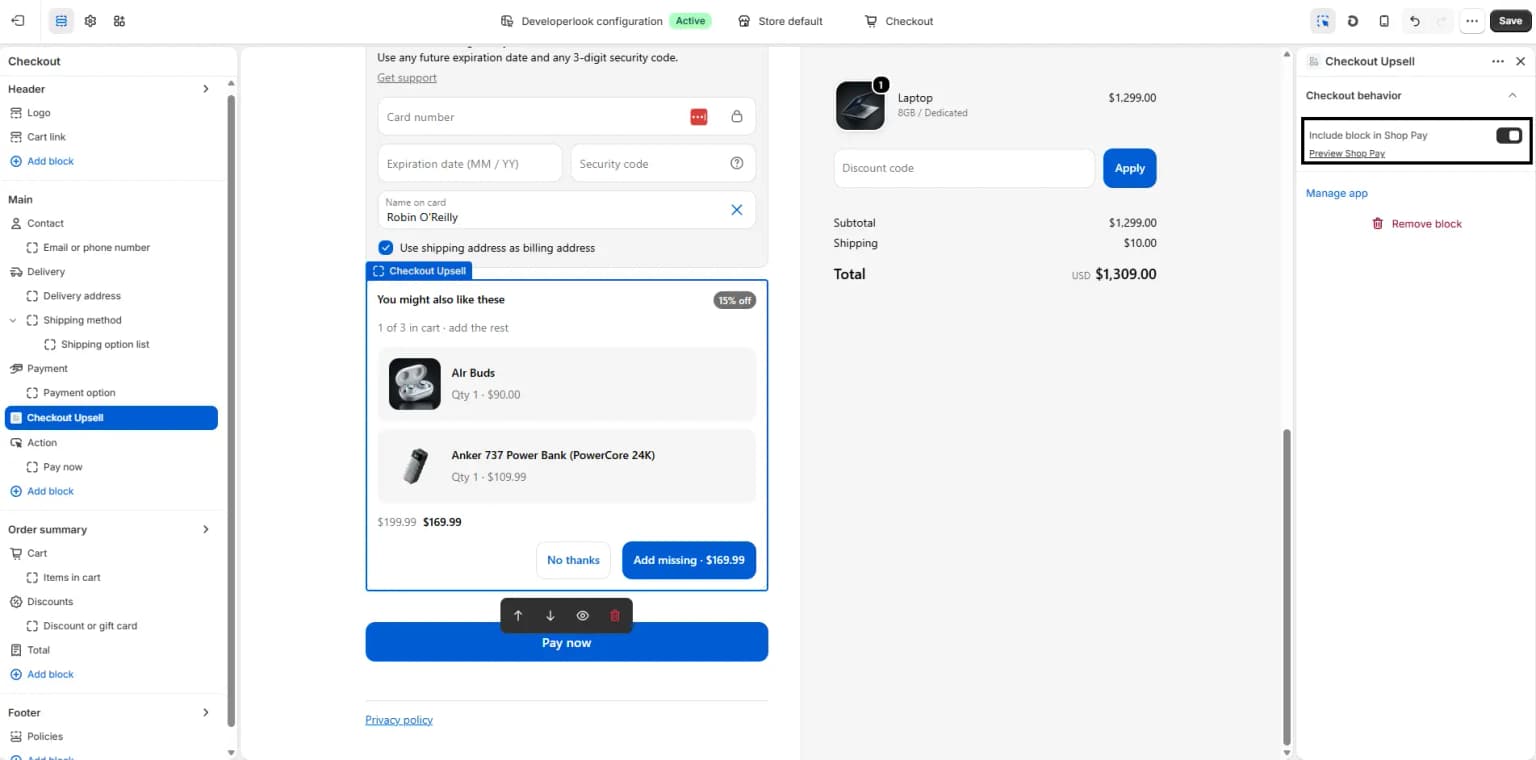
- Select Cartwheel Checkout Upsell and position it in your checkout sidebar or main order summary.
- Click Save.
Creating a Checkout Upsell Offer
To set up a new checkout upsell offer in Cartwheel:
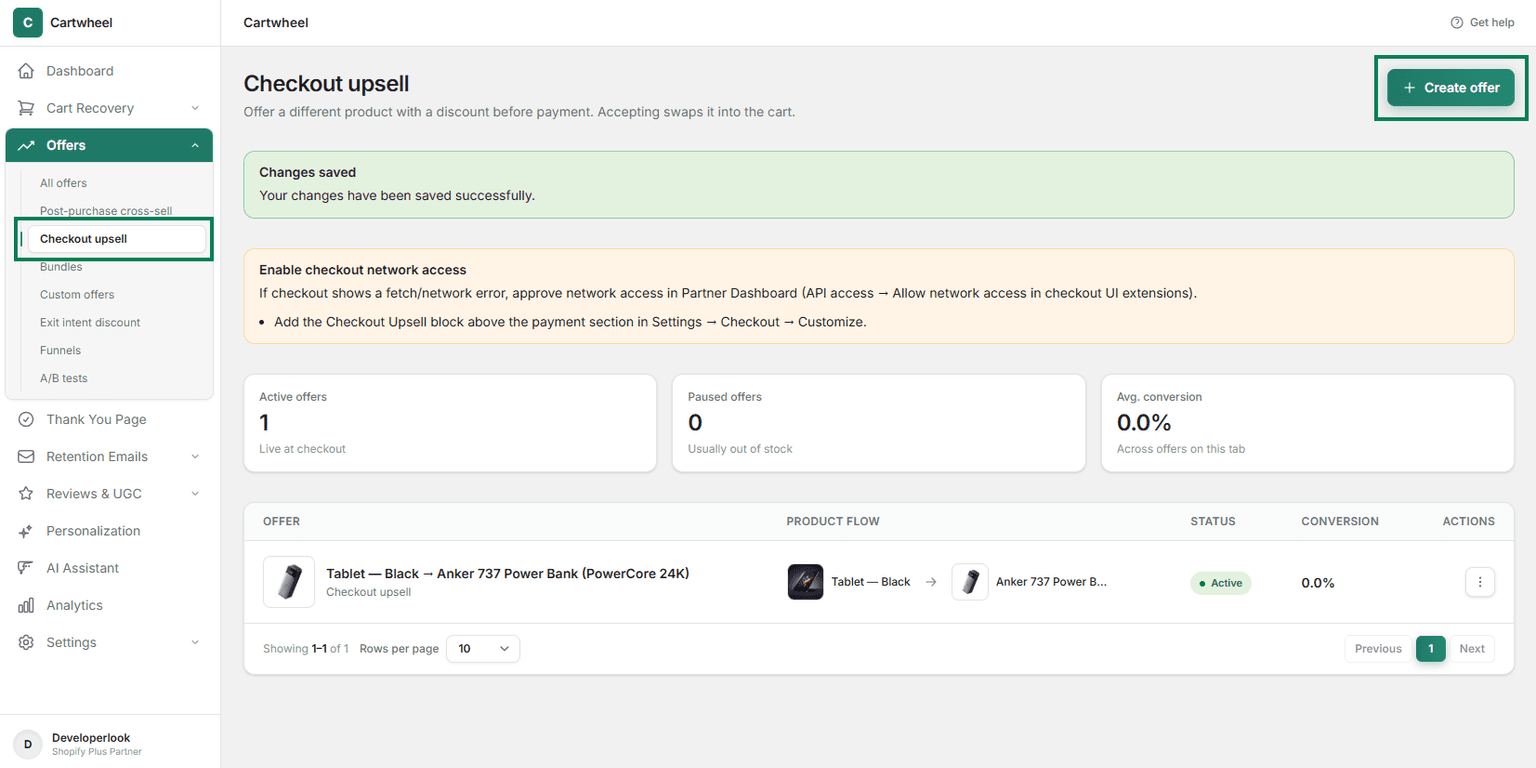
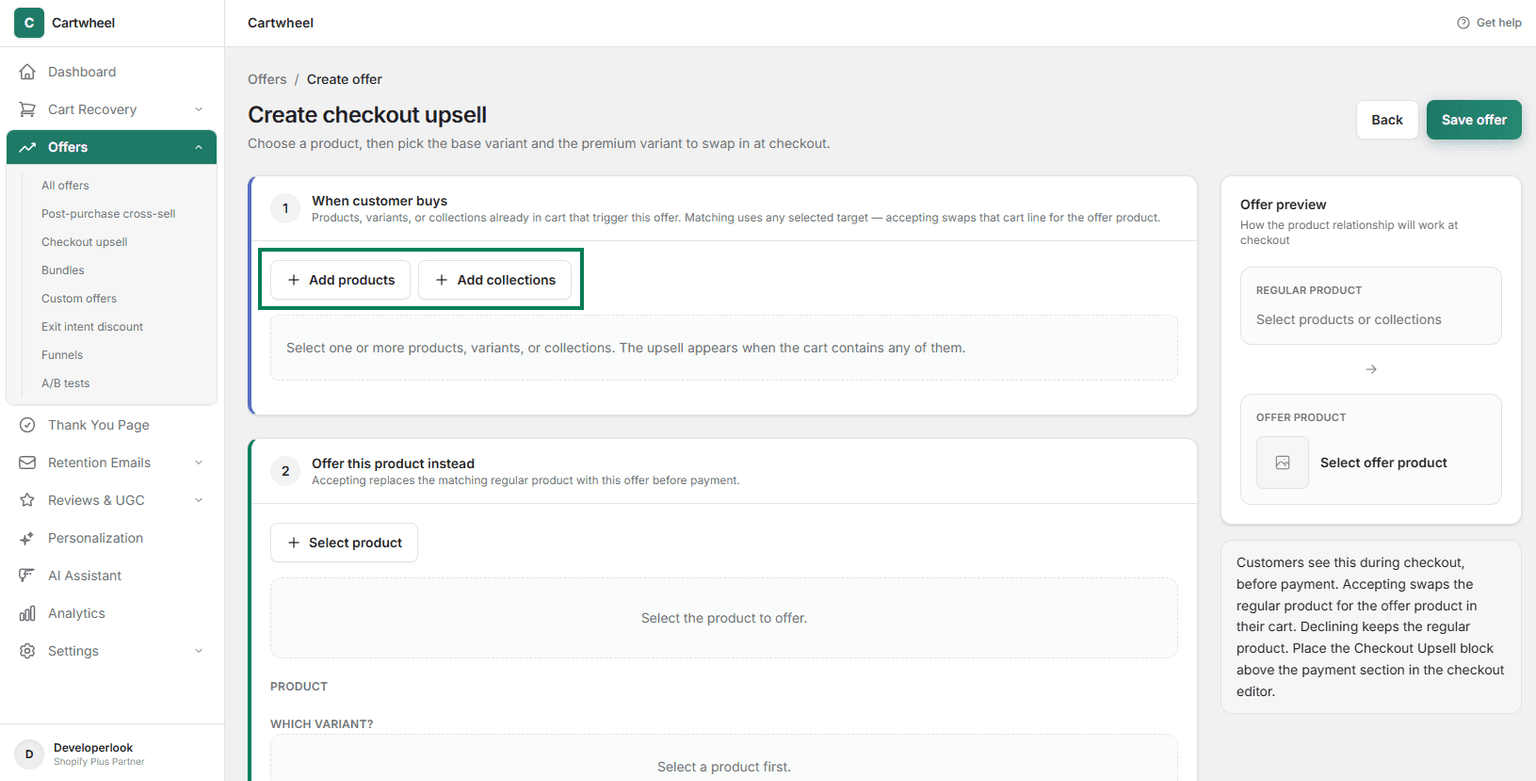
- Navigate to Cartwheel Admin → Offers → Checkout Upsell.
- Click Create Offer.
- Choose Trigger Product(s): Select the product(s) for which you want to offer this upsell.
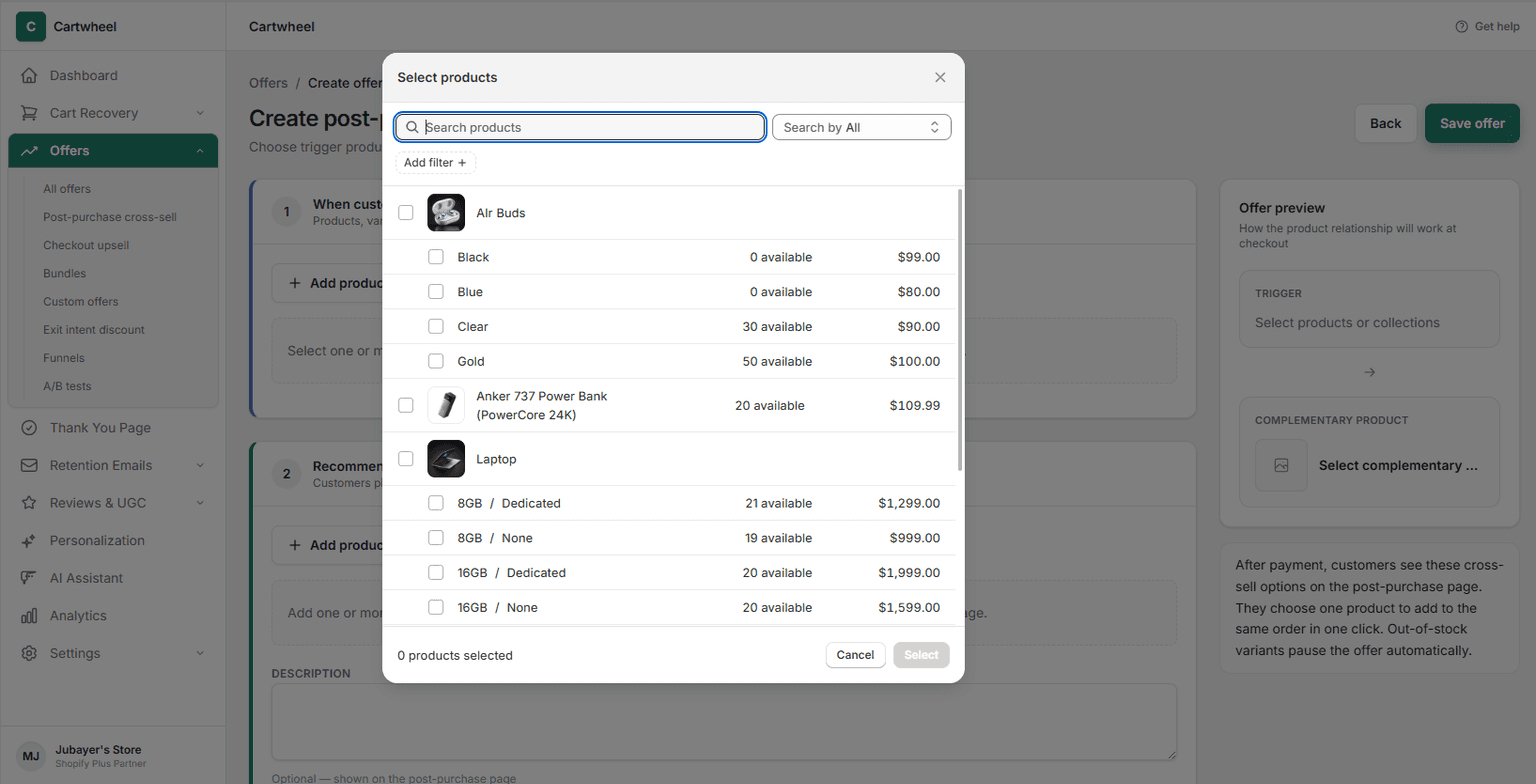
- Choose Offer Product: Select the product you want to offer as a upsell (e.g., premium upgrade).
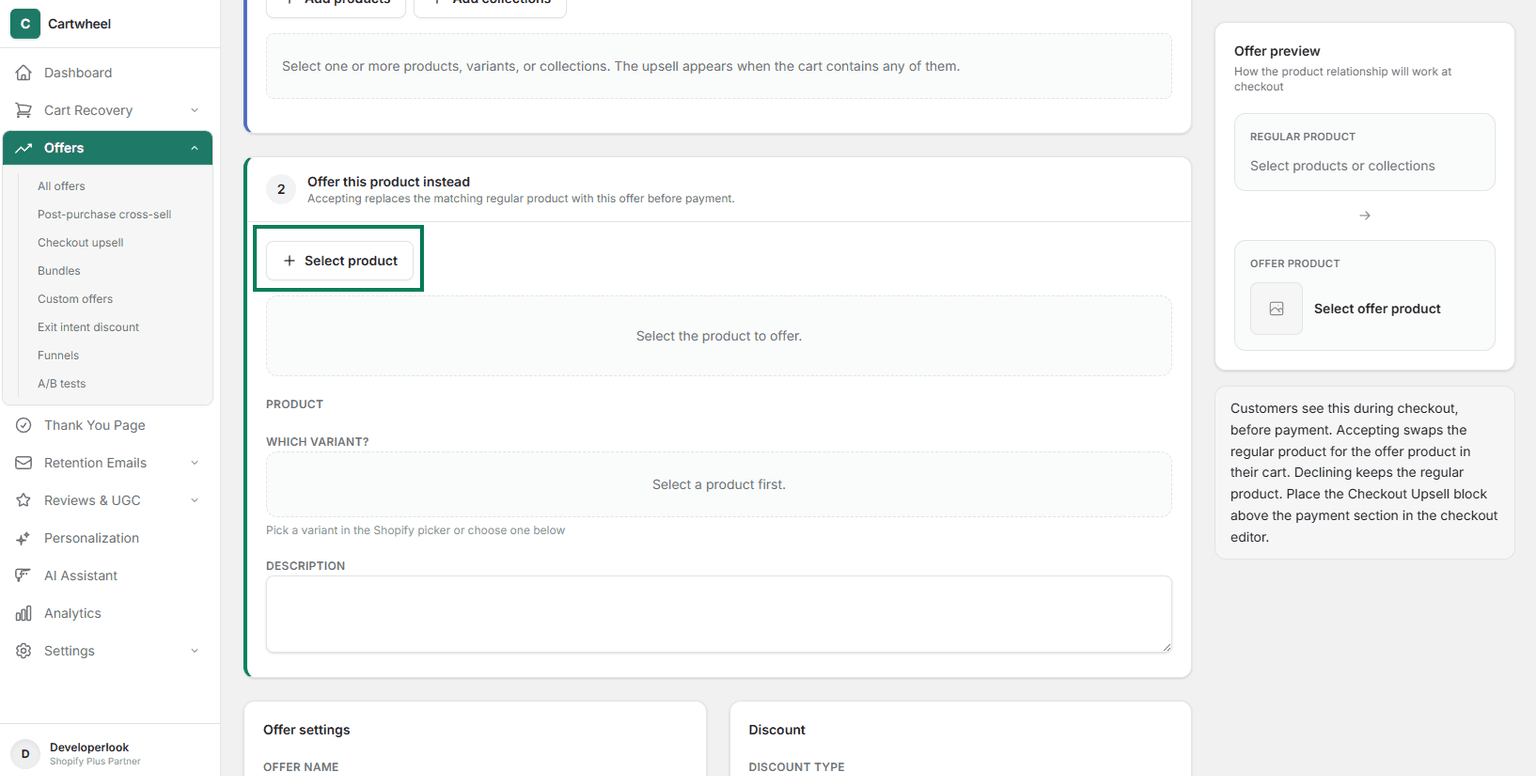
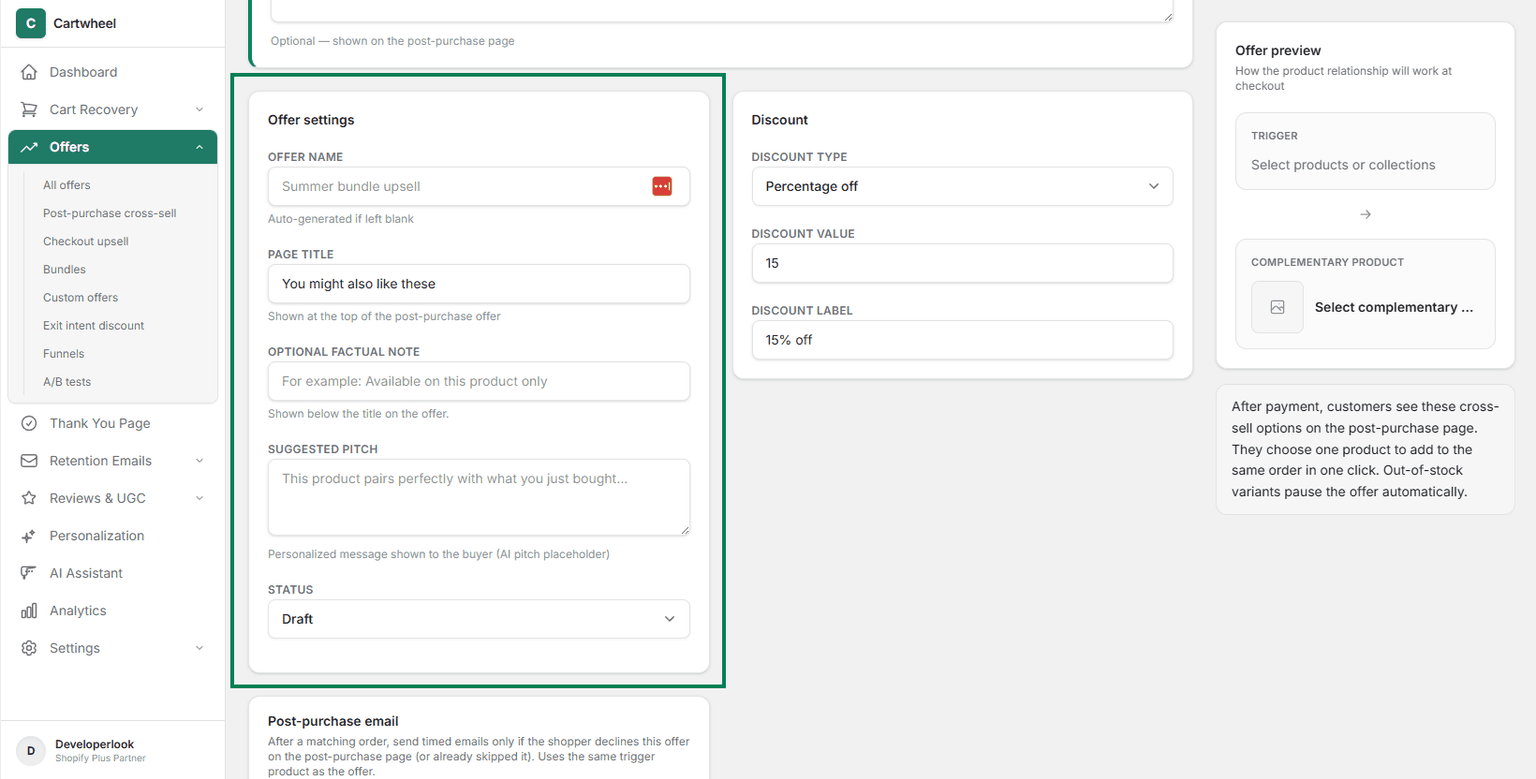
- Configure offer settings: Set offer name, page title, Optional factual note, Suggested pitch, and status.
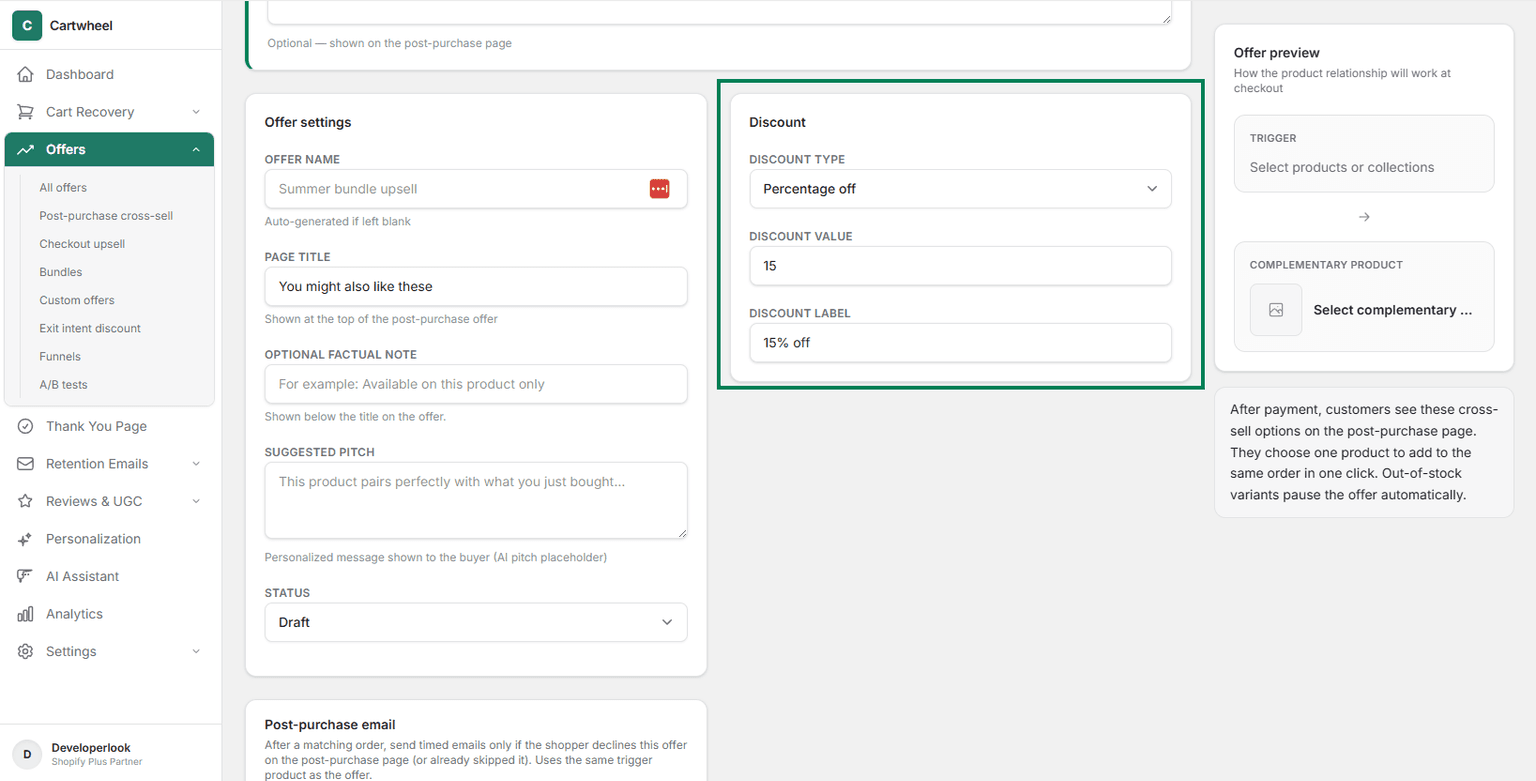
- Set Discount: Choose a discount type:
- Percentage Discount (e.g., 20% OFF)
- Fixed Amount Off (e.g., $10 OFF)
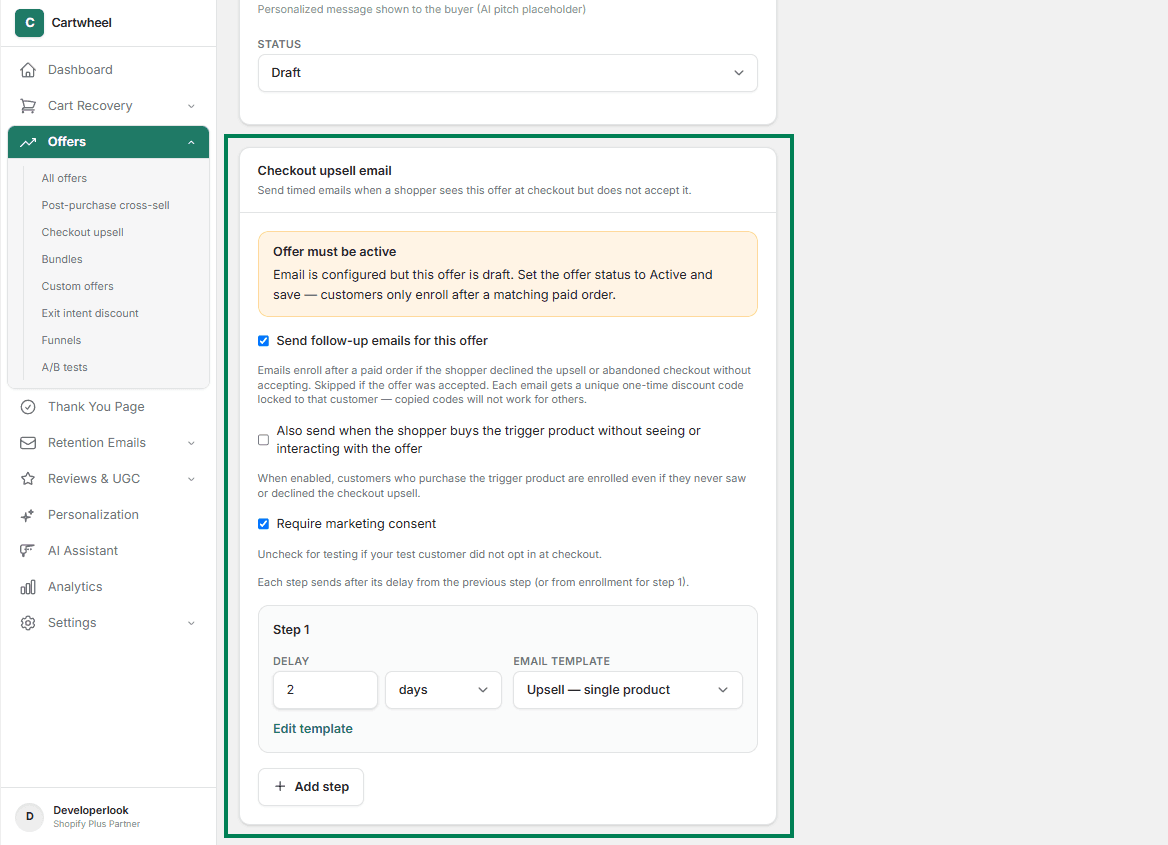
- Post-purchase email: Configure checkout upsell email. Set a schedule for sending post-purchase email to customer.
- Publish: Toggle the offer status to Active and click Save.
Target Rules & Trigger Conditions
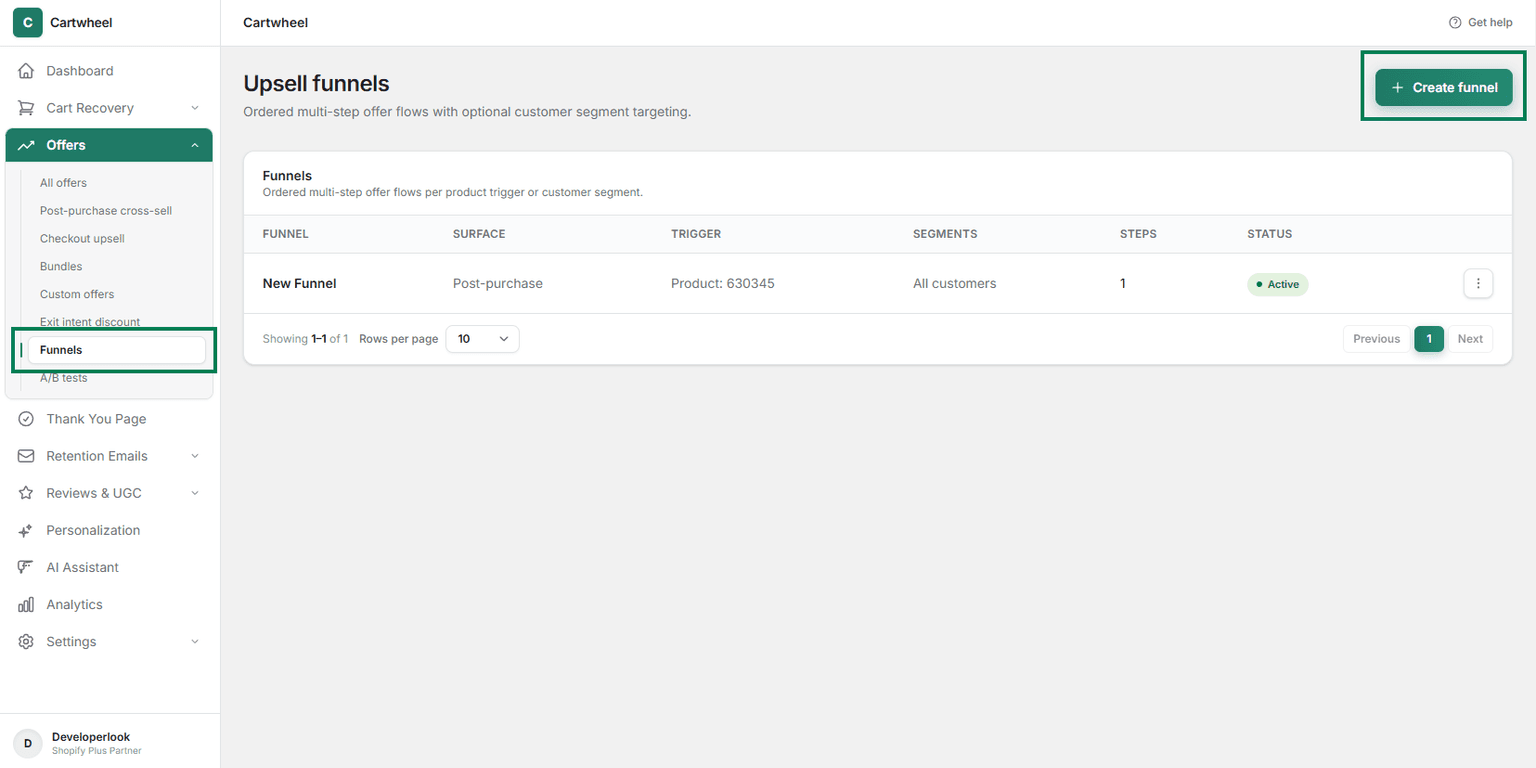
To control offer visibility using smart trigger rules (such as Cart Subtotal, Product & Collection Rules, or Customer Segmentation), link your checkout upsell offers inside a conversion funnel.
For detailed setup, see our Conversion Funnels Guide.
Integrated Email Follow-Up
If a customer buys a trigger product but completes checkout without accepting the checkout upsell:
- Cartwheel can automatically enroll them into an automated follow-up email sequence.
- For complete setup instructions, see our Offer Follow-Up Email Sequences Guide.
Publishing & Managing Offers
From the Offers List dashboard (/app/upsell), manage your live campaigns:
- Navigate by Offers Sub-menu: Switch to the Post-purchase cross-sell tab to isolate active post-purchase cross-sell campaigns.
- Conversion Performance Metrics: Monitor Active offers, Total orders and Conversion rate.