
Abandoned Browse Retargeting Guide
Re-engage signed-in store visitors who view specific products or collections on your storefront but leave before adding items to their cart.
Overview: How Browse Abandonment Works
Abandoned Browse Retargeting captures early purchase intent at the top of the consideration funnel, re-engaging recognized shoppers who browse your product catalog but leave without adding items to their cart or starting checkout.
When a signed-in customer views a matching product page on your live storefront, Cartwheel records the browse session. If no cart addition or purchase occurs within your configured inactivity window (e.g. 30 minutes), Cartwheel automatically launches a personalized browse recovery email showcasing the exact product they viewed alongside relevant product recommendations.
Prerequisite: Enabling Theme App Embed Tracker
Browse abandonment tracking requires the Cartwheel Recovery Tracker theme app embed active on your live theme to associate storefront product views with signed-in customer accounts.
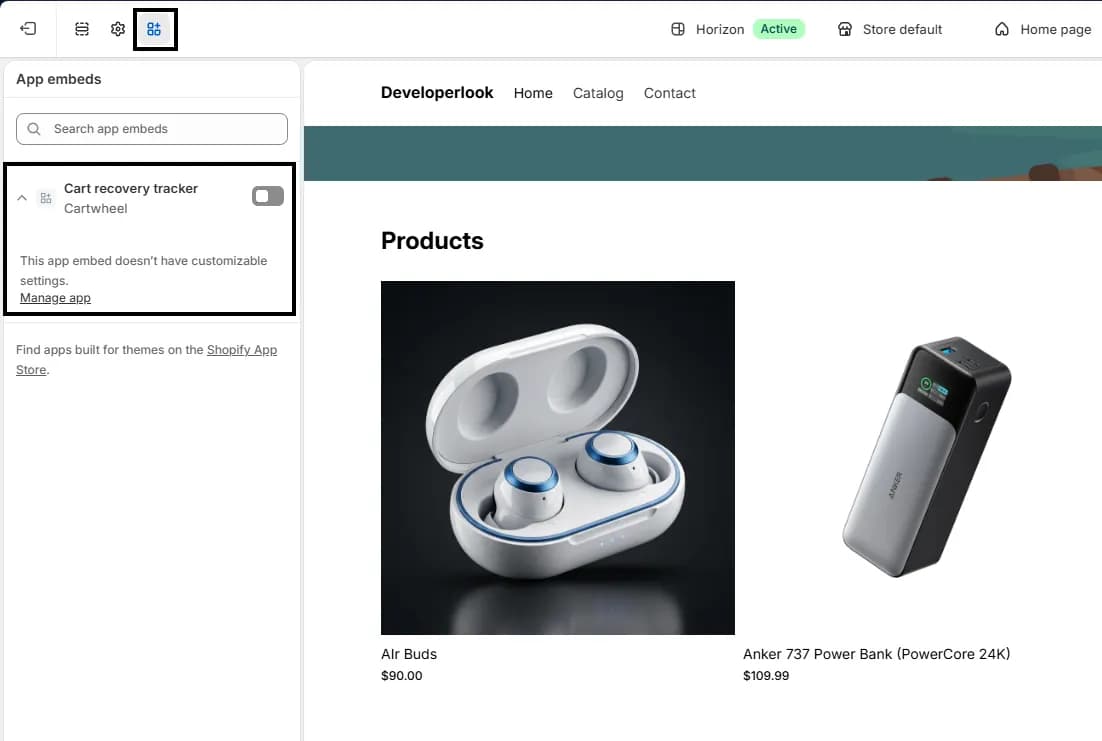
Quick Setup Steps:
- In your Shopify Admin, navigate to Online Store → Themes.
- Click Customize on your active theme.
- In the left-hand navigation panel, click the App Embeds tab (the third icon from the top).
- Turn on the Cartwheel Recovery Tracker toggle switch.
- Click Save in the top right corner.
Dynamic Viewed Product Highlights
Every browse recovery email automatically dynamically renders:
- Featured Product Card: Displays the exact product title, high-resolution product image, price, and star rating from the customer's browse session.
- Direct Storefront Link: Directs the shopper right back to the product page they were considering with a prominent call-to-action button.
- Smart Collection Recommendations: Dynamically inserts complementary items from the same product collection or category to maximize re-engagement.
Step-by-Step Configuration Guide
To create and publish an Abandoned Browse Retargeting sequence:
- In your Shopify Admin, navigate to Apps → Cartwheel → Cart Recovery.
- Click the Browse abandonment tab in the sub-navigation bar (or stay on the All flows tab).
- In the top right action bar, click Create browse flow (or click Create flow → Browse flow).
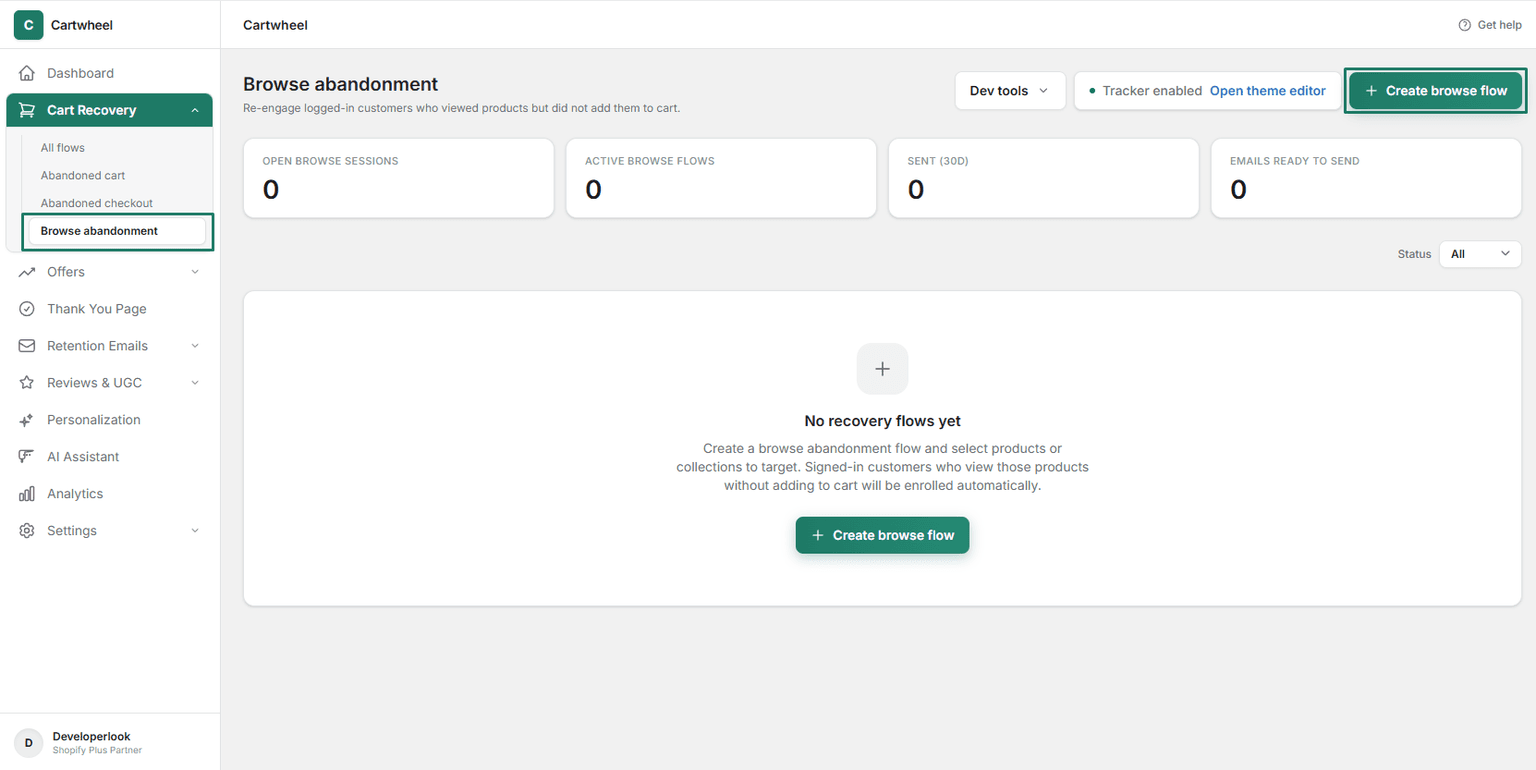
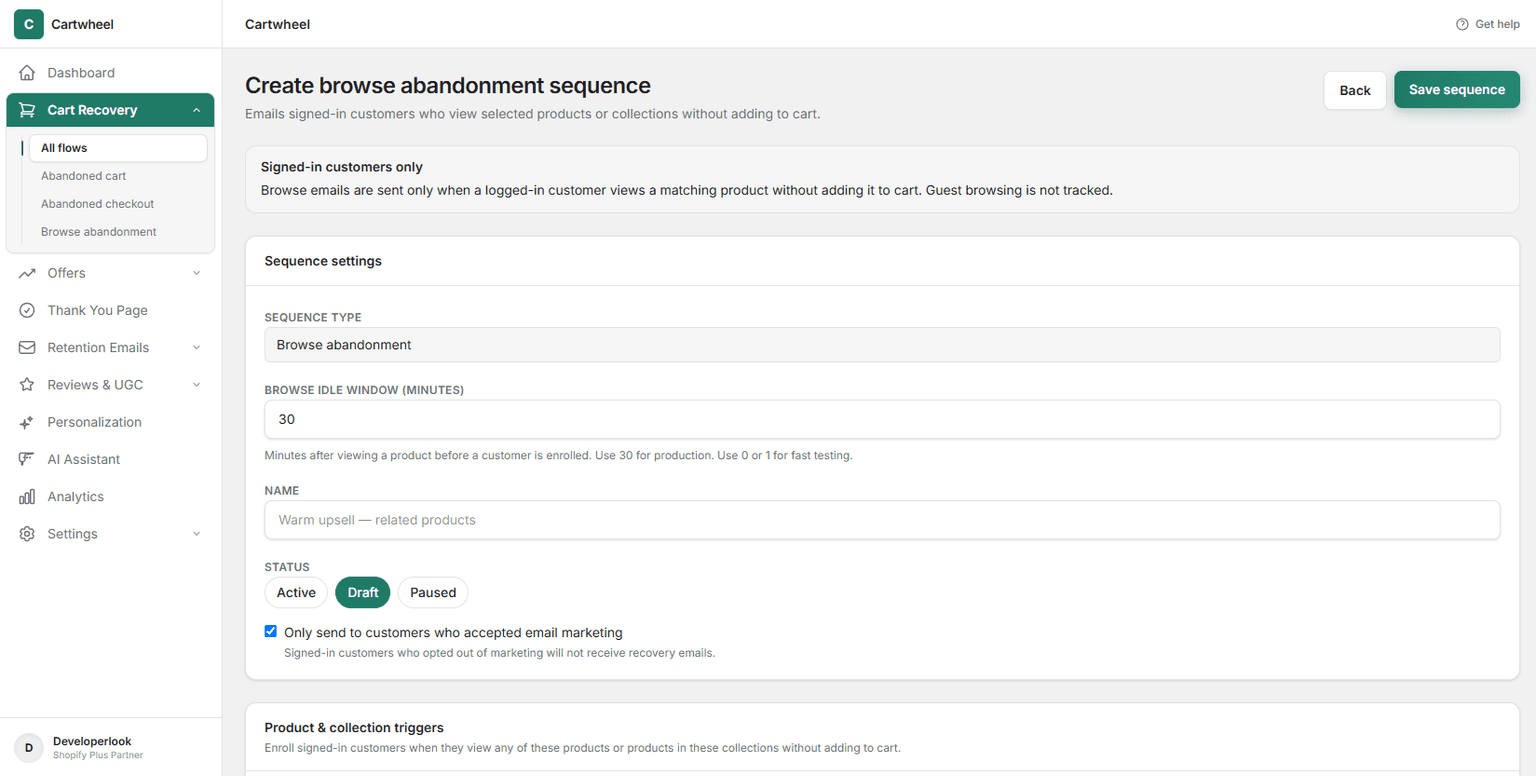
- Configure Sequence Settings:
- Sequence Type: Displays
Browse abandonment. - Browse Idle Window (minutes): Specify how many minutes after viewing a product a customer must remain inactive before being enrolled (default is
30 minutes; use0or1for fast development testing). - Name: Enter a descriptive sequence label (e.g. High-Intent Browse Retargeting Drip).
- Status: Select Active using the toggle pill buttons (options: Draft, Active, Paused).
- Marketing Consent Check: Check Only send to customers who accepted email marketing if you wish to restrict emails to customers who opted into store marketing.
- Sequence Type: Displays
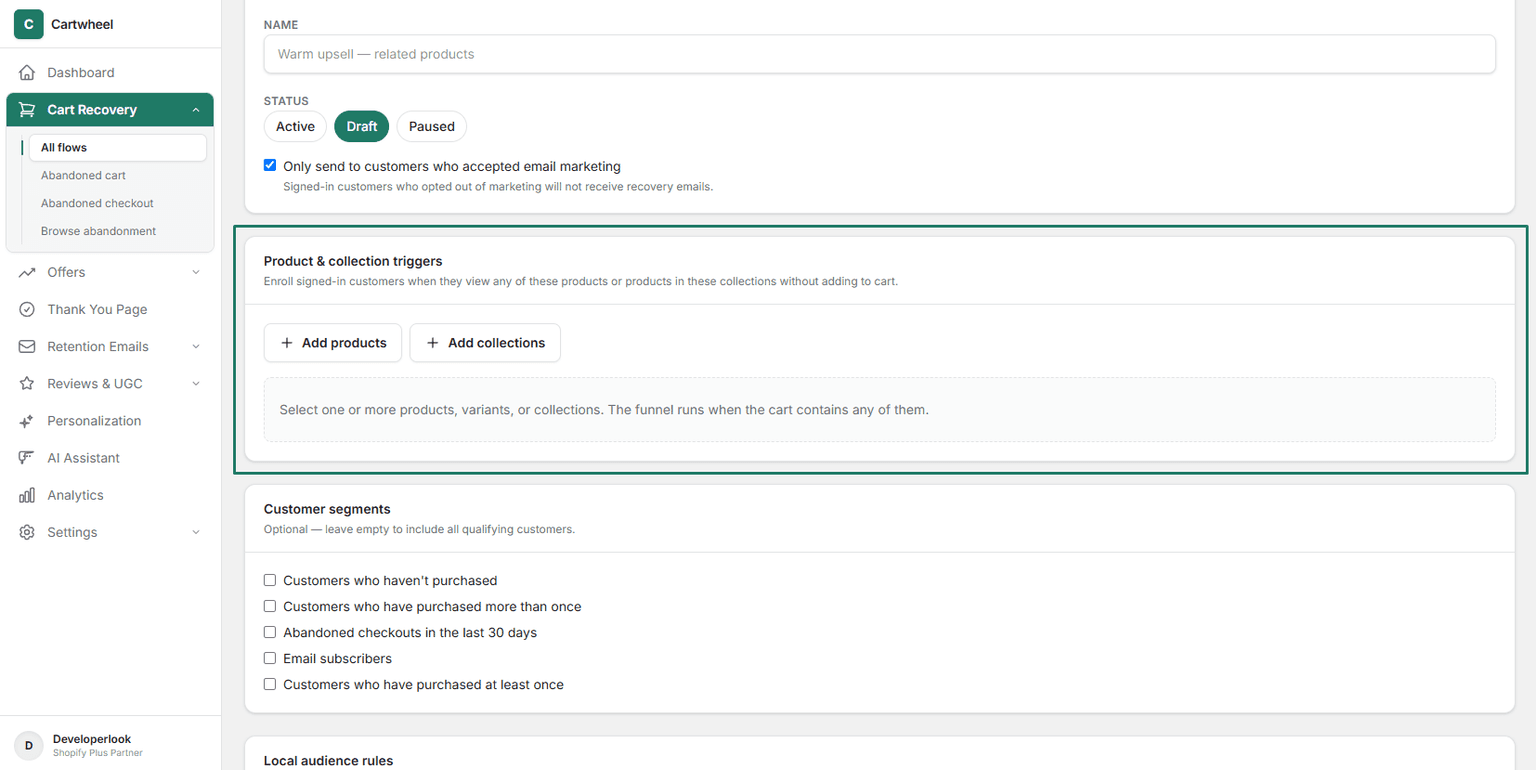
- Product & Collection Triggers:
- In the Product & collection triggers card, select which specific products or collections should trigger browse abandonment enrollment.
- Leave empty to trigger for all store products, or restrict to high-margin catalog items.
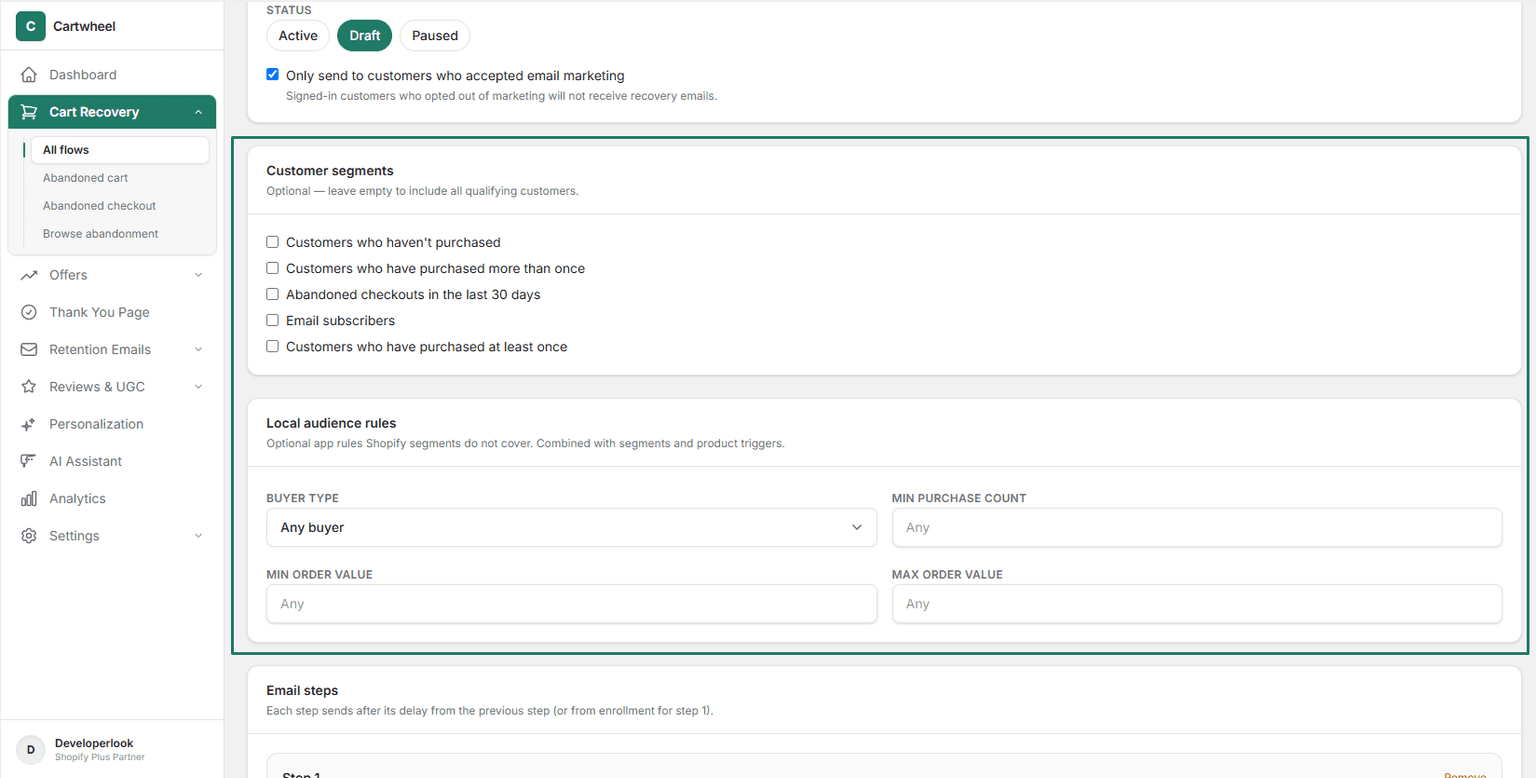
- Customer Segments & Local Audience Rules (Optional):
- Customer Segments: Select specific Shopify customer segment checkboxes, or leave unchecked to include all qualifying shoppers.
- Local Audience Rules: Refine targeting with:
- Buyer Type: Select
Any buyer,First-time buyers, orReturning buyers. - Min Purchase Count: Filter by previous order history count.
- Min / Max Order Value: Restrict enrollment by minimum or maximum order thresholds.
- Buyer Type: Select
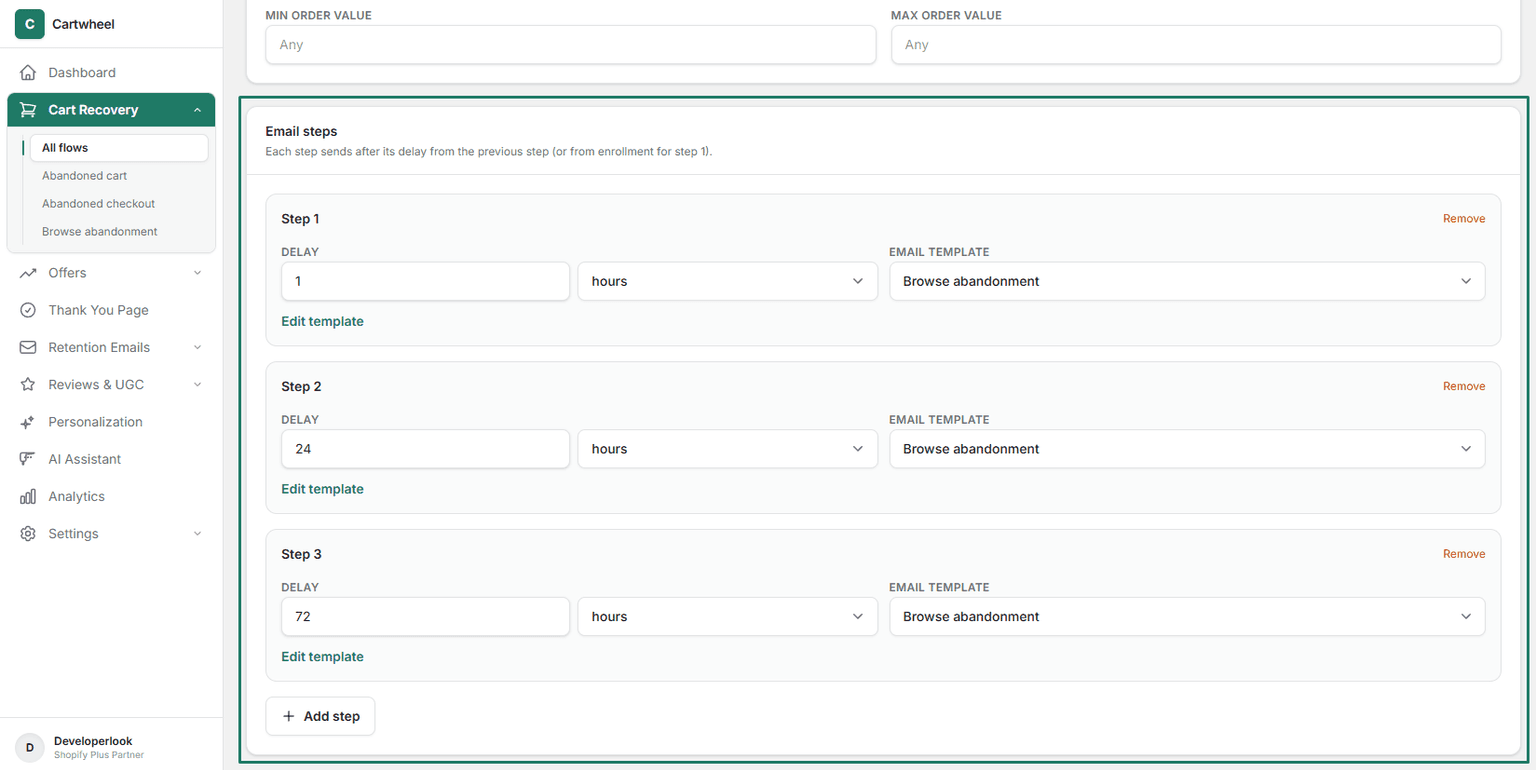
- Build Email Steps:
- Step Delays: Set the delay number and unit (
minutes,hours, ordays) from the previous step (or from enrollment for Step 1). - Template Selector: Choose an email template from the dropdown (e.g. Browse abandonment reminder). Click Edit template to customize the email in the visual template builder.
- Add / Remove Steps: Click Add Step to add follow-up reminders, or click Remove on individual step cards.
- Step Delays: Set the delay number and unit (
- Save and Publish: In the top right header, click Save sequence to activate browse retargeting.
Automatic Resolution & Deliverability Safeguards
Cartwheel automatically protects your customers from unwanted retargeting emails:
- Cart Addition or Purchase Resolution: If a customer adds the viewed item to their cart or completes a checkout during the idle window, the browse session is resolved immediately and no browse email is sent.
- Storefront Live Diagnostic: Check the Recent storefront tracking badge on the Cart Recovery dashboard to confirm product view events are syncing in real time.
- Unsubscribe Compliance: Every email includes a one-click unsubscribe link in the footer.
Related Guides
- Installation & Setup Guide (Theme Tracker) — step-by-step app embed setup
- Abandoned Cart Recovery Guide — recovering on-site cart abandonment
- Abandoned Checkout Recovery Guide — recovering abandoned checkout sessions
- Email Provider Setup & Diagnostics — configuring Resend, SMTP, and delivery verification
- Email Template Builder Guide — visual email template editor