
Birthday Capture & Annual Celebration Email Sequences Guide
Capture customer birth dates seamlessly at checkout and deliver high-converting, automated celebratory greetings and exclusive gift offers on their special day every year.
Important: How the Birthday Flow Works
The 3-Stage Birthday Lifecycle
1. Customer Enters Birth Date at Checkout
When shoppers reach your Shopify checkout, they encounter the Birthday Capture Block:
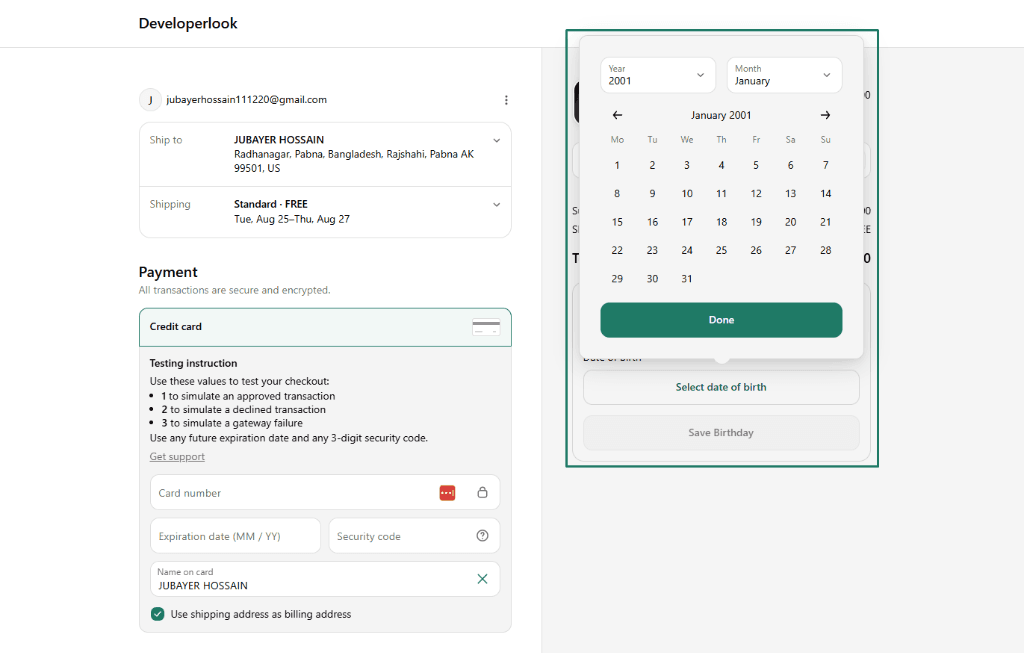
- Date Selection: The customer selects their birth month, day, and year using the interactive date picker calendar popover and clicks Done.
- Attributes Saved: Clicking Save Birthday writes checkout custom attributes
Birthdayand_customer_birthdayformatted asYYYY-MM-DD. These attributes attach to the checkout session and ride along on the final order. - Instant Profile Sync: If Cartwheel identifies the customer's email (logged-in account or email entered in the contact field), the extension makes an immediate
POSTrequest to/api/storefront/customer-birthdayto save the date directly on their CartwheelCustomerProfile. - Guest / Unidentified Shoppers: If the customer hasn't entered their email yet, the birth date remains securely in the checkout note attributes until the order is submitted.
2. Order Paid → Profile & Shopify Metafield Sync
When the customer completes payment, Shopify fires the orders/paid webhook to Cartwheel:
- Reads Order Attributes: Cartwheel extracts the birthday date from the order note attributes (
Birthday/_customer_birthday/birthdate). - Updates Customer Profile: Cartwheel saves the date to the customer's unified
CustomerProfilein the database. - Syncs to Shopify Metafield: Cartwheel automatically writes the date to the customer's standardized Shopify metafield:
- Namespace:
app - Key:
birthday - Type:
date(YYYY-MM-DD)
- Namespace:
- Bi-Directional Admin Sync: Store staff can also view or update the
app.birthdaymetafield directly within Shopify Admin → Customers. Thecustomers/updatewebhook automatically syncs any changes back into Cartwheel.
3. Annual Birthday Email (The Celebratory Gift)
Birthday emails are automated through Cartwheel's background scheduler:
- No Immediate Email: Registering a birth date does not trigger an instant email. Emails are queued for the customer's actual birthday.
- Daily Milestone Check: The scheduler evaluates all customer profiles. When a customer's stored birth date matches today's month and day (evaluated in UTC), Cartwheel enrolls them in your active Birthday sequence.
- Deduplication Protection: Cartwheel tracks
lastBirthdayEmailYearon the customer profile. Once enrolled, the profile is stamped with the current calendar year, guaranteeing customers receive at most one birthday celebration email per year. - Gift Incentives: If you attach an active Cartwheel Offer to the sequence step, the email automatically includes your exclusive discount code, promotional link, or gift voucher.
Checkout Integration: Automatic Birthday Capture
Birthday capture is built directly into the Cartwheel Checkout Upsell extension — there is no separate "Birthday Block" to configure in Shopify.
Whenever the Cartwheel Checkout Upsell block is enabled on your checkout page, the birthday date-picker widget renders automatically above your checkout offers.
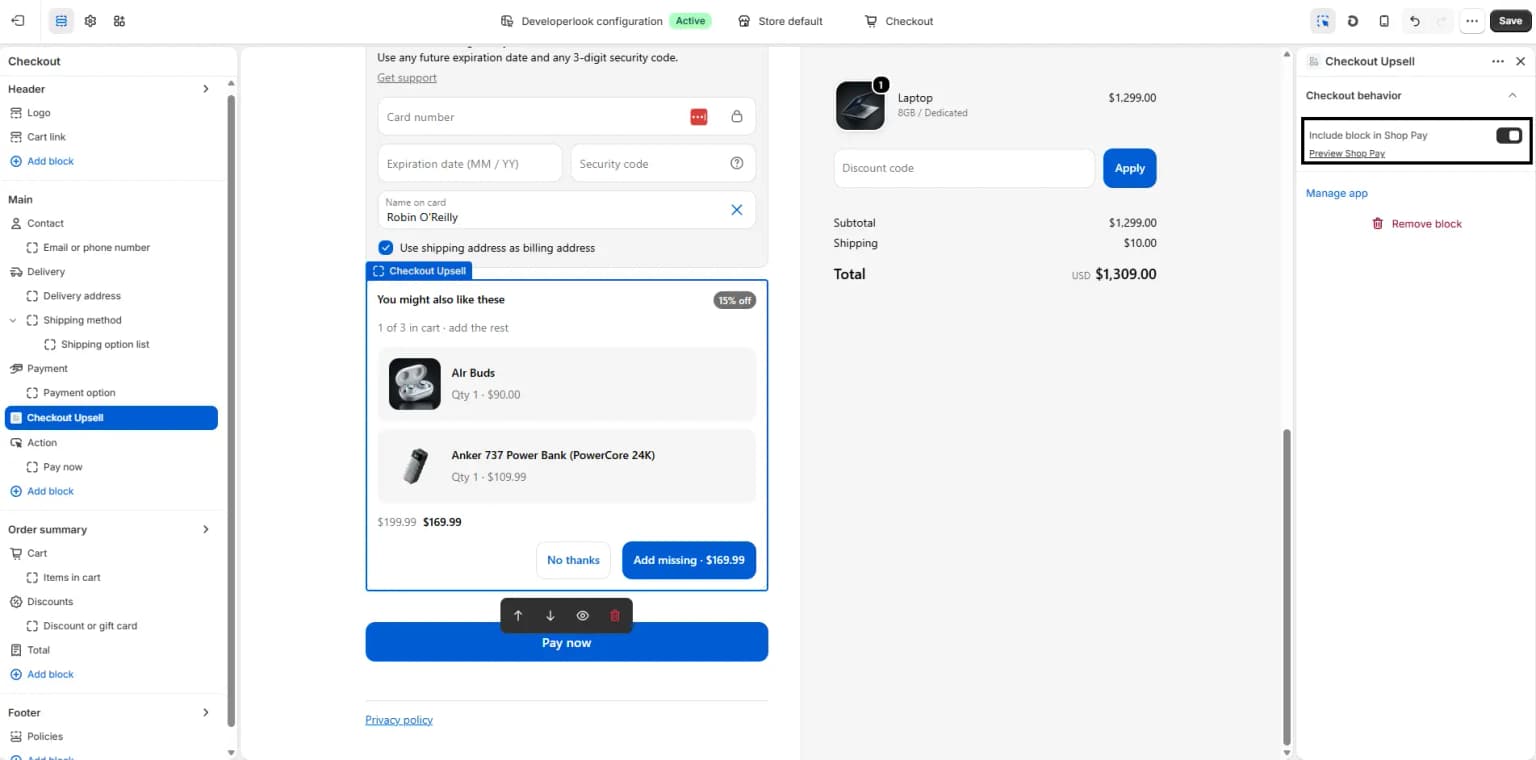
To enable or customize the checkout placement:
- Follow the step-by-step setup in the Checkout Upsell Setup Guide to add the Checkout Upsell block in your Shopify Checkout Editor (Shopify Admin → Settings → Checkout → Customize).
- Position the block in your preferred location (recommended: directly above the Payment section or within the order summary).
- In the top right corner of the theme editor, click Save.
- Once published, the birthday capture block ("Celebrate your birthday with us! 🎂") will automatically appear for all shoppers during checkout.
Creating a Birthday & Anniversary Sequence
To configure the celebratory email sequence that delivers the annual greeting and gift:
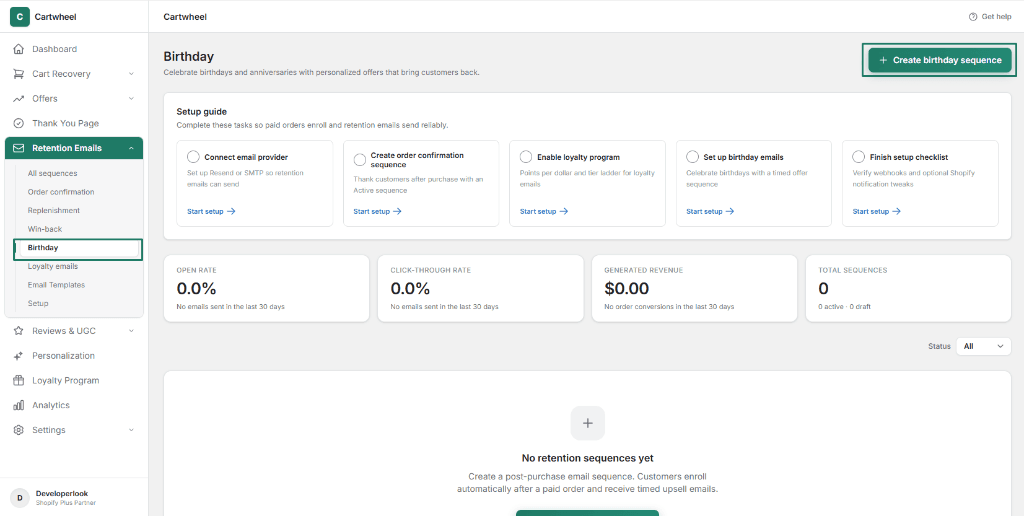
- In your Shopify Admin, open Apps → Cartwheel → Retention Emails.
- Select the Birthday tab from the left sub-navigation.
- In the top right action header, click + Create birthday sequence.
Step 1: Configure Sequence Settings
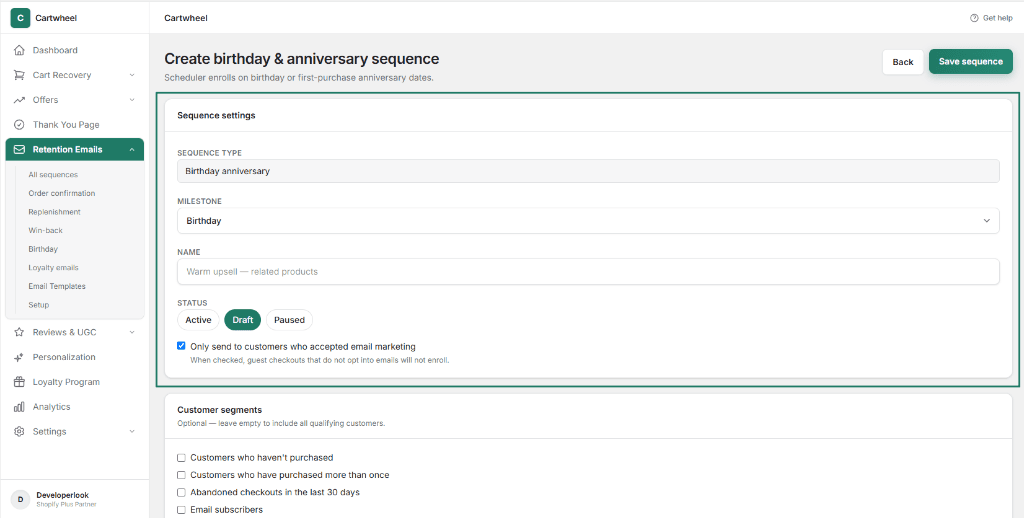
In the Sequence settings card:
- Sequence Type: Displays
Birthday anniversary(pre-filled system sequence type). - Milestone: Select your desired milestone trigger:
- Birthday: Evaluates the customer's stored birth date (
app.birthday). - First purchase anniversary: Evaluates
firstOrderAt(sends on the annual anniversary of the customer's first purchase).
- Birthday: Evaluates the customer's stored birth date (
- Name: Enter an internal campaign name (e.g. Warm upsell — related products or VIP Birthday Gift & 20% Off).
- Status: Select Active to enable automatic milestone monitoring, Draft while finalizing email content, or Paused.
- Marketing Consent: Check Only send to customers who accepted email marketing to ensure guest checkouts that did not opt in are excluded.
Step 2: Set Customer Segments & Local Audience Rules (Optional)
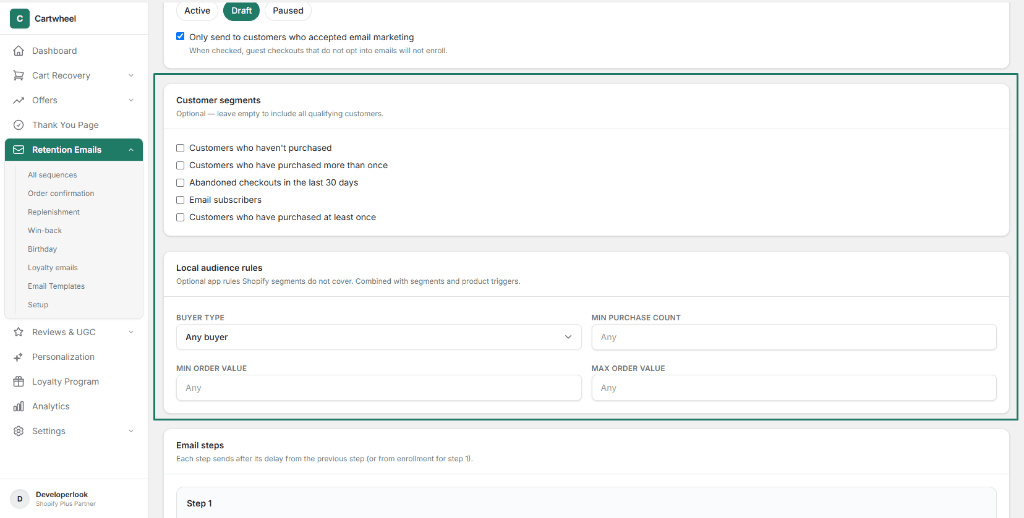
- Customer Segments: Check synced Shopify customer cohorts (e.g. Customers who haven't purchased, Customers who have purchased more than once, Abandoned checkouts in the last 30 days, Email subscribers, or Customers who have purchased at least once) to restrict the birthday sequence to specific cohorts, or leave empty to celebrate all shoppers.
- Local Audience Rules:
- Buyer Type: Select Any buyer or Returning buyer.
- Min Purchase Count: Require a minimum order count (or leave as Any).
- Min Order Value / Max Order Value: Optionally restrict by lifetime spend thresholds to reserve higher-tier gifts for VIP spenders.
Step 3: Configure Email Steps & Attach Gift Offers
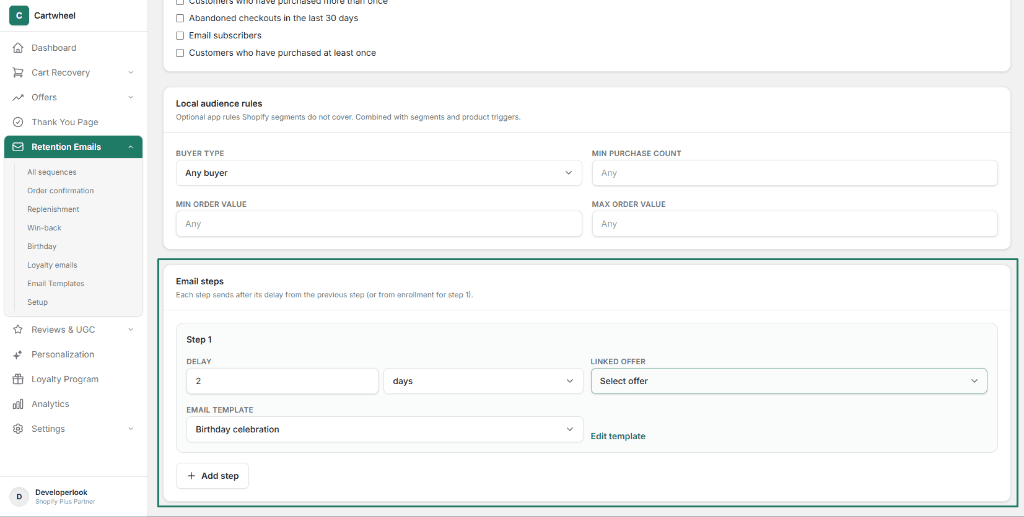
In the Email steps card:
- Step 1 (Celebratory Greeting & Gift):
- Delay: Set the delay (e.g.
0 daysto send on the milestone morning, or2 days). - Linked Offer: Click the Select offer dropdown to attach an active Cartwheel Offer with exclusive discount codes or recommended products.
- Email Template: Select the Birthday celebration template. Click Edit template to customize the MJML design.
- Delay: Set the delay (e.g.
- Step 2 (Expiring Gift Reminder — Optional):
- Click + Add step.
- Set delay (e.g.
7 days). - Attach your offer and reminder template.
- In the top right header, click Save sequence.
Requirements Checklist for Live Sending
Before birthday emails can send to your customers, ensure all four components are configured:
| Requirement | Where to Verify | Purpose |
|---|---|---|
| 1. Checkout Upsell Block Enabled | Checkout Upsell Guide | Automatically embeds the birthday capture widget and writes order note attributes |
| 2. Customer Birthday Saved | Customer Profile or app.birthday metafield | Provides the date trigger for the annual scheduler |
| 3. Active Birthday Sequence | Cartwheel → Retention Emails → Birthday | Configures the email template, delays, and linked gift offers |
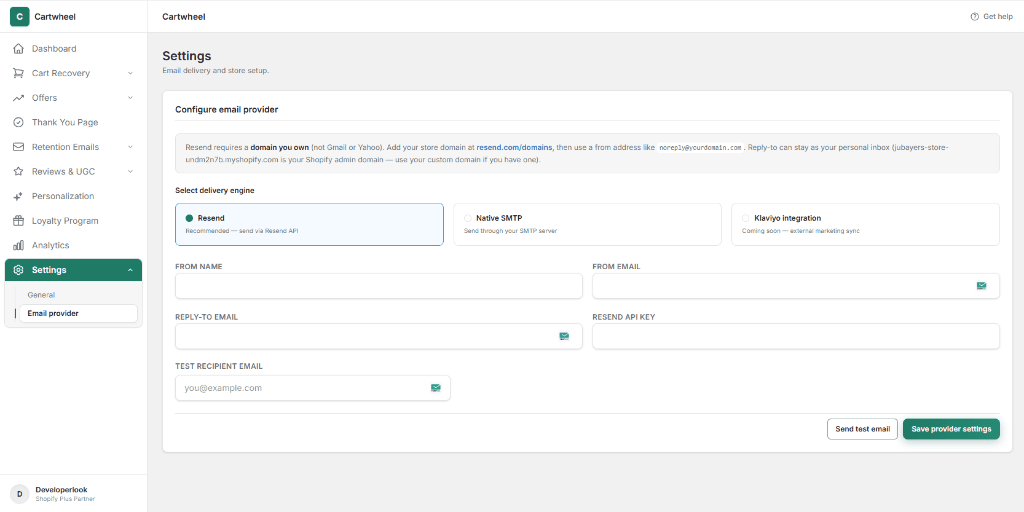
| 4. Verified Email Provider | Cartwheel → Settings → Email Provider | Connects Resend API or Custom SMTP for reliable inbox delivery |
How to Test Birthday Emails
Because birthday emails send on the customer's actual calendar date, use this testing procedure to verify delivery immediately without waiting months:
- In your Shopify Admin, navigate to Customers.
- Select your own test customer profile (using an email address you can check).
- Scroll down to Metafields, locate
app.birthday, and set the date to Today's date (e.g., if today is August 19, set the year, month, and day to2000-08-19). - Ensure your Retention → Birthday sequence is set to Active.
- In Settings → Email Diagnostics, ensure your email provider shows a connected status.
- The background scheduler will identify the matching month/day, enroll the test profile, and dispatch your celebratory email.
- Verify that the email arrives in your inbox with the expected subject line, personalized customer greeting, and linked offer discount code.
Frequently Asked Questions
Why didn't the customer get a discount at checkout when saving their birthday?
The Birthday block is designed as an audience capture tool, not an instant checkout coupon. It collects the customer's date of birth so your store can send an automated celebratory gift on their actual birthday. If you want to offer instant discounts at checkout, use a Checkout Upsell or Exit Intent Offer.
What happens if a customer places an order as a guest?
The birth date is captured in the order note attributes (Birthday and _customer_birthday). When the order is paid, Cartwheel extracts the date from the order payload, creates the customer profile, and syncs the date to Shopify's app.birthday customer metafield.
Can staff edit birthdays manually in Shopify Admin?
Yes. Staff can view and edit the app.birthday metafield under Shopify Admin → Customers → Customer details → Metafields. When updated, Shopify triggers a customers/update webhook and Cartwheel immediately syncs the new date.
Can customers receive more than one birthday email per year?
No. Cartwheel tracks lastBirthdayEmailYear on each profile. Once a birthday email is sent, the year is recorded to prevent duplicate sends within the same calendar year.
Related Guides
- Retention Sequences Overview — managing lifecycle email sequences
- Email Provider Setup & Diagnostics — configuring Resend, SMTP, and DNS authentication
- Email Template Builder — creating celebratory MJML email templates
- Loyalty Program & Tiers — managing points, customer tiers, and rewards
- Checkout Upsell Guide — adding in-checkout product cross-sells and upsell blocks