
Thank You Page Suite & Surveys Guide
Transform Shopify's post-checkout order confirmation page into an interactive customer engagement, attribution survey, and viral referral hub using Cartwheel's visual block builder.
Overview: The Visual Thank You Page Builder
Navigate to Shopify Admin → Apps → Cartwheel → Thank You Page (/app/thank-you).
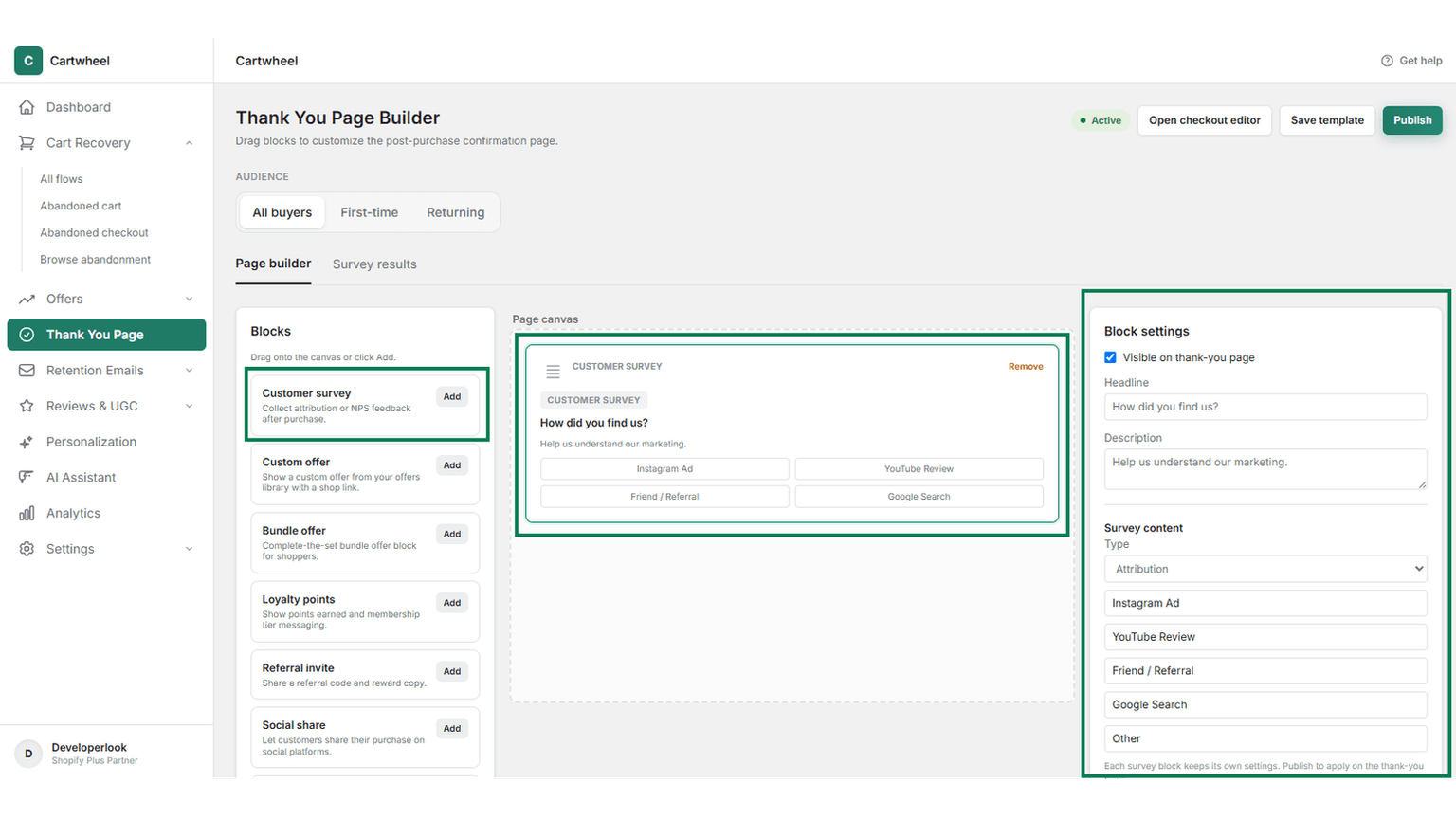
Cartwheel provides a unified visual page builder allowing you to customize the order confirmation experience for different buyer cohorts:
- Any Buyer (
?audience=ANY): Default layout shown to all completed checkouts. - First-Time Buyer (
?audience=FIRST_TIME): Tailored layout with brand introductions, welcome surveys, and first-order perks. - Returning Buyer (
?audience=RETURNING): VIP layout featuring loyalty point balances, referral links, and repeat customer surveys.
Customer Completes Order & Lands on Thank You Page
Thank You Page Builder Block
Thank You Page Custom Offer Block Rendered
Accept CTA
Perk / Add-on Claimed
Custom Perk Added
Decline
Offer Closed
Standard Thank You View
Order Completed
Thank You Page Experience Finalized
Supported Thank You Block Types
You can assemble custom Thank You page experiences using 8 modular block types:
| Block Type | Identifier | Purpose & Capabilities |
|---|---|---|
| Post-Purchase Survey | survey | Attribution ("How did you hear about us?") or NPS customer satisfaction surveys. Displays live response statistics inline. |
| Custom Text Banner | custom_text | Custom text headlines, order processing notes, support hours, or delivery expectations with custom alignment. |
| Divider | divider | Visual divider line to separate sections cleanly. |
| Custom Offer | custom_offer | Showcase a standalone product offer with a special discount code. |
| Bundle Offer | bundle_offer | Feature complementary product bundles available for instant next-order purchase. |
| Loyalty Balance | loyalty | Display the customer's current loyalty point balance and VIP tier badge. |
| Referral Link | referral | Provide a personal referral link for customer sharing. |
| Social Share Claim | social | Reward customers who share their purchase on Instagram, Facebook, X (Twitter), WhatsApp, LinkedIn, or TikTok with a discount coupon or bonus loyalty points. |
Step 1: Building and Customizing Your Layout
- In Thank You Page, use the top audience selector to choose Any buyer, First-time buyer, or Returning buyer.
- Add Blocks: Click Add Block and select any widget from the block library.
- Reorder Blocks: Drag and drop block cards in the canvas to adjust the vertical display order.
- Edit Block Settings:
- For Survey Blocks: Click Edit Survey to customize question headlines, description notes, and choice options (e.g. Instagram, TikTok, Google, Friend/Family, YouTube).
- For Social Share Blocks: Select platforms to enable and define the incentive reward (e.g. $10 OFF Next Order or 100 Loyalty Points).
- For Custom / Bundle Offers: Pick an active offer created in the Offers dashboard.
- Click Save Draft to store your layout safely, or click Publish Live to push the template to live checkouts.
Step 2: Inspecting Live Survey Results & Analytics
Cartwheel tracks post-purchase survey responses in real time:
- On any survey block in the Thank You Page Builder, click View Results & Stats.
- Review total completed responses, response percentage breakdown per option, and submission timestamps.
- Use attribution insights to optimize your advertising budget across Meta, Google, TikTok, and influencer channels.
Step 3: Enabling Checkout UI Extensions in Shopify
To display Cartwheel Thank You widgets on your live storefront:
- In your Shopify Admin, navigate to Settings → Checkout.
- Under Configurations / Customization, click Customize next to your active checkout.
- In the top page dropdown selector, change Checkout to Thank You.
- In the left-hand section tree, click Add Block and select Cartwheel Thank You Page.
- Position the block in your desired page slot (e.g. below the order summary or in the main confirmation column).
- Click Save in the top right header.
Related Guides
- Post-Purchase Cross-Sells Guide — single-click upsells displayed before the Thank You page
- Custom Offers Guide — creating standalone product offers for Thank You blocks
- Smart Personalization Guide — tailoring Thank You templates by buyer type
- Analytics & Revenue Attribution Guide — tracking post-purchase engagement