
Abandoned Checkout Recovery Guide
Recover lost revenue from high-intent shoppers who initiate checkout by entering their email or contact details, but leave before completing payment.
Overview: How Abandoned Checkout Recovery Works
Abandoned checkout recovery targets customers at the highest-intent moment of their buying journey. When a customer enters their email on Step 1 of your Shopify checkout form, Shopify generates a checkout session token. If the checkout remains incomplete after your configured idle threshold (e.g. 60 minutes), Cartwheel automatically enrolls the customer into a multi-step recovery sequence.
Checkout Permalink & Session Restoration
Every checkout recovery email generated by Cartwheel includes a dynamic Checkout Resume Link (recoveryUrl).
When the customer clicks the recovery link in their email:
- Cart Items Restored: All original line items, quantities, and selected product variants are reloaded.
- Pre-Filled Shipping Details: The customer's pre-entered email, name, and shipping address are restored into the checkout form.
- 1-Click Checkout Resume: The shopper is brought directly back to the checkout page ready to complete their payment with all items intact.
Step-by-Step Configuration Guide
To create and publish an Abandoned Checkout Recovery sequence:
- In your Shopify Admin, navigate to Apps → Cartwheel → Cart Recovery.
- Click the Abandoned checkout tab in the sub-navigation bar (or stay on All flows).
- In the top right action bar, click Create checkout flow (or click Create flow → Checkout flow).
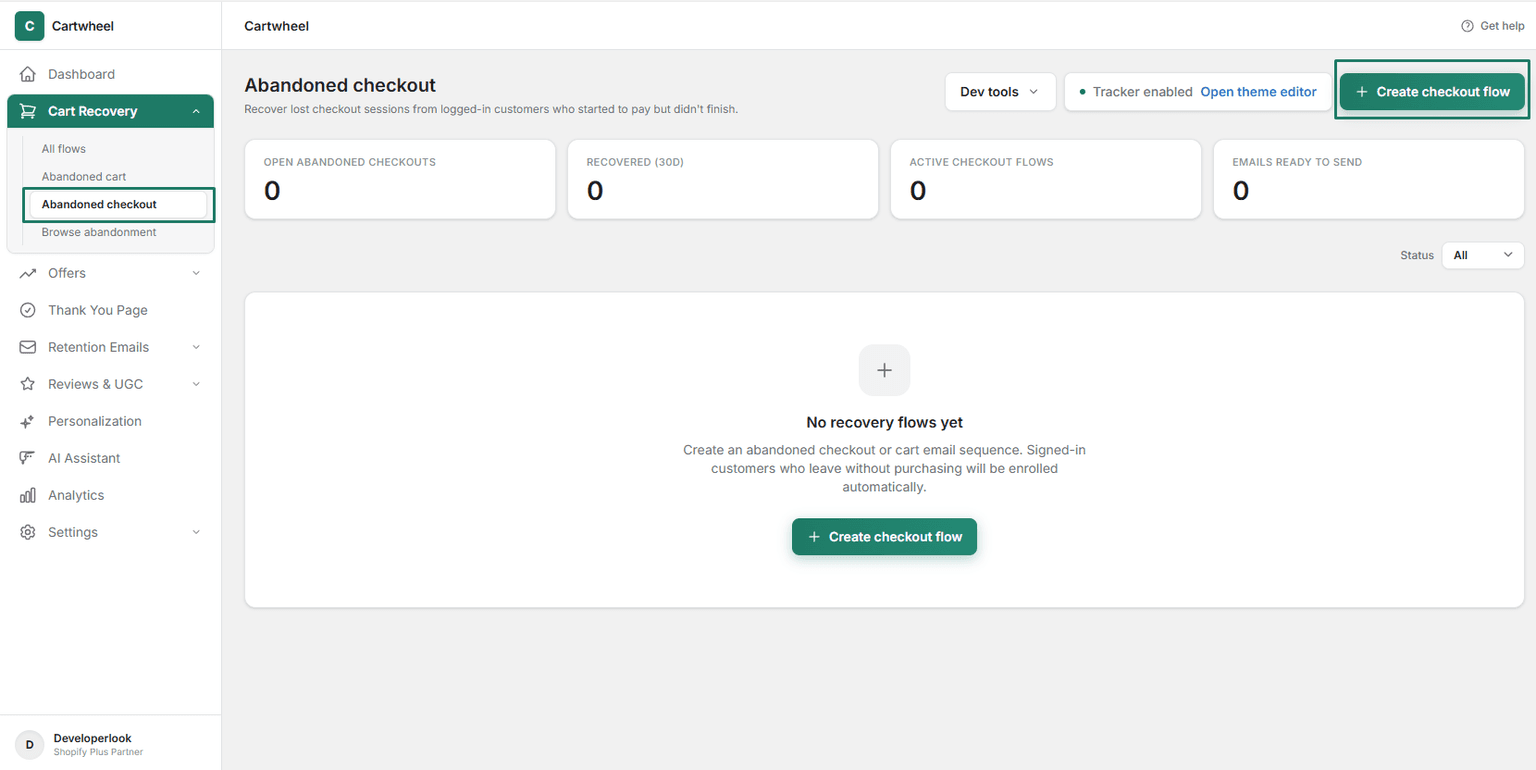
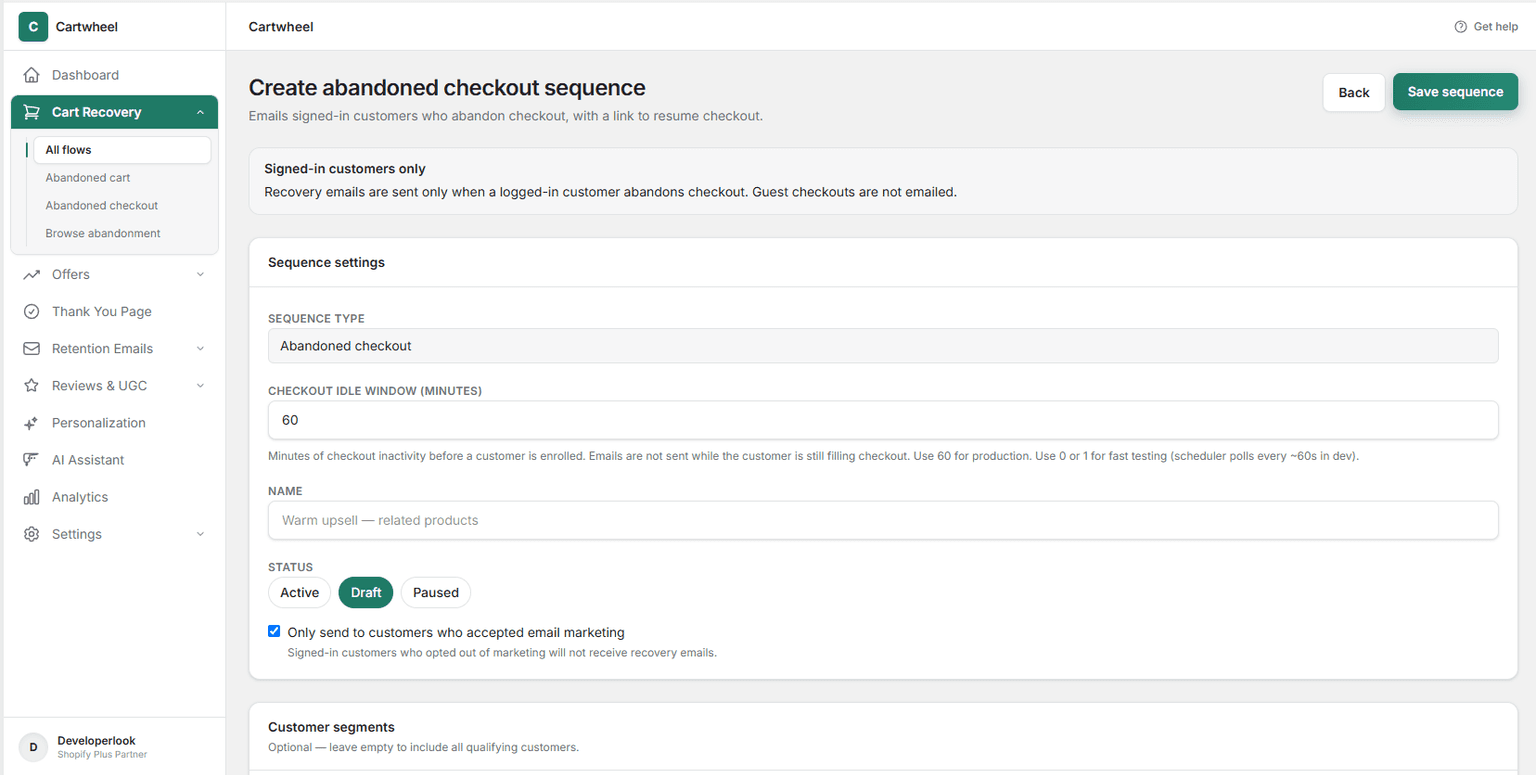
- Configure Sequence Settings:
- Sequence Type: Displays
Abandoned checkout. - Checkout Idle Window (minutes): Specify how many minutes of checkout inactivity must pass before the customer is enrolled (default is
60 minutes; use0or1for fast development testing). - Name: Enter a descriptive label (e.g. Main Abandoned Checkout Drip).
- Status: Select Active using the toggle pill buttons (options: Draft, Active, Paused).
- Marketing Consent Check: Check Only send to customers who accepted email marketing if you wish to restrict emails to customers who opted into store marketing at checkout.
- Sequence Type: Displays
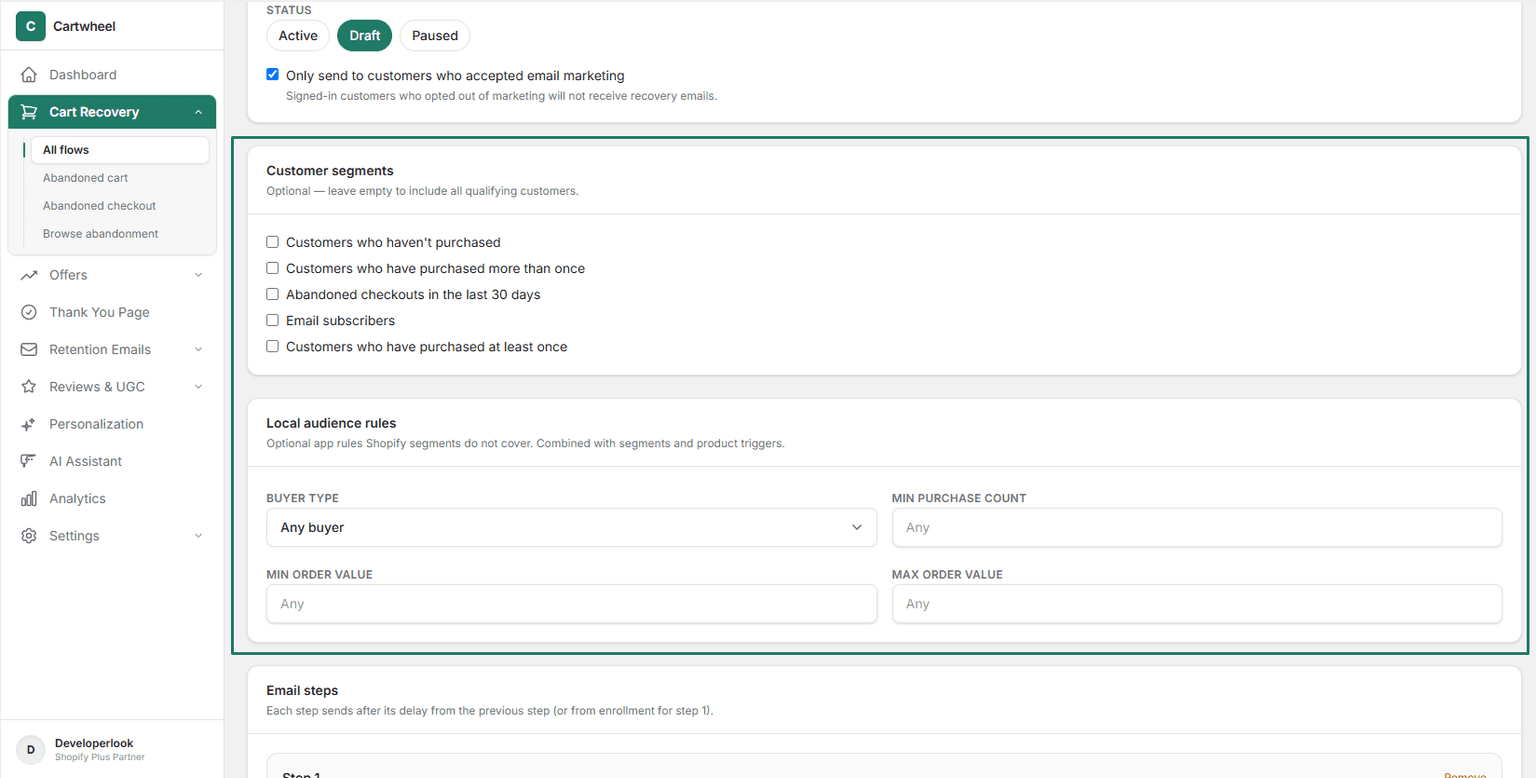
- Customer Segments & Local Audience Rules (Optional):
- Customer Segments: Select specific Shopify customer segment checkboxes, or leave unchecked to include all qualifying shoppers.
- Local Audience Rules: Refine targeting with:
- Buyer Type: Select
Any buyer,First-time buyers, orReturning buyers. - Min Purchase Count: Filter by previous purchase count.
- Min / Max Order Value: Restrict enrollment by minimum or maximum checkout value.
- Buyer Type: Select
- Build Email Steps:
- Step Delays: Set the delay number and unit (
minutes,hours, ordays) from the previous step (or from enrollment for Step 1). - Template Selector: Choose an email template from the dropdown (e.g. Abandoned checkout reminder). Click Edit template to customize the email in the visual template builder.
- Add / Remove Steps: Click Add Step to add additional follow-ups, or click Remove on individual step cards.
- Step Delays: Set the delay number and unit (
- Save and Publish: In the top right header, click Save sequence to activate checkout recovery.
Recommended Multi-Step Timeline
| Step | Suggested Delay | Recommended Content & Strategy |
|---|---|---|
| Email 1: Friendly Reminder | 30 to 60 minutes | Gentle reminder highlighting saved cart line items, product imagery, and a direct Complete My Order button. |
| Email 2: Helpful Check-in | 24 hours | Re-engagement message addressing common customer questions (shipping times, return policies, or store contact info) with a direct checkout resume link. |
| Email 3: Final Urgency Notice | 48 hours | Helpful reminder that items in cart are in high demand and not reserved indefinitely to encourage completing the order. |
Automatic Cancellation Safeguards
Cartwheel automatically protects your customers from unwanted emails:
- Order Paid Cancellation: Once the customer completes payment, Cartwheel's
orders/paidwebhook fires instantly, cancelling all remaining unsent steps. - Unsubscribe Compliance: Includes a single-click unsubscribe link in every email footer.
Related Guides
- Abandoned Cart Recovery Guide — recovering on-site cart abandonment
- Abandoned Browse Retargeting Guide — re-engaging product page browsers
- Email Template Builder Guide — designing custom email layouts
- Provider Setup & Diagnostics Guide — configuring custom SMTP or Resend gateways