
UGC Moderation & Gallery Management Guide
Curate, moderate, and publish verified customer photos, videos, and tagged Meta social media posts directly into live storefront review blocks and visual carousels.
Overview: UGC Moderation Workflow
In your Shopify Admin, open Apps → Cartwheel → Reviews & UGC, then select the UGC moderation tab from the left sub-navigation.
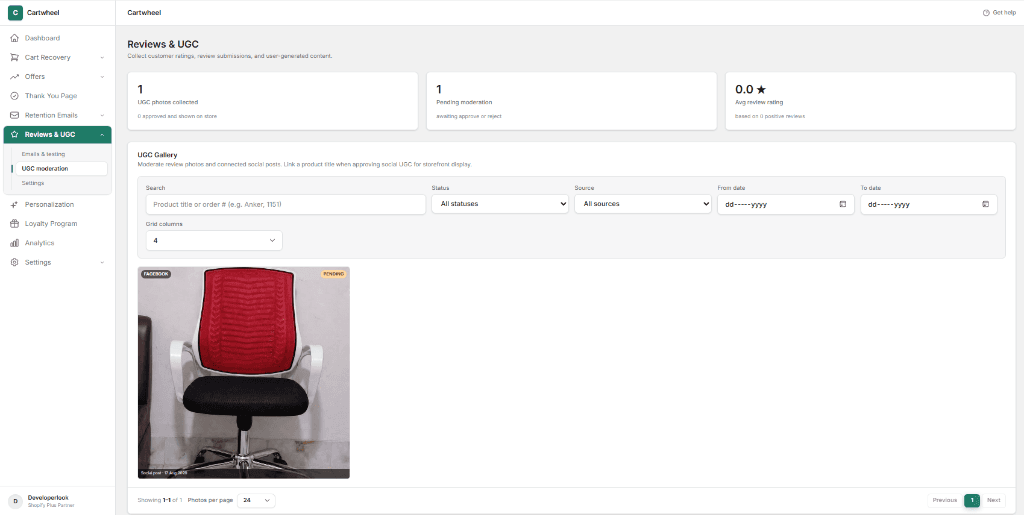
The UGC Moderation Gallery is your central command center for curating all visual social proof collected across post-delivery customer reviews and synced Meta channels (Facebook Page tagged posts & Instagram feeds).
1. Moderation KPI Metrics
At the top of the UGC moderation workspace, three live stat cards summarize your store's media pipeline:
| Metric Card | Value & Subtext | Purpose |
|---|---|---|
| UGC photos collected | Total count (e.g. 1 UGC photos collected — 0 approved and shown on store) | Tracks the complete volume of visual assets imported into Cartwheel across reviews, Meta sync, and manual uploads. |
| Pending moderation | Queue count (e.g. 1 Pending moderation — awaiting approve or reject) | Highlights pending customer photos and social posts that need a publishing decision. |
| Avg review rating | Star score (e.g. 0.0 ★ Avg review rating — based on 0 positive reviews) | Displays the overall customer satisfaction rating across your store's verified review submissions. |
2. Searching & Filtering Media Submissions
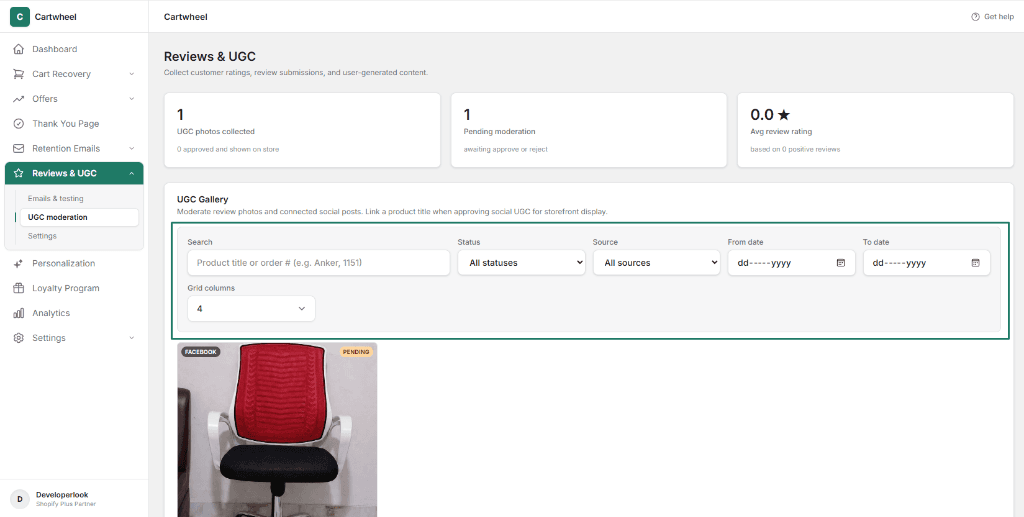
Use the interactive filter bar to quickly locate and organize customer photos:
- Search Input: Type a product title, keyword, or Shopify order number (e.g.,
Anker,1151, or#1042) to filter submissions instantly. - Status Dropdown:
- All statuses: Displays every asset regardless of publication state.
- Pending: Filters to unmoderated media awaiting merchant review.
- Approved: Displays published photos currently rendering on live storefront widgets.
- Rejected: Displays excluded photos hidden from customer view.
- Source Dropdown:
- All sources: View media from all connected channels.
- Review: Photos and videos submitted by customers via post-purchase review request emails.
- Instagram: Tagged posts and reels imported from your connected Instagram Business account.
- Facebook: Visitor posts and brand mentions imported from your connected Facebook Page.
- Manual: Direct admin media uploads.
- Date Range Pickers (
From date/To date): Filter media submissions captured within specific campaign date windows (dd-mm-yyyy). - Grid Columns: Adjust the gallery layout density (e.g.,
4,3, or2columns) to comfortably inspect photos on screens of any size. - Clear Filters: Appears whenever filters are active to reset back to default view with a single click.
3. Media Card Badges & Hover Actions
Each submission in the moderation grid displays real-time status badges and an interactive action overlay:
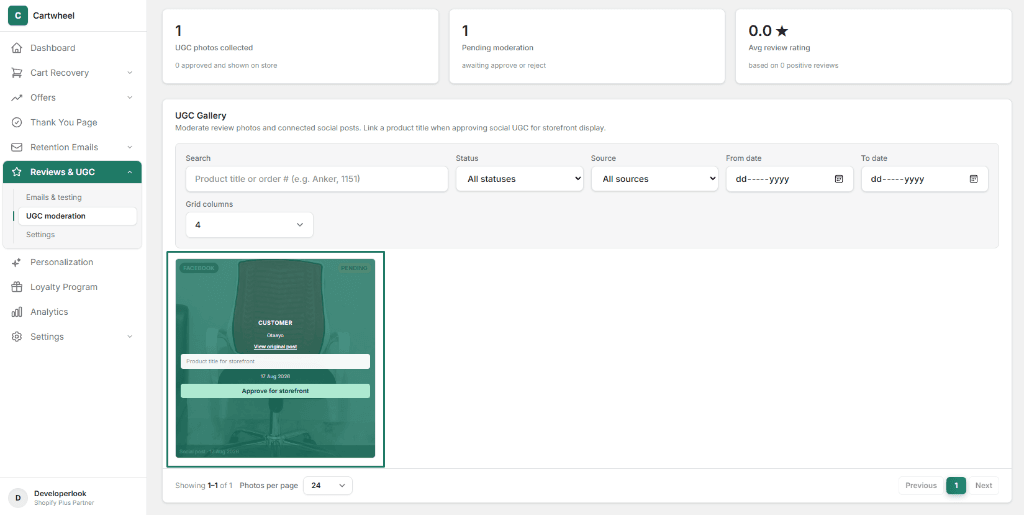
Media Card Visual Badges:
- Source Badge (Top Left): Identifies the origin channel (e.g.,
FACEBOOK,INSTAGRAM, orREVIEW). - Status Badge (Top Right):
PENDING(Yellow): Needs merchant review.✓(Green Circular Checkmark): Approved and live on storefront widgets.REJECTED(Red): Hidden from storefront.
- Bottom Metadata Bar: Displays the linked product title, creator handle (e.g.,
@handle), order reference (Order #1151/Social post), and date timestamp (17 Aug 2026).
Step-by-Step Moderation Actions:
Hover your cursor over any photo card to reveal the dark emerald action panel:
Review Creator Context:
- Inspect the customer or creator name (e.g. Otaxyo).
- Read the customer's written review caption or social post text.
- For Instagram or Facebook posts, click the View original post hyperlink to verify the live social context directly on the platform.
Link Media to a Catalog Product (For Social UGC):
- Social posts imported from Meta don't automatically know which catalog product they feature.
- In the Product title for storefront field, type the exact name of the matching product in your Shopify catalog (e.g., Ergonomic Office Chair).
- Cartwheel will automatically route this media item to appear on that specific product's review block and filtered gallery widgets.
Approve for Storefront:
- Click the green Approve for storefront button.
- The asset instantly transitions to
APPROVEDstatus, receives the green checkmark badge, and goes live on your store's review blocks and UGC carousels.
Rejecting & Reversing Decisions:
- For any published asset, hover over the card and click the red Reject button to immediately remove it from your live storefront.
- Decisions are 100% reversible at any time by toggling the status filter to
Rejectedand clicking Approve for storefront.
4. Live Storefront Presentation
Once approved, customer visual proof automatically renders in two primary theme components:
- Product Reviews Block (
Product reviews): Approved customer photos render as clickable thumbnail galleries directly above written customer ratings, opening into high-resolution full-screen modal lightboxes when tapped. - UGC Gallery Carousel (
UGC gallery): Displays a curated, responsive multi-column grid or interactive slider of authentic customer photography across your home page or product pages with direct "Shop the Look" product tags.
Related Guides
- Storefront Setup & Block Customization — embedding UGC carousels and review widgets in Shopify Theme Editor
- Review Settings & Meta Connection — connecting Facebook Pages and Instagram accounts for automated social syncing
- Review Request Emails — automating post-fulfillment review requests with photo incentive discounts
- Loyalty Program & Tiers — rewarding bonus loyalty points to customers who upload photo reviews