
Replenishment Email Sequences Guide
Automate timely restock reminders for consumable products (supplements, cosmetics, coffee beans, pet supplies, printer cartridges) to capture repeat orders right before customers run out.
Overview: How Replenishment Sequences Work
Replenishment sequences predict when a customer is about to deplete a previously purchased consumable item. Cartwheel tracks customer purchase dates, computes the expected product usage lifecycle (replenishmentDays), and dispatches automated reminder emails with single-click re-order links.
Customer Buys Consumable Product
Replenishment Scheduler
Usage Lifecycle Scan (e.g. 25-30 Days)
25 Days Elapsed
Gentle Restock Reminder Email
30 Days Elapsed
Urgent Replenishment + 10% Off
Pre-Populated Cart Link
1-click item restocking at checkout
Creating a Replenishment Sequence
To create and publish a replenishment workflow:
- In your Shopify Admin, navigate to Apps → Cartwheel → Retention Emails.
- In the top sub-navigation menu, select the Replenishment tab.
- In the top right header, click Create sequence.
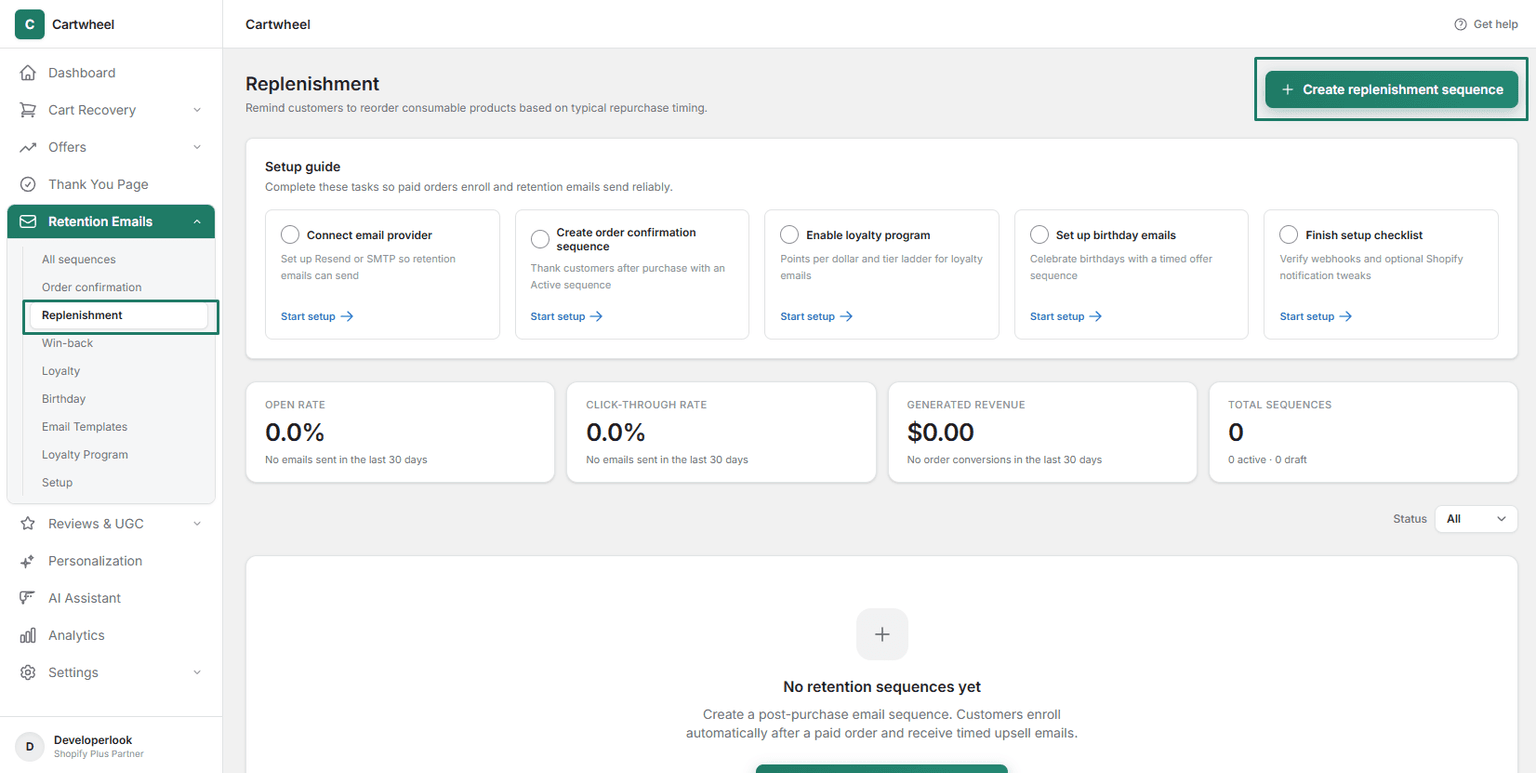
Step 1: Configure Sequence Settings
In the Sequence settings card:
- Sequence Type: Displays
Replenishment(fixed system type). - Name: Enter an internal reference name (e.g. Monthly Skincare Restock Reminder).
- Replenishment Days: Specify the typical consumption timeframe in days (e.g., enter
30for monthly products or60for two-month supplies). - Status: Select operational status:
- Draft: Keep selected while configuring copy and templates.
- Active: Dispatches automated restock reminders when items become due.
- Paused: Temporarily suspends sends without losing customer queue data.
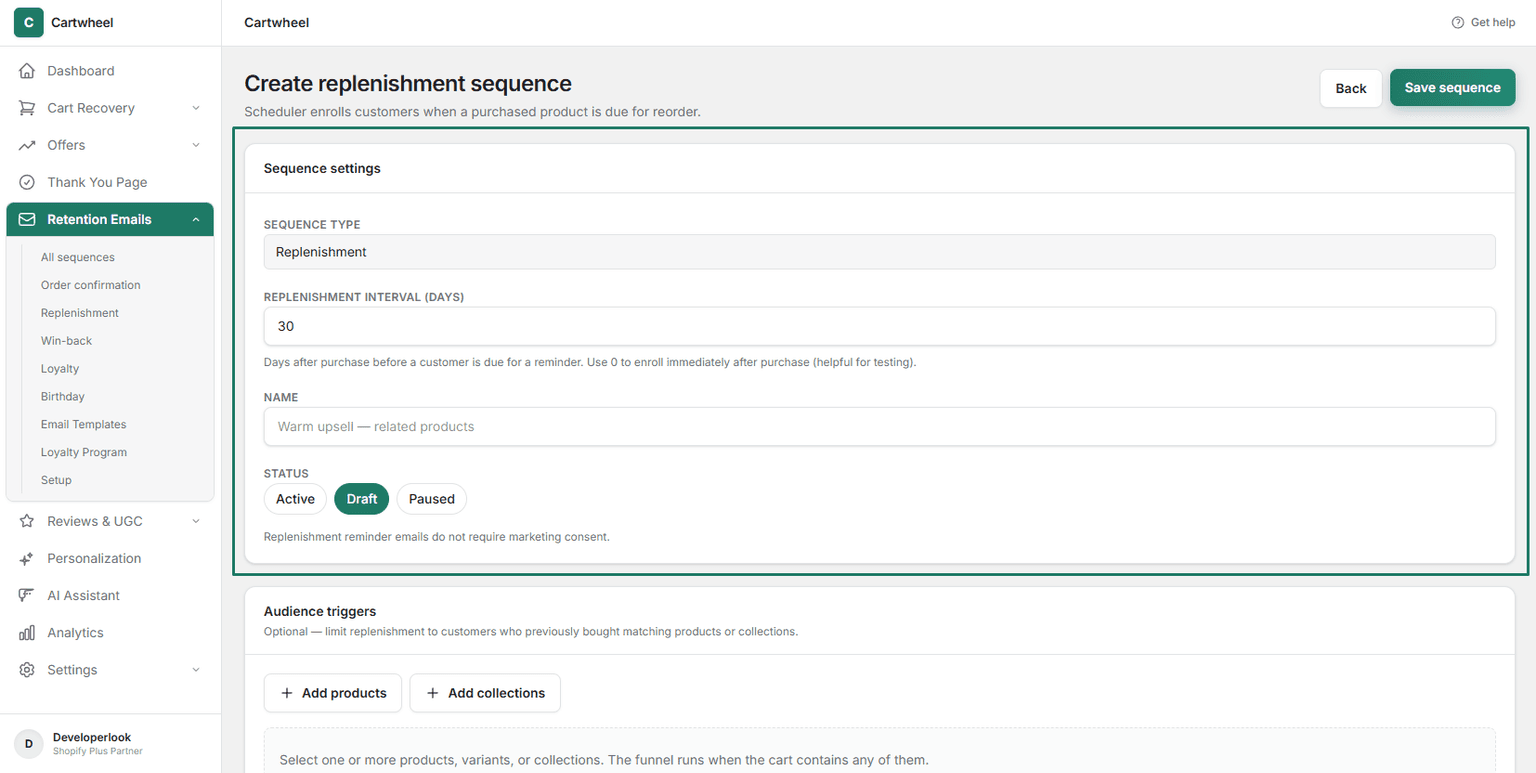
Step 2: Set Audience Triggers (Product & Collection Filters)
In the Audience triggers card:
- Click + Add products to select specific consumable items or variants (e.g. Organic Daily Multivitamin - 60ct).
- Click + Add collections to include entire consumable categories (e.g. Coffee & Beans, Daily Essentials).
- Trigger Logic: The sequence only enrolls orders that contain at least one of the selected products or collections.
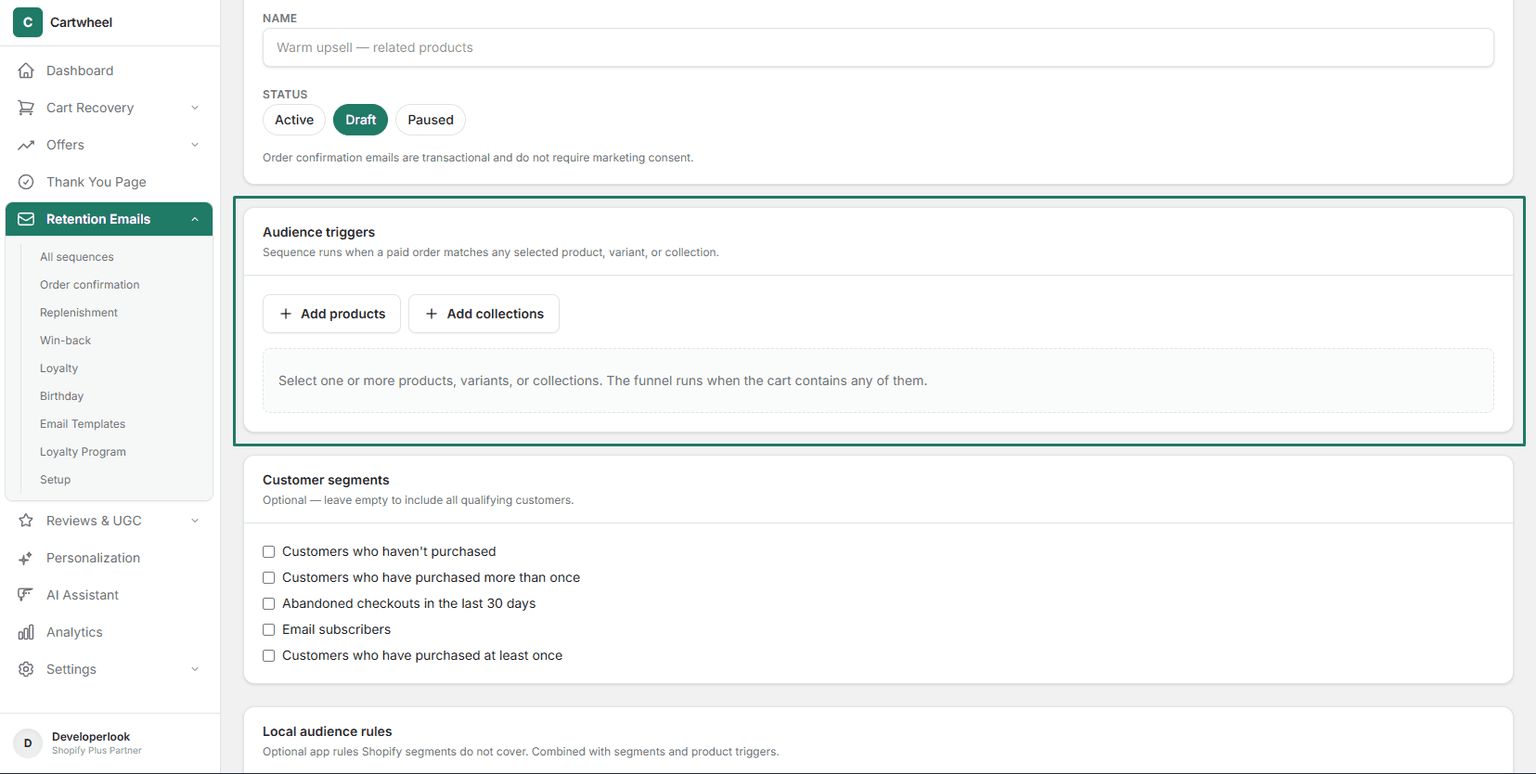
Step 3: Filter by Customer Segments (Optional)
In the Customer segments card:
- Target synced Shopify customer cohorts (e.g. Repeat Customers, VIP Tier Shoppers).
- Check the box next to desired segments, or leave empty to include all customers purchasing the trigger products.
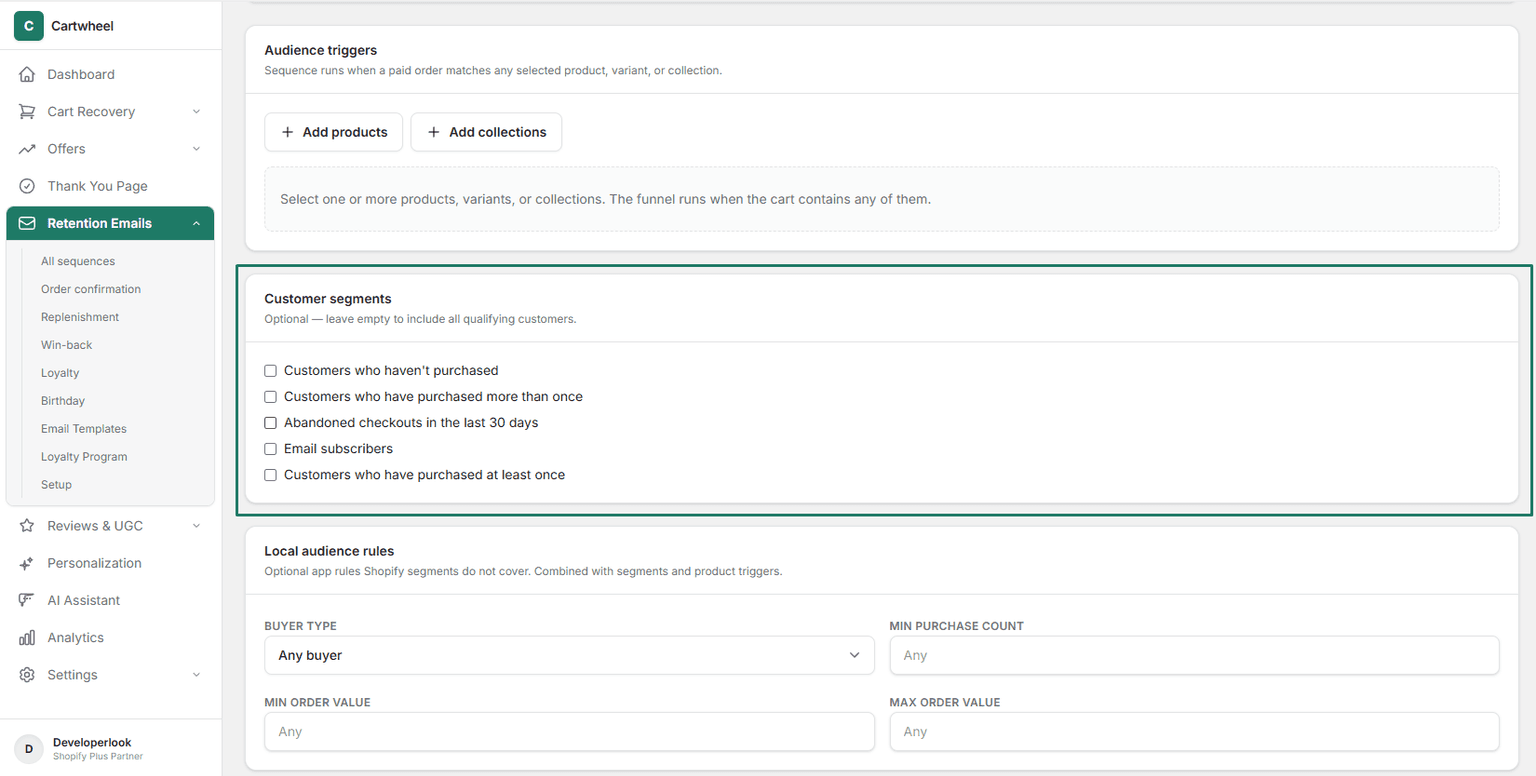
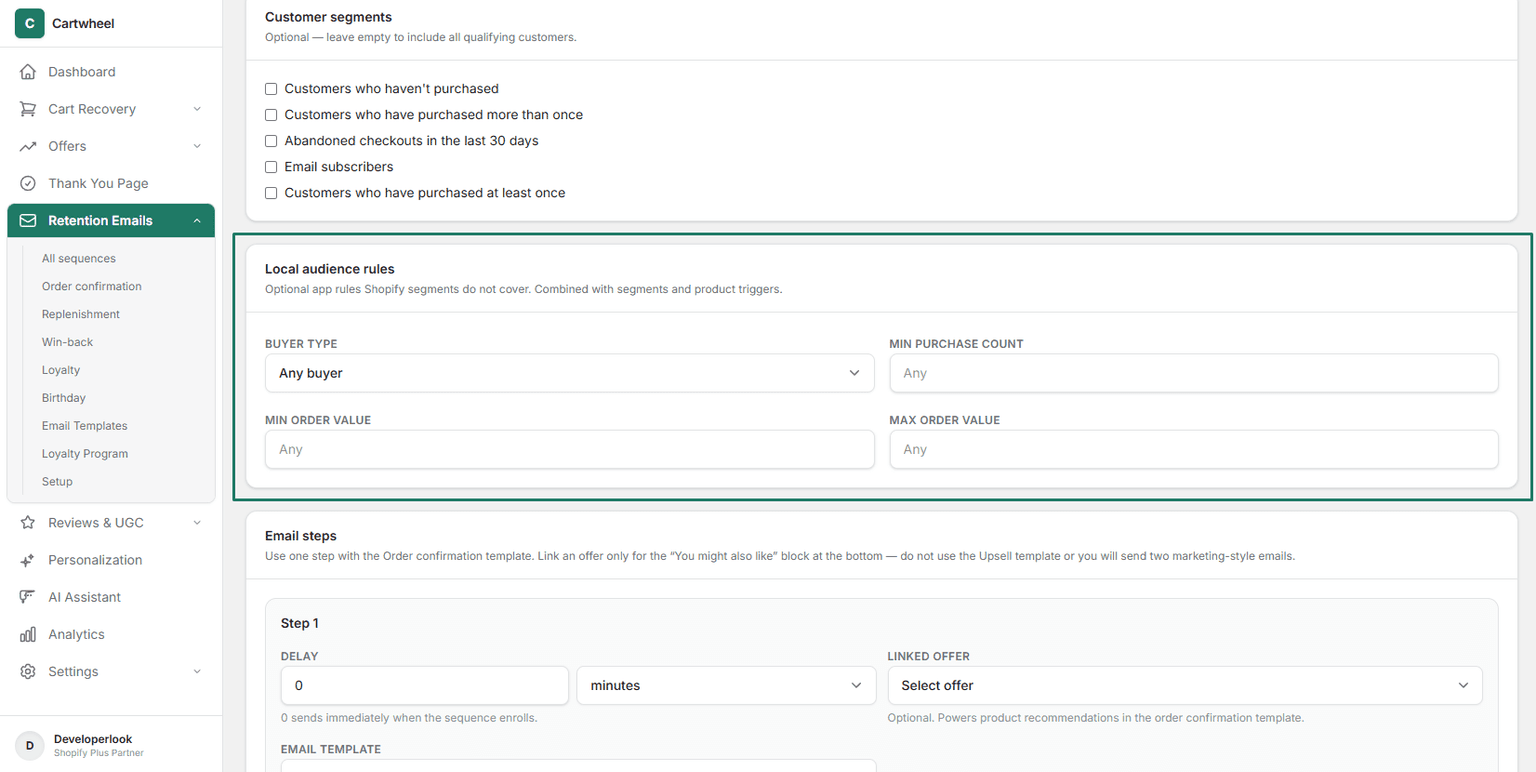
Step 4: Define Local Audience Rules (Optional)
In the Local audience rules card:
- Buyer Type: Select Any buyer, First-time buyer, or Returning buyer.
- Min Purchase Count: Require a minimum number of prior store orders (e.g., enter
1for verified repeat buyers). - Min / Max Order Value: Set optional dollar bounds on past orders.
Step 5: Configure Multi-Step Timeline & Templates
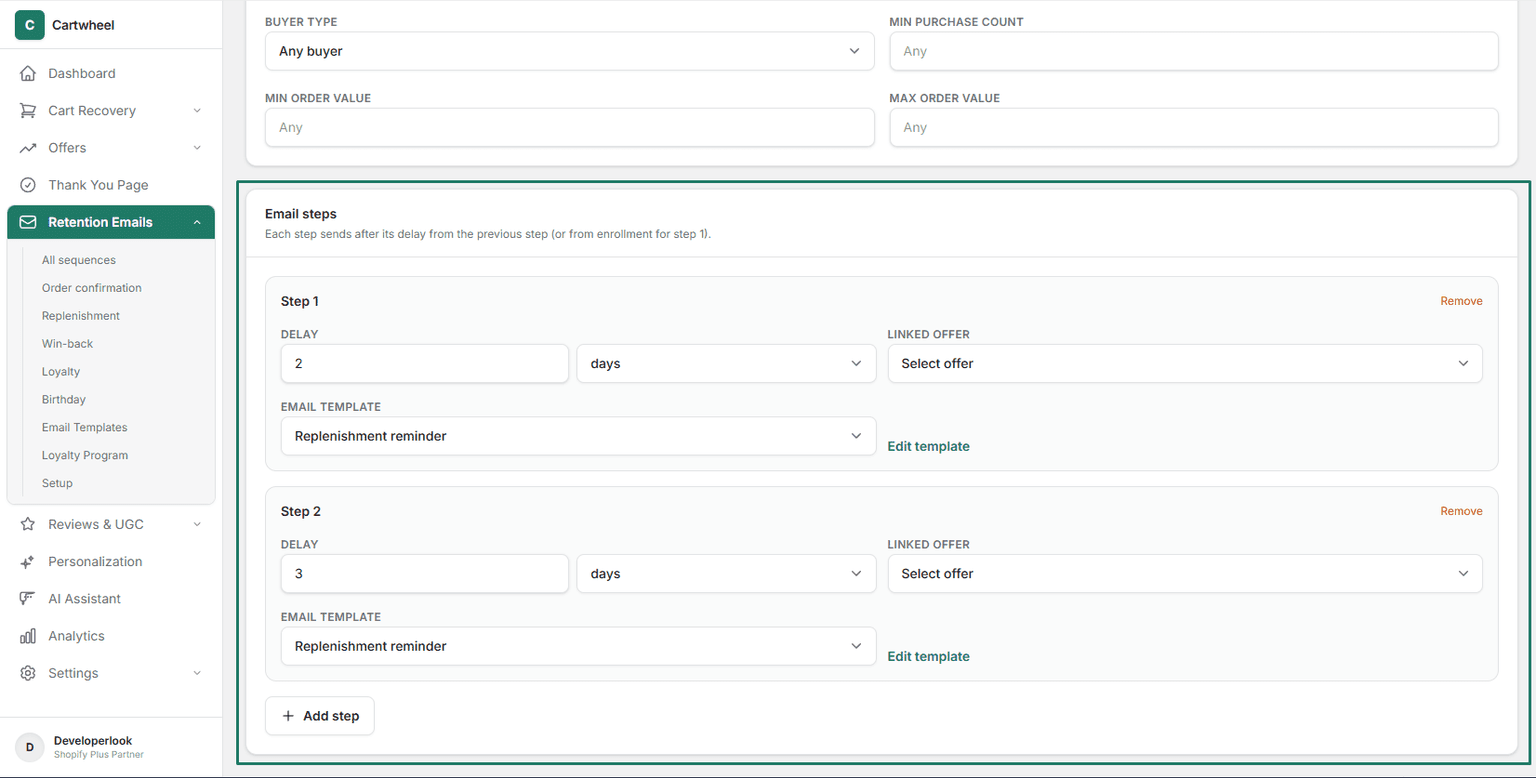
In the Email steps card:
- Step 1 (Restock Notice):
- Delay: Set the numeric delay (e.g.
0) and unit dropdown (minutes,hours,days— e.g.,0 dayssends when the replenishment due date arrives). - Linked Offer: (Optional) Link an active offer to populate the email with dynamic product recommendations or re-order links.
- Email Template: Select the Replenishment email template from the dropdown.
- Delay: Set the numeric delay (e.g.
- Step 2 (Follow-Up Reminder — Optional):
- Click + Add step.
- Delay: Set the follow-up interval (e.g.
7 days). - Linked Offer: Attach an offer.
- Email Template: Select your follow-up replenishment template.
Step 6: Save and Publish
- Set sequence status to Active.
- In the top right header, click Save sequence to launch automated restock tracking.
Best Practices for High-Converting Replenishment Emails
- Align Timing with Real Usage: Underestimating usage timing can annoy customers, while overestimating lets them buy from competitors. Check your Shopify order frequency data to pinpoint accurate depletion days.
- Single-Click Cart Links: Ensure your email template includes a direct Re-order Now button that reloads the exact variant into checkout.
- Bundle Upgrades: Use the Linked Offer feature to recommend double-packs or complete routine sets at a small volume discount.
Related Guides
- Retention Sequences Overview — managing all lifecycle email flows
- Win-Back Sequences Guide — re-engaging lapsed customers
- Loyalty Program & Tiers — awarding loyalty points for repeat restocks
- Email Template Builder — customizing MJML replenishment templates
- Email Provider Setup & Diagnostics — mail gateway authentication and webhook health